Choosing Your Inventory Source
After connecting your accounting system, Partsemble asks how you want to manage inventory. This decision affects how items flow between systems and what gets exported when you complete a build. Both options work well — the right choice depends on how your business already operates.
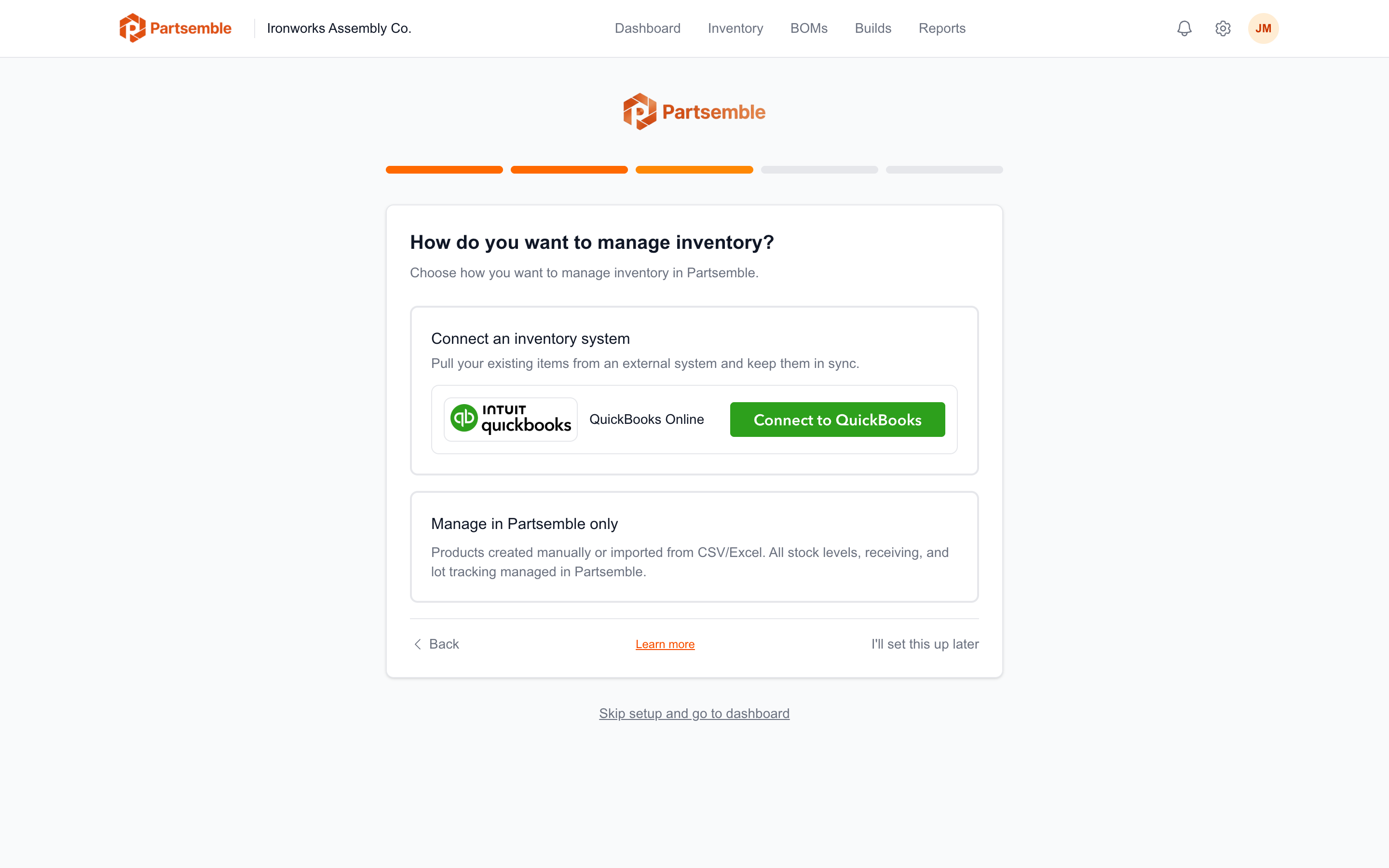
What This Decision Means
This setting controls two things: where your product catalog comes from, and what Partsemble writes back to your accounting system when a build is completed.
Option A: Sync With Your Accounting System
Choose this if your accounting system (e.g., QuickBooks Online) is already your source of truth for inventory.
How it works:
Partsemble pulls items from your accounting system and keeps them in sync. You select which items to import as Partsemble products. Changes to item names, SKUs, or other details in your accounting system are reflected in Partsemble on the next sync.
When you execute a build, the export includes inventory adjustments (component stock decreases, finished good stock increases) and a journal entry for COGS. Your accounting system stays fully up to date with actual inventory quantities.
When to choose this:
- You already track inventory quantities in your accounting system and want them to stay accurate
- Other parts of your business (sales, purchasing, reporting) rely on accounting system inventory data
- You want a single source of truth for inventory across all your tools
What to keep in mind:
- Item sync runs manually or on a schedule — it's not real-time
- Product details managed in your accounting system take precedence over Partsemble
- You'll need items set up in your accounting system before they appear in Partsemble
Option B: Manage in Partsemble Only
Choose this if you want Partsemble to be your primary inventory system, with accounting used only for financial reporting.
How it works:
No items are pulled from your accounting system. You create and manage all products directly in Partsemble — manually or by importing from a CSV/XLSX file. Inventory quantities live in Partsemble only.
When you execute a build, the export includes a journal entry (COGS) only — no inventory adjustments are sent to your accounting system. Your accounting system records the financial impact of builds, but Partsemble owns the inventory data.
When to choose this:
- You don't currently track detailed inventory in your accounting system
- You want Partsemble to be the single place you manage products and stock
- Your accounting system is primarily for financial reporting, not inventory management
What to keep in mind:
- Inventory quantities in your accounting system won't reflect Partsemble builds
- You'll manage products in Partsemble rather than in your accounting system
- Build exports still create financial transactions — you don't lose the accounting integration
If you're on QuickBooks Online Simple Start or Essentials, choose Partsemble-only mode. These QBO plans don't include inventory items, so there's nothing to sync — but Partsemble still exports your builds and receipts as journal entries so your financials stay accurate.
Can I Switch Later?
Yes. Go to Settings → Integrations and change your inventory mode at any time.
Switching from "Sync" to "Partsemble only" preserves all your product data and accounting item links in Partsemble. If you switch back to Sync later, previously linked products retain their connections.
Switching from "Partsemble only" to "Sync" activates inventory syncing, but it does not automatically link existing Partsemble products to items in your accounting system. After switching, you'll sync items from your accounting system and import them as new products. Products you created while in Partsemble-only mode remain independent unless you manually reconcile them.
If you think you might switch to Sync mode later, it's simpler to start in Sync mode from the beginning — that way your products are linked to accounting items from day one.
What About CSV/XLSX Import?
Regardless of which option you choose, you can always import products from a CSV or XLSX file. This is useful for bulk-loading your product catalog if you're starting fresh or migrating from another system.
See Importing Products for details on file format and the import process.
Example Scenarios
A metal fabricator using QuickBooks for everything. They track raw materials (steel sheet, hex bolts, welding wire) and finished enclosures as inventory items in QuickBooks. Sales orders pull from QuickBooks inventory. → Choose Sync. Partsemble builds update QuickBooks inventory so sales always see accurate stock.
A cabinet shop that tracks inventory in spreadsheets. They use QuickBooks for invoicing and financial reporting but never tracked inventory items there. → Choose Partsemble Only. Partsemble replaces the spreadsheet. Build COGS still flows to QuickBooks for accurate financials.
A machine-shop owner migrating from another system. They have a CSV export of all products and BOMs from their old system. They want to start fresh in Partsemble. → Choose Partsemble Only, import products from CSV, and let Partsemble handle inventory going forward.