QuickBooks Online
Partsemble integrates with QuickBooks Online (QBO) to sync your items, export builds and receipts, and pull sales data. The connection uses OAuth 2.0, so your credentials are never stored in Partsemble — only secure, encrypted tokens.
Connecting to QuickBooks Online
Navigate to Settings → Integrations and click Connect to QuickBooks. A popup opens where you sign in to your Intuit account and authorize Partsemble to access your company data.
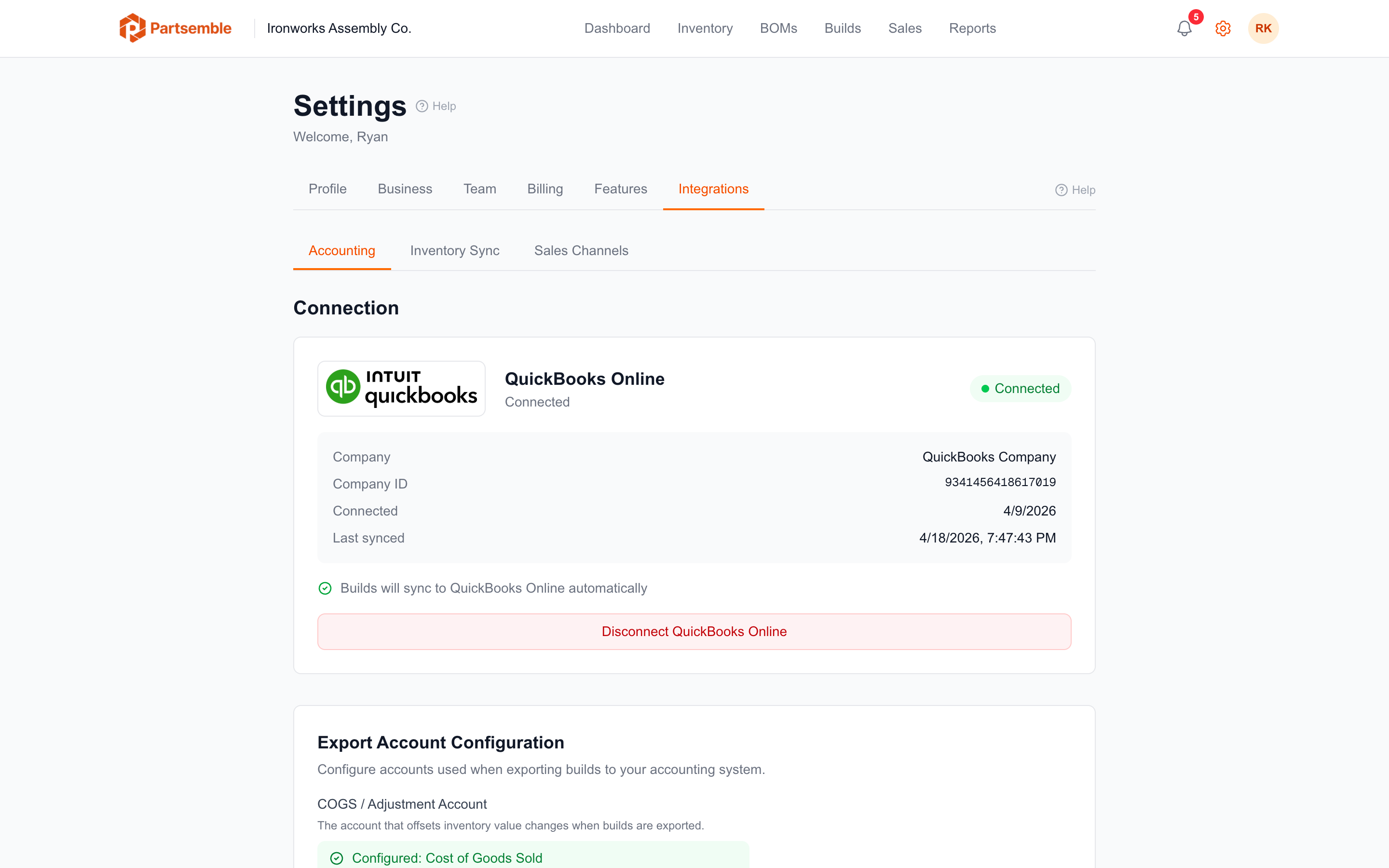
Once authorized, Partsemble stores the connection and displays your QBO company name. The connection is now active and ready to use for syncing items, exporting transactions, and pulling sales.
What Partsemble Accesses
With your authorization, Partsemble can:
Read items — your products, inventory items, non-inventory items, services, and bundles. This powers the item sync and product import features.
Read accounts — your chart of accounts, used to configure export accounts (COGS, receiving, waste, and GL accounts).
Create inventory adjustments — when you export builds or receipts, Partsemble creates inventory adjustments in QBO that update your item quantities.
Create journal entries — when using Partsemble-only inventory mode, exports are recorded as journal entries instead of inventory adjustments.
Read invoices, sales receipts, and credit memos — when sales tracking is enabled, Partsemble pulls these transactions to calculate margins and track finished good consumption.
Read vendors — used to match suppliers in receiving.
Token Management
Partsemble handles token refresh automatically. QBO access tokens expire after one hour, and Partsemble refreshes them in the background whenever needed. If a refresh fails (for example, if you revoke access from within QBO), Partsemble marks the connection as expired and prompts you to reconnect.
All tokens are encrypted at rest using AES-based encryption. Partsemble never stores your QBO username or password.
Connection Health
The Integrations settings page shows your connection status. A healthy connection shows the company name and last successful sync time. If the connection is expired or has errors, you'll see a prompt to reconnect.
Disconnecting
To disconnect, go to Settings → Integrations and click Disconnect. This deactivates the connection in Partsemble. Your data in Partsemble is preserved — disconnecting doesn't delete any synced items, products, builds, or sales. You can reconnect later to resume syncing.
If you want to revoke Partsemble's access from the QBO side, go to your Intuit account's app connections page and remove Partsemble there.
Other Providers
Partsemble also integrates with Xero. If you use Xero instead of QuickBooks, see the Xero integration guide for setup and details on how inventory management works differently.