Product Types
Every product in Partsemble has a type that describes its role in your manufacturing process. The type determines how the product appears in dropdowns, which reports it shows up in, and how Partsemble treats it during builds.
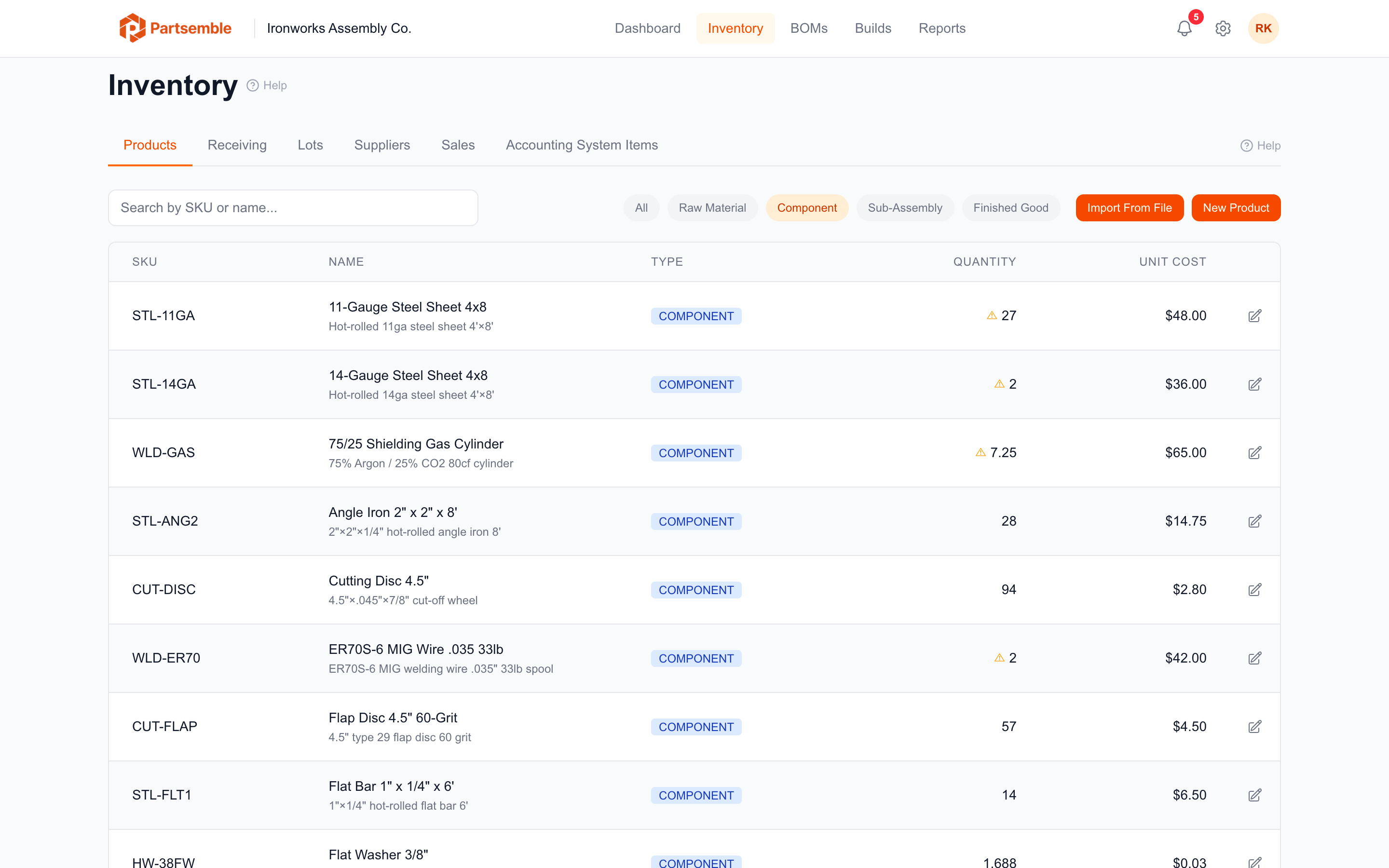
The Four Product Types
Raw Material
A raw material is something you purchase and use in production but don't manufacture yourself. Steel sheet, hex bolts, MIG welding wire, powder-coat paint, hinges, fasteners — anything you buy from a supplier and consume during assembly.
Raw materials appear as available components when you create a bill of materials. Their stock decreases when a build consumes them.
Component
A component is similar to a raw material — it's used as an input to a build. The distinction is organizational. Some businesses use "component" for items that are partially processed or have been through some preparation step, while "raw material" is reserved for items in their original purchased form.
In practice, Partsemble treats raw materials and components identically during builds. Use whichever label makes sense for how your team thinks about inventory.
Sub-Assembly
A sub-assembly is a product that you build from components and then use as a component in another product. It has its own BOM (so you can build it) and it can appear as a line item in another product's BOM.
For example, a welded steel frame built from steel tubing and welding wire is a sub-assembly if it then goes into a larger finished enclosure. A door assembly made from a steel panel, hinges, and a handle is a sub-assembly if it's used in multiple finished enclosure products.
Sub-assemblies support nested BOMs — Partsemble can calculate the full component tree and total cost across multiple levels of assembly.
Finished Good
A finished good is the end product of your manufacturing process — the thing you sell or deliver. When you execute a build, the finished good's stock increases and its unit cost is calculated from the consumed components and any cost lines on the BOM.
Finished goods are the products you typically set build points on and track sales for (if you use sales tracking on the Advanced plan).
Choosing a Type
When you create a product, you select its type from a dropdown. Here are some guidelines:
If you only buy it, never build it → Raw Material or Component.
If you build it and also use it in other builds → Sub-Assembly.
If you build it and sell it (or stock it as a final product) → Finished Good.
You don't need to use all four types. Many businesses operate with just two: raw materials for everything they purchase and finished goods for everything they produce. Keep it simple unless your process genuinely has intermediate build steps.
Changing a Product's Type
You can change a product's type at any time by editing the product. Navigate to the product detail page and click Edit. Select the new type from the dropdown and save.
Changing the type does not affect existing build history or stock transactions. It only changes how the product is categorized going forward.
If you change a finished good to a raw material while it has an active BOM, the BOM still exists but you won't be able to build it until the product type is set back to finished good or sub-assembly.
Example: Setting Up a Simple Product Catalog
Consider a small metal fabrication shop. Their product catalog might look like this:
| Product | Type | Notes |
|---|---|---|
| 14-Gauge Steel Sheet (4×8 ft) | Raw Material | Purchased from supplier |
| Hex Bolt 3/8"-16 × 1" | Raw Material | Purchased from supplier |
| MIG Welding Wire (.035, 10 lb) | Raw Material | Purchased from supplier |
| Hinge — Heavy Duty | Raw Material | Purchased from supplier |
| Industrial Enclosure 24" | Finished Good | Built from the above components |
If they also build a welded frame used across multiple enclosure types, that frame would be a sub-assembly — built from raw steel and welding wire, then used as a component in several finished good BOMs.