Sales Tracking Overview
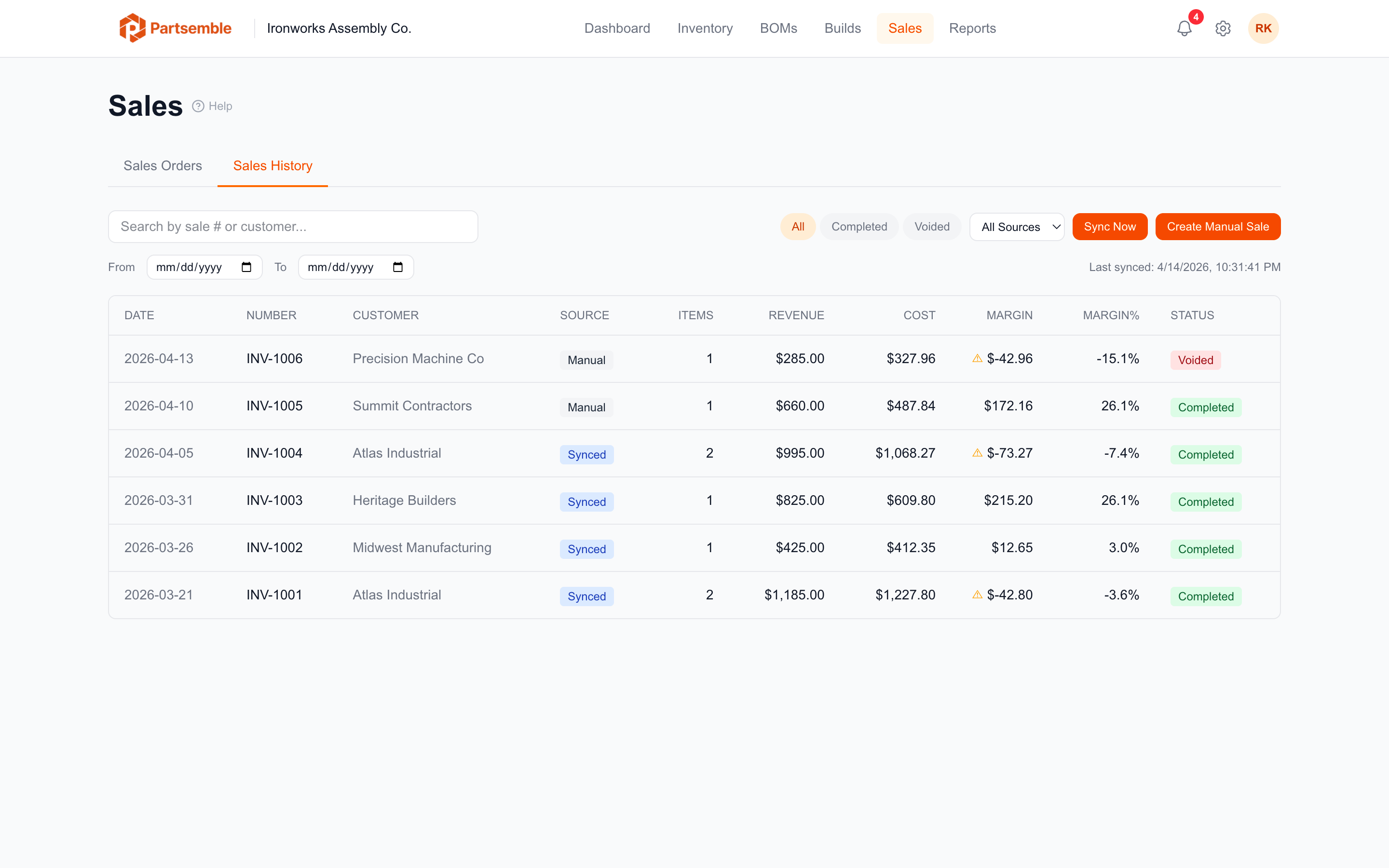
Sales tracking connects your production to your revenue. When a sale is recorded — synced from your accounting system or entered manually — Partsemble consumes finished good inventory using FIFO, calculates the true cost of goods sold from actual lot costs, and gives you per-sale and per-product margin visibility.
Sales tracking requires the Advanced plan and receiving must be enabled first (since FIFO lot consumption drives the cost calculations).
What Sales Tracking Does
Tracks finished goods consumption. Each sale line reduces the finished good's stock on hand, just like a build consumes components.
Calculates true COGS. Instead of using an average cost, Partsemble uses FIFO lot consumption to calculate the actual cost of the specific lots that were sold. This gives you accurate margins that reflect your real production costs.
Shows margins per sale and per product. Every sale shows total revenue, total cost, and margin. Every line item shows the same breakdown, so you can see which products are most (and least) profitable.
Flags stock shortages. If a sale is recorded for more quantity than you have in lot-tracked inventory, Partsemble flags the shortage and uses the product's weighted average cost for the shortfall.
Handles voids and reversals. When an invoice is voided or deleted in your accounting system, the next sync reverses the sale — lots are restored and stock is returned.
How Sales Get Into Partsemble
Synced sales — connect your accounting system as a sales channel and sync invoices and sales receipts automatically. Partsemble pulls new and updated transactions from QuickBooks Online (with more providers coming). See Syncing Sales.
Manual sales — enter sales directly in Partsemble for transactions that don't come through your accounting system. See Manual Sales.
Sales Types
Partsemble tracks three types of sales transactions from accounting systems: invoices, sales receipts, and credit memos. All are processed the same way — they consume finished good inventory and track margins.
The Sales Tab
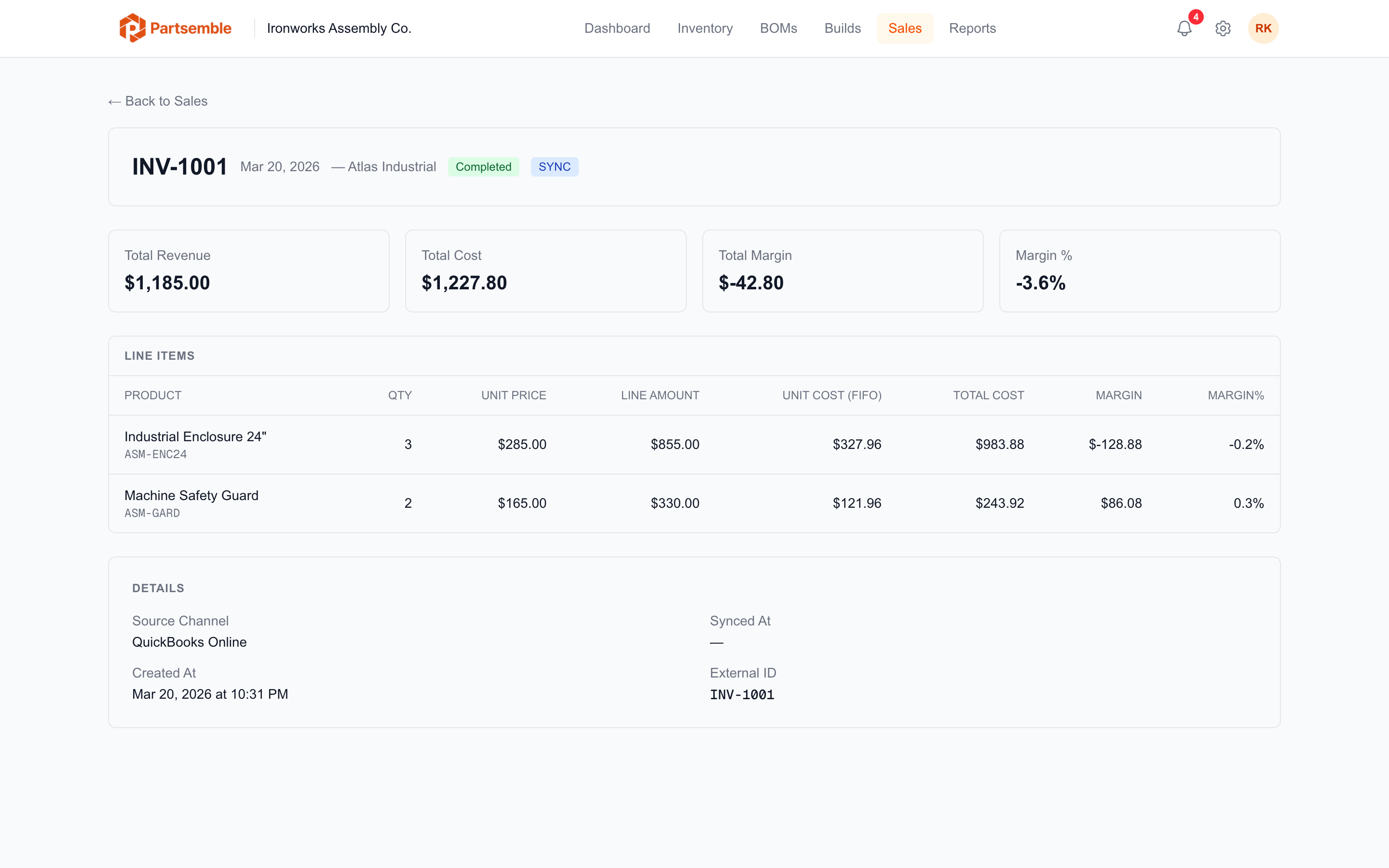
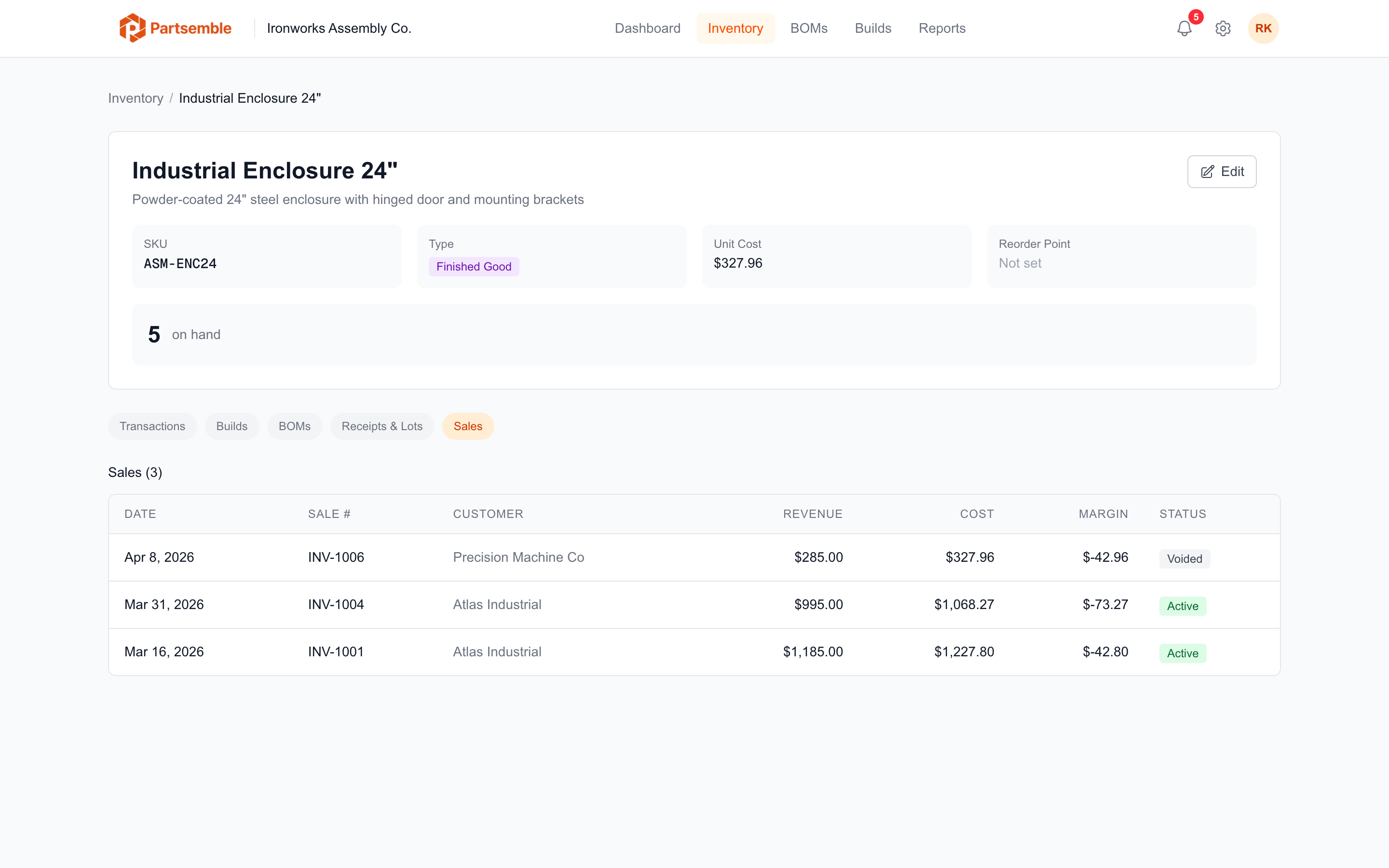
Sales appear on the Sales tab within the Inventory section. The tab shows a filterable list of all sales with date, customer, revenue, cost, margin, and status. Click any sale to see the full detail including per-line margins and lot consumption.