Syncing Items
Item sync pulls products from your accounting system into Partsemble. This is how you populate your product catalog from QBO rather than creating products manually.
Running a Sync
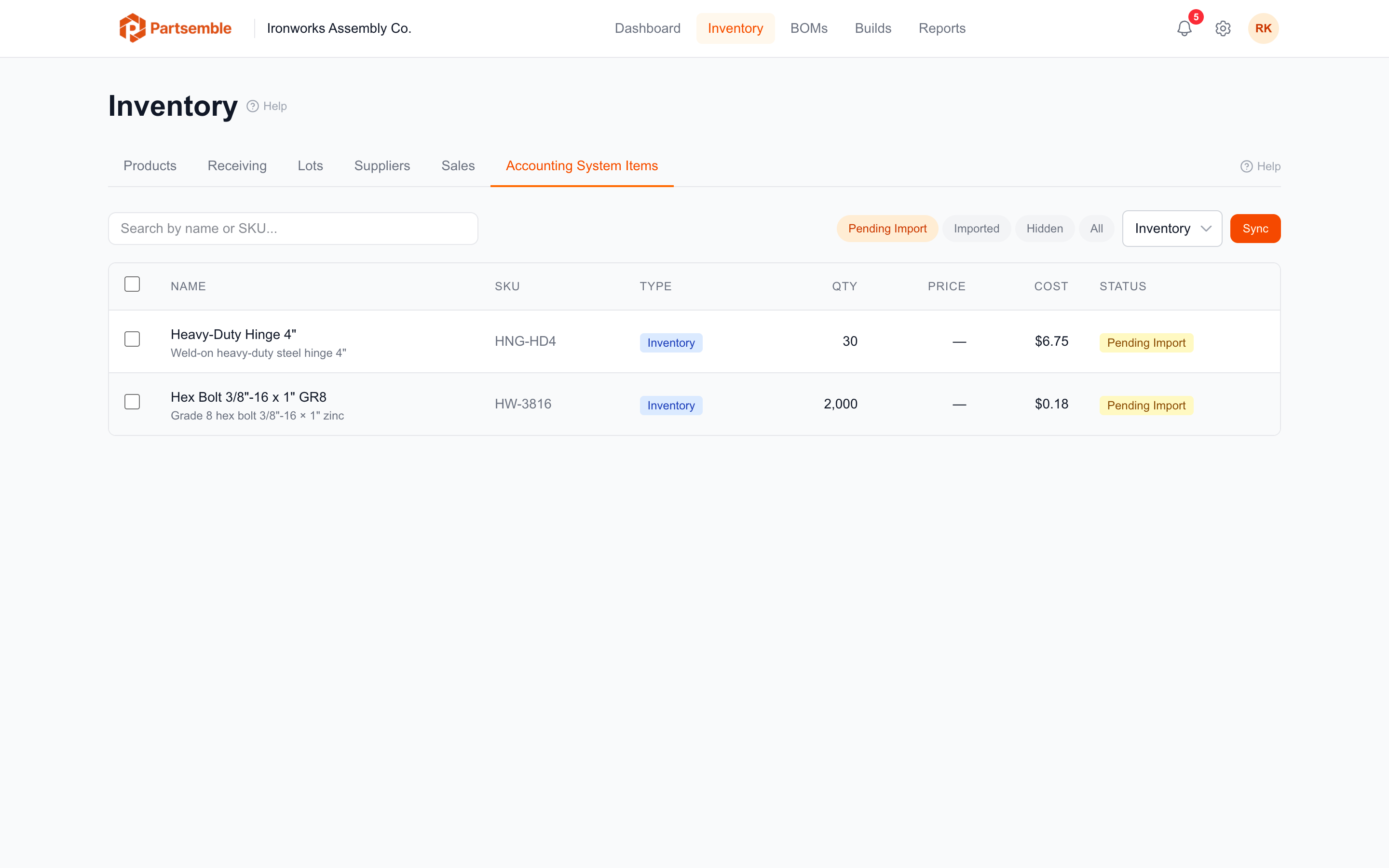
Navigate to Settings → Integrations and click Sync Items (or use the sync button on the Products page). Partsemble fetches all active items from your accounting system that match your configured item type filters.
A sync lock is acquired during the process to prevent concurrent syncs or builds from conflicting. The sync typically completes in a few seconds for most catalogs.
When the sync finishes, you'll see a summary: how many items were created, updated, deactivated, or skipped.
What Gets Synced
Partsemble pulls the following data for each item:
Name and SKU — the item name and SKU from your accounting system.
Item type — Inventory, Non-Inventory, Service, or Bundle. You can configure which types to sync in your provider settings.
Pricing — unit price (selling price) and purchase cost.
Quantity on hand — current inventory quantity in your accounting system.
Account references — income, expense, and asset account IDs linked to the item.
Active status — if an item is deactivated in your accounting system, it's marked inactive in Partsemble on the next sync.
Item Type Filters
By default, Partsemble syncs Inventory, Service, and Bundle items. You can adjust which types are synced in Settings → Integrations under the sync configuration. The available types are Inventory, Non-Inventory, Service, Group, and Bundle.
Items that don't match your selected types are skipped during sync.
From Synced Item to Product
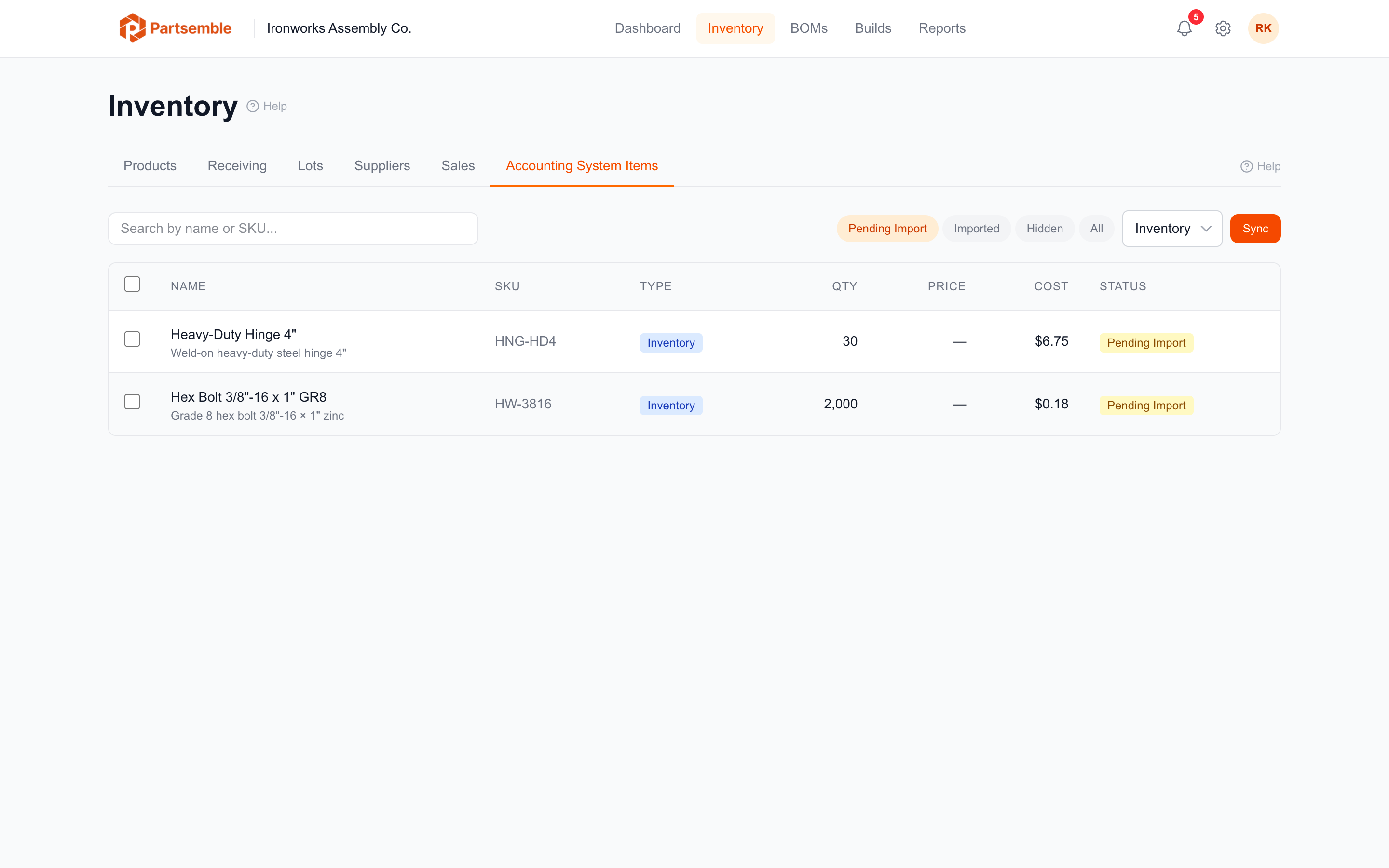
Synced items appear in the accounting items list, but they aren't automatically Partsemble products. To use them in BOMs and builds, you need to import them.
Select the items you want and click Import. This creates Partsemble products linked to the accounting items. The link is stored via the accounting_item relationship on the product, which includes the external ID needed for exports.
You can also control which synced items are visible in the import list using the visibility toggle — helpful if your accounting system has many items that aren't relevant to manufacturing.
Subsequent Syncs
After the initial sync, running another sync updates existing items and adds new ones. If an item was deleted or deactivated in your accounting system, it's marked inactive in Partsemble.
With receiving disabled: Syncs also update product quantities and unit costs, creating stock transactions for any quantity changes.
With receiving enabled: Syncs update item metadata but skip quantity reconciliation, since Partsemble's lot tracking is the source of truth for stock levels.
Items that were already synced and haven't changed are skipped.
Sync Lock
Partsemble uses a sync lock to prevent conflicts. While an item sync is running, you can't start a build or another sync. The lock automatically expires after 5 minutes if something goes wrong, so you're never permanently locked out.