Inventory Connection
The inventory connection controls whether your accounting system is the source of truth for product quantities and costs, or whether Partsemble manages inventory independently. This is one of the most important configuration decisions in your setup.
Two Modes
Sync mode — your accounting system (e.g., QuickBooks Online) is the source of truth for inventory. Item syncs pull quantities and costs from QBO into Partsemble. Builds and receipts are exported back to QBO as inventory adjustments. This keeps both systems in sync.
Partsemble-only mode — Partsemble manages inventory independently. Quantities and costs are tracked entirely within Partsemble. When you export builds or receipts, they're recorded as journal entries in your accounting system (affecting your general ledger) rather than inventory adjustments (which would change item quantities in QBO).
This is distinct from the accounting connection itself. You can be connected to QBO for accounting purposes (exporting transactions) while using Partsemble-only mode for inventory. The accounting connection is always needed for exports — the inventory connection controls whether QBO item quantities are synced.
Choosing Your Mode
Use Sync mode when you want QBO to remain the master record for inventory quantities, your team enters vendor bills and adjustments in QBO, and you want Partsemble builds to directly update QBO item quantities.
Use Partsemble-only mode when you want Partsemble to be the master for inventory (especially with receiving and lot tracking), you don't track item quantities in QBO (or you use QBO primarily for financials), or you want builds and receipts to post GL entries without touching QBO item quantities.
For a more detailed comparison with example scenarios, see Inventory Source.
Xero Users
If you're connected to Xero, the inventory connection is automatically set to Partsemble-only mode. Xero doesn't provide an API for adjusting inventory item quantities, so Partsemble manages inventory directly. Builds and receipts are exported as journal entries. You cannot switch to Sync mode with a Xero connection. See Xero for details.
Setting Up the Inventory Connection
The inventory connection mode is set during initial setup, but you can change it later (QBO users only).
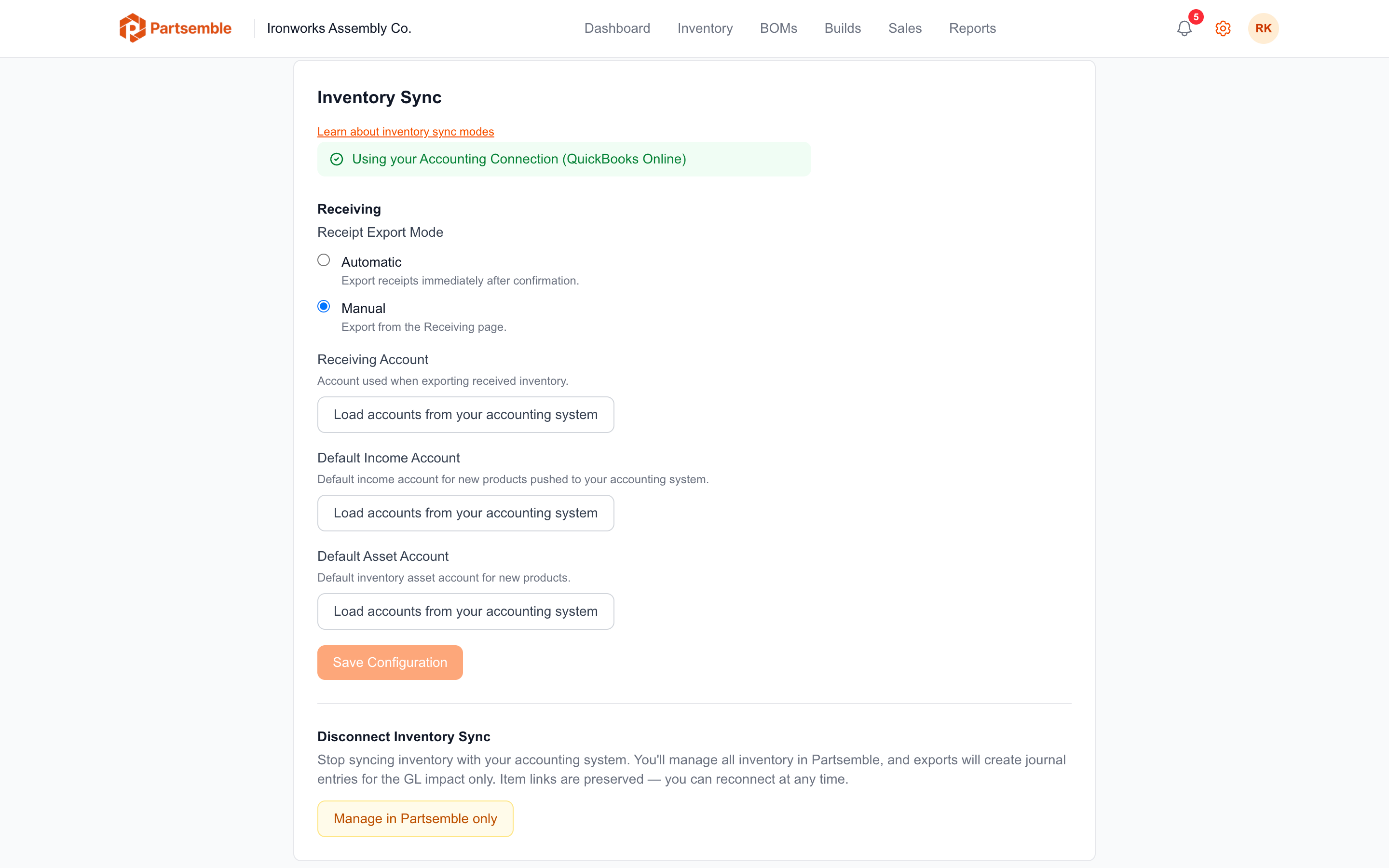
Navigate to Settings → Integrations. In the Inventory section, you'll see your current mode and options to change it.
To switch to Sync mode: Click Connect Inventory. This activates the connection link between Partsemble and your accounting system for inventory purposes. Existing products are not automatically linked to accounting items — you'll need to link them manually or re-import from your accounting system.
To switch to Partsemble-only: Click Set Partsemble Only. This deactivates the inventory sync. Products retain their current data, but future syncs won't update quantities from QBO.
How Sync Mode Works
When the inventory connection is active in Sync mode, item syncs propagate data to your Partsemble products:
Without receiving enabled: Product quantities and unit costs are updated from QBO item data. Stock transactions of type ACCOUNTING_SYNC are created to track the quantity changes.
With receiving enabled: Partsemble is the source of truth for quantities (via lot tracking). Item syncs still pull item metadata but skip quantity reconciliation — lots and receipts drive the stock levels instead.
Export Behavior by Mode
| Action | Sync Mode | Partsemble-Only Mode |
|---|---|---|
| Build export | Inventory adjustment in QBO | Journal entry (GL accounts) |
| Receipt export | Inventory adjustment in QBO | Journal entry (GL accounts) |
| Accounts needed | COGS, Receiving, Waste | GL debit/credit account pairs |
In Partsemble-only mode, you configure GL account pairs (debit and credit) for builds and receipts instead of the COGS and receiving accounts used in Sync mode. See Export Settings for details.