Reorder and Build Points
Partsemble can alert you when stock is running low and automatically suggest (or create) builds to replenish finished goods. These two features — reorder points and build points — work together to keep your production on track.
Reorder Points
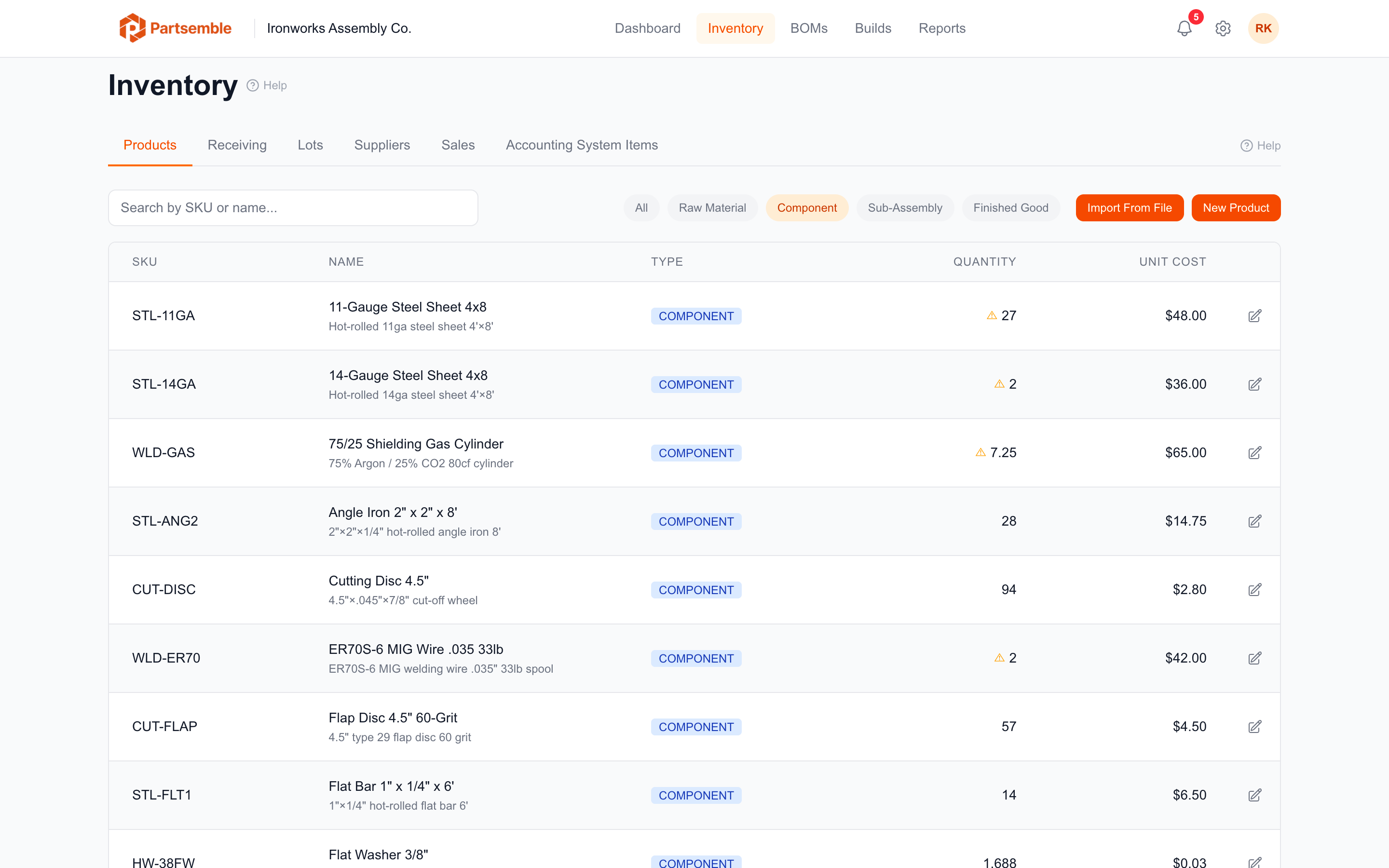
A reorder point is a stock threshold you set on any product. When the product's stock on hand drops to or below the reorder point, Partsemble shows a low-stock alert on your dashboard.
Setting a Reorder Point
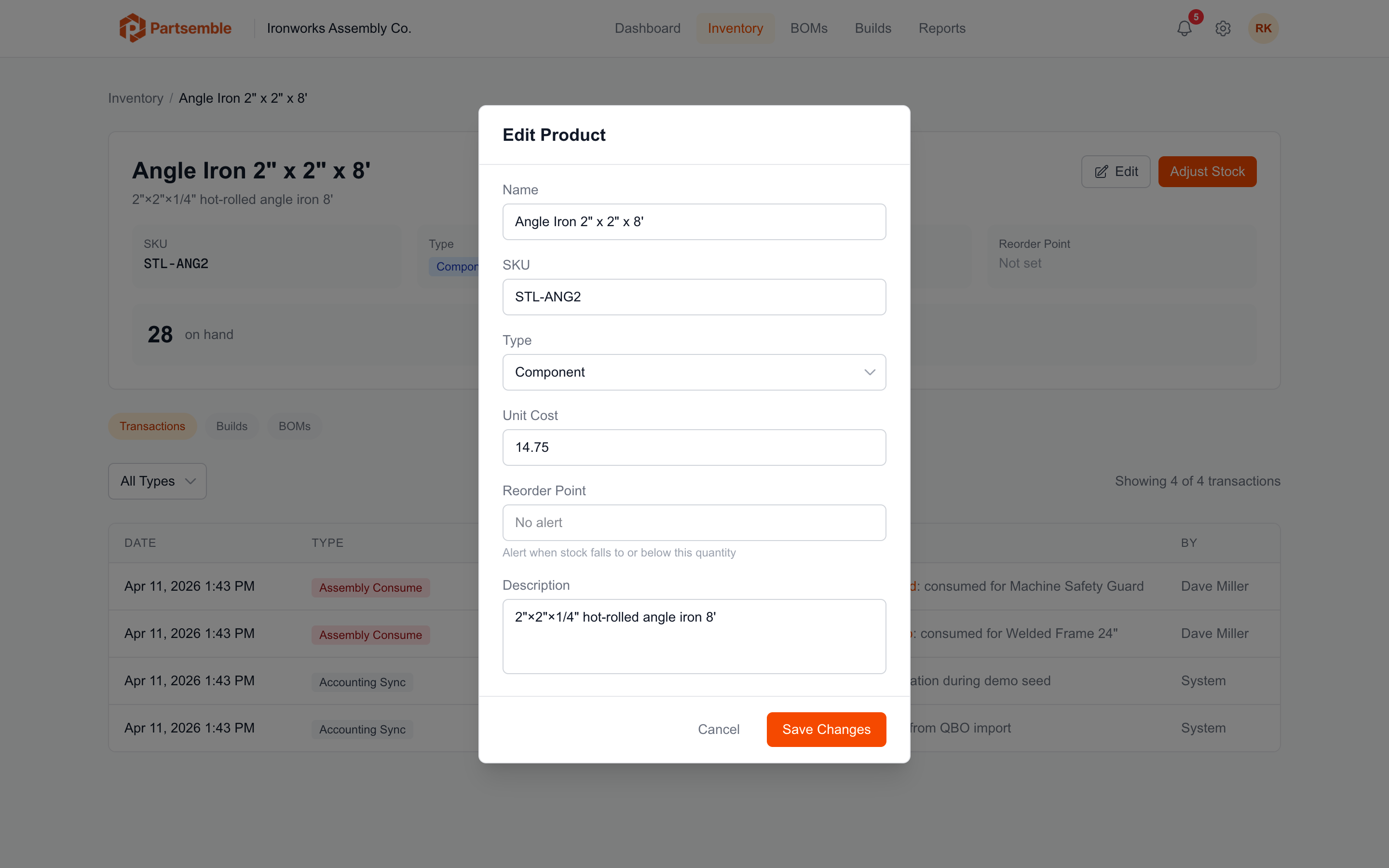
Navigate to the product detail page, click Edit, and enter a value in the Reorder Point field. Save the product.
The reorder point represents the minimum stock level you're comfortable with. Set it high enough that you have time to reorder (or build more) before running out.
Example
You use 14-gauge steel sheet in most of your products. You go through about 40 sheets per week, and your supplier takes 5 business days to deliver. Setting a reorder point of 50 gives you a buffer — when you hit that level, you know it's time to place an order.
Where Alerts Appear
Low-stock alerts show on the Dashboard in the alerts section. Each alert shows the product name, current stock, and reorder point. Clicking the alert takes you to the product detail page.
Reorder points are informational — they trigger alerts but don't block any action. You can still build, sell, and receive normally even when stock is below the reorder point. You can also disable low-stock alerts entirely in Settings → Business Settings if you prefer.
Build Points
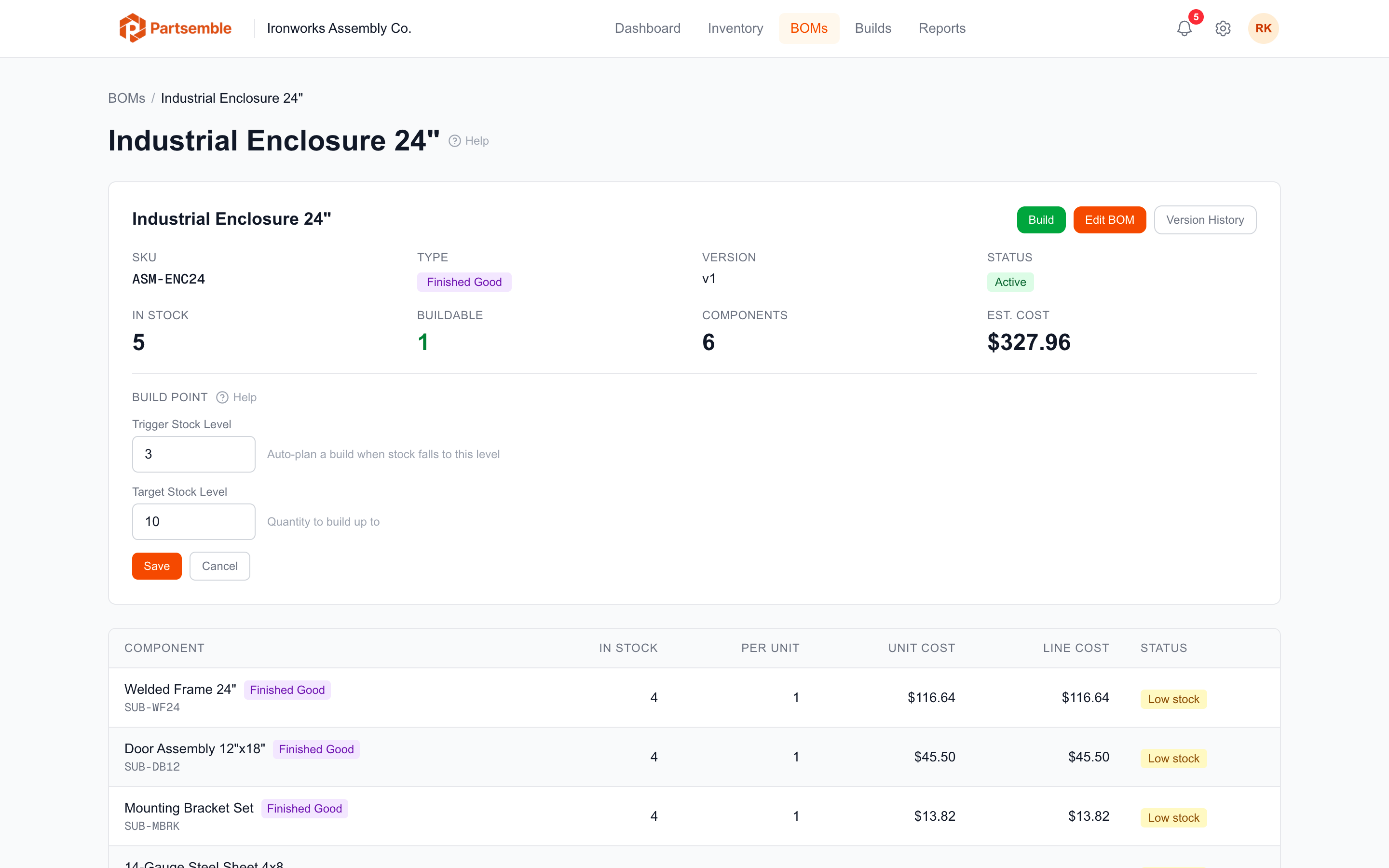
Build points go a step further than reorder points. Instead of just alerting you, a build point tells Partsemble to automatically create a planned build when a finished good's stock gets low.
Build points are set on a BOM, not on a product. This makes sense because the BOM defines how the product is built — the build point tells Partsemble when to trigger that recipe.
Setting a Build Point
Navigate to the BOM detail page and look for the Build Point and Target Stock Level fields.
Build point — the stock threshold. When the finished good's stock drops to or below this number, Partsemble creates a planned build.
Target stock level — the stock level you want to reach after the build. Partsemble calculates the build quantity automatically: target stock level minus current stock on hand.
Example
You make Machine Safety Guards and want to always have at least 5 in stock. Your typical order pipeline needs around 15 units on hand. On the Machine Safety Guard BOM, set:
- Build point: 5
- Target stock level: 15
When stock drops to 5 (or below), Partsemble creates a planned build for 10 units (15 target minus 5 current). The build appears in your Build Queue with a note that it was auto-generated.
How Auto-Generated Builds Work
When stock crosses a build point threshold, Partsemble creates the planned build immediately. These builds are marked as auto-generated in the queue so you can distinguish them from builds you created manually.
Partsemble won't create duplicate auto-builds. If a planned build for the same product already exists in the queue, no new one is created — even if stock continues to drop.
Auto-generated builds are not executed automatically. They sit in the planned state until someone on your team reviews and executes them. This gives you a chance to verify the build makes sense, check component availability, and schedule it at the right time.
Build points only trigger when the product's stock on hand changes. If you set a build point on a product that's already below the threshold, the planned build is created the next time stock is updated (for example, after the next build, receipt, or sale).
Reorder Points vs. Build Points
| Reorder Point | Build Point | |
|---|---|---|
| Set on | Product | BOM |
| Triggers | Dashboard alert | Auto-created planned build |
| Applies to | Any product type | Finished goods and sub-assemblies (products with BOMs) |
| Action required | You decide what to do | Build is created for you — you decide when to execute |
You can use both on the same product. For example, set reorder points on your raw materials (so you know when to order from suppliers) and build points on your finished goods (so Partsemble automatically schedules production when stock gets low).
Dashboard: Build Suggestions
When auto-generated builds are waiting in the queue, the dashboard shows a Build Suggestions section. This gives you a quick view of what Partsemble recommends building based on your build point settings, without having to open the full build queue.