Stock Adjustments
Stock adjustments let you add or remove inventory outside of the normal build and receiving workflows. They're available when you manage inventory in Partsemble without the receiving feature enabled.
When to Use Stock Adjustments
If you're on the Maker or Pro plan (or you've chosen to manage inventory in Partsemble without enabling receiving), stock adjustments are your primary tool for recording inventory changes beyond builds:
- Received a shipment — you bought 200 units of a component and need to add them to stock.
- Physical count correction — your actual count doesn't match Partsemble. Adjust to match reality.
- Breakage or loss — units were damaged, expired, or lost. Remove them from stock.
- Starting inventory — you created a product with zero stock and need to enter your current on-hand quantity.
Each adjustment creates a stock transaction in the product's history, maintaining a clear audit trail.
Making a Stock Adjustment
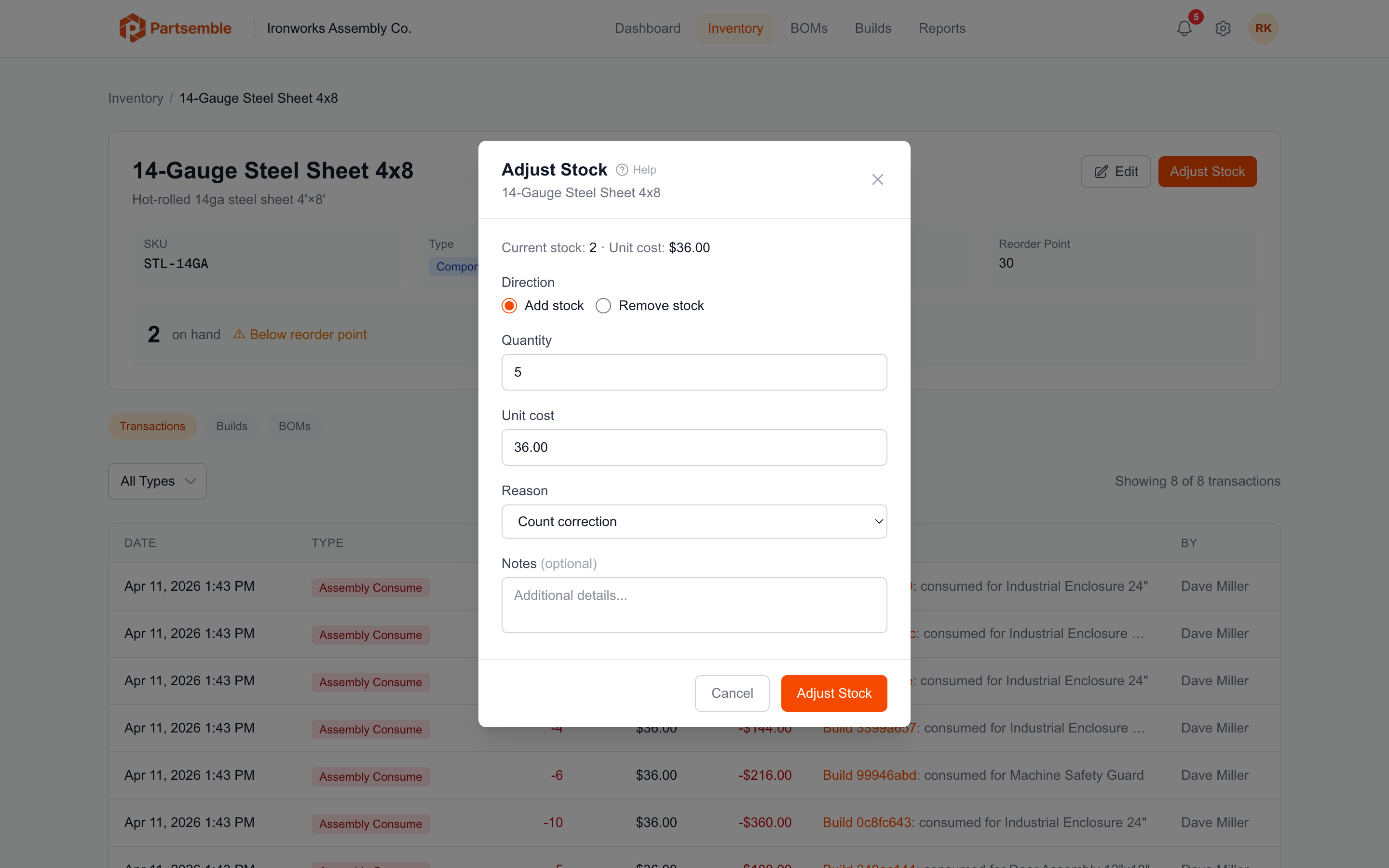
Navigate to the product detail page and click Adjust Stock. You'll see a dialog with the following options:
Direction — choose whether you're adding stock or removing stock.
Quantity — the number of units to add or remove. Always enter a positive number; the direction toggle determines whether it's an addition or subtraction.
Unit Cost (additions only) — the cost per unit for the stock you're adding. This is pre-filled with the product's current unit cost. Change it if you're purchasing at a different price — the product's weighted average cost will be recalculated after the adjustment.
Reason — select the reason for the adjustment:
- Received stock — you received inventory from a supplier
- Count correction — physical count differs from system
- Breakage / loss — damaged, expired, or lost units
- Other — any other reason
Notes — optional free-text notes describing the adjustment. These are saved with the stock transaction.
Click Adjust Stock to apply the change immediately. The product's stock on hand and transaction history update right away.
How Cost Is Affected
When you add stock, the unit cost you enter is factored into the product's weighted average cost (WAC). If you add 100 units at $3.00 to a product that has 50 units at $2.00, the new WAC becomes approximately $2.67.
When you remove stock, the product's WAC doesn't change. Removals use the current weighted average cost, consistent with how builds and sales consume inventory.
Editing Unit Cost Directly
When receiving is not enabled, you can also edit a product's unit cost directly from the product edit form. This is useful when you want to update the cost without changing the quantity — for example, when a supplier's price changes and you want your records to reflect the new rate.
When Receiving Is Enabled
If you've enabled the receiving feature (Advanced plan), the Stock Adjustment action is not available on the product detail page. When receiving is active, inventory enters the system through receipts, which create lots for FIFO tracking. Stock corrections in this mode are handled through lot adjustments, which maintain full lot-level traceability.
Similarly, unit cost is not directly editable when receiving is enabled because cost is derived from receipt line items and lot-level tracking.
Importing Products With Initial Stock
When you import products from a CSV or XLSX file with the initial_quantity column, Partsemble handles the starting stock differently depending on whether receiving is enabled:
Receiving off — a standard stock transaction is created and the product's stock on hand is set. No lot is involved. This is the simple path for Maker and Pro users.
Receiving on — a migration lot is automatically created for each product with an initial quantity. The migration lot has a lot number in the format IMPORT-YYYYMMDD-001 (with a sequential number for each product imported that day), no supplier, and the import date as the received date. Migration lots participate fully in FIFO consumption, so builds and sales will draw from them in date order like any other lot.
Migration lots are a one-time convenience for loading starting inventory when you first set up lot tracking. For ongoing inventory, always use receipts to receive stock — this ensures proper supplier tracking, lot cost accuracy, and accounting export.
The initial_quantity column on CSV/XLSX imports is intended for setting starting stock on new products. For existing products (matched by SKU), the column is ignored. Ongoing stock changes should go through builds, receipts, adjustments, or sales — not file reimport.