BOM Components
Each line on a bill of materials represents a component — a product that gets consumed when you build the finished good. This article explains how component entries work, what the numbers mean, and how to manage them.
What Is a Component Entry?
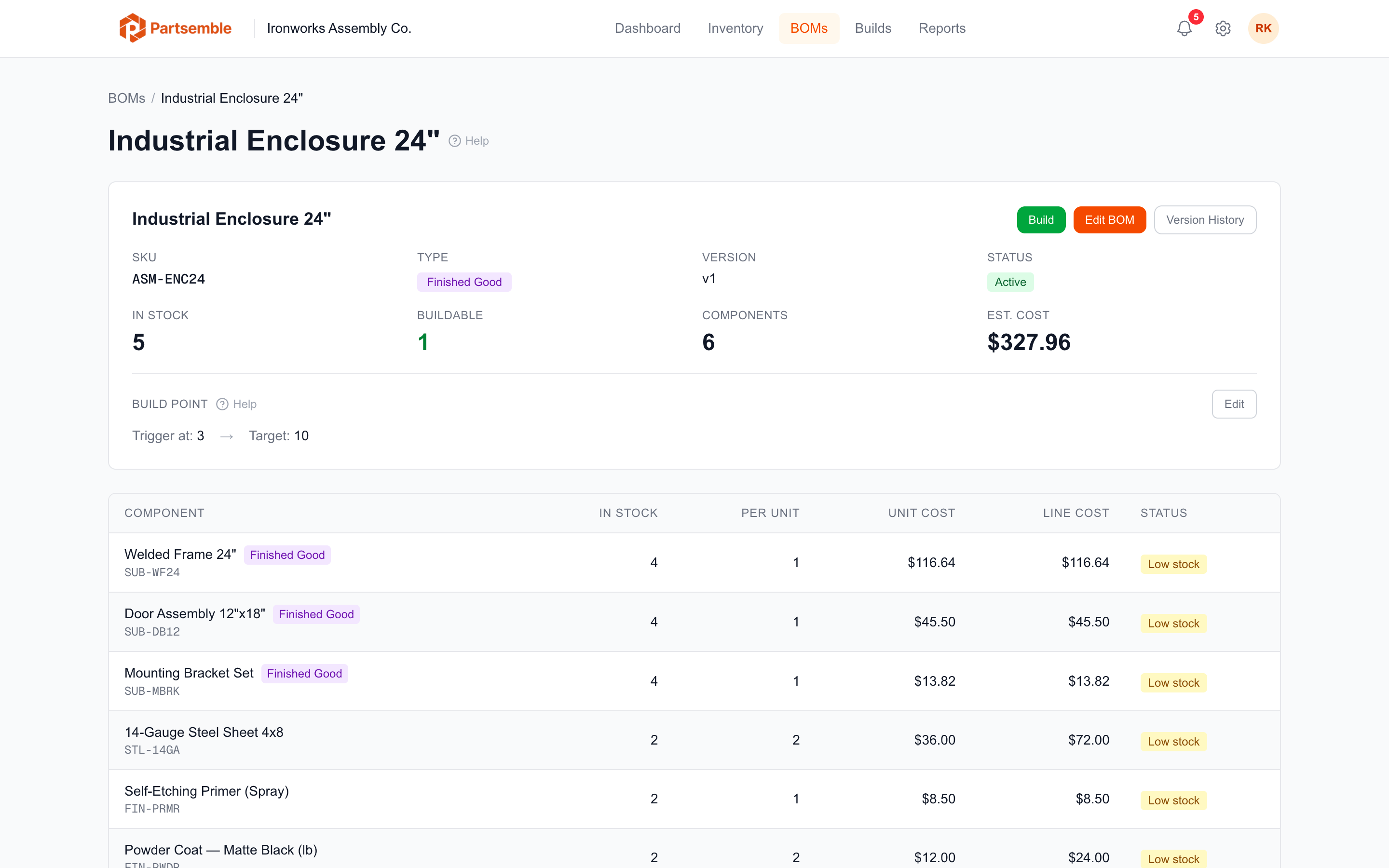
A component entry links a BOM to a product and specifies how much of that product is needed per unit built. For example, if your BOM says "2 sheets of 14-gauge steel," that's one component entry with a quantity of 2.
Each entry has four properties:
Component product — which product is consumed. This can be any product type: raw material, component, sub-assembly, or even another finished good.
Quantity — how much of the component is needed per unit of the finished good. This supports up to four decimal places, so you can specify quantities like 0.5 (half a unit) or 1.2500.
Optional flag — whether this component is required or optional for the build. See Optional Components.
Position — the display order on the BOM. Components are shown in position order, which you can rearrange.
How Components Affect Builds
When you execute a build, Partsemble multiplies each component's quantity by the number of units being built. If the BOM calls for 4 hex bolts and you're building 10 brackets, Partsemble consumes 40 hex bolts.
This consumption is recorded as stock transactions on each component product, decreasing their stock on hand and creating an audit trail.
Cost Calculation
Each component's line cost is calculated as:
line cost = quantity x component's current unit cost
The component's unit cost is its weighted average cost at the time you view the BOM. When a build is executed, the actual costs at that moment are locked in — they won't change retroactively if component prices shift later.
The BOM's total estimated cost is the sum of all required component line costs plus any cost lines.
Max Buildable
The max buildable number on a BOM tells you the maximum units you can build right now given current component stock. It's determined by the bottleneck — the component with the least available stock relative to the required quantity.
For example:
| Component | Qty per Unit | Stock on Hand | Can Support |
|---|---|---|---|
| 14-Gauge Steel Sheet | 2 | 30 | 15 builds |
| Hex Bolt 3/8" | 8 | 2000 | 250 builds |
| MIG Welding Wire (lb) | 0.5 | 5 | 10 builds |
Max buildable = 10 (limited by MIG Welding Wire).
Optional components are excluded from this calculation — a build can proceed even if optional components are out of stock.
Adding and Removing Components
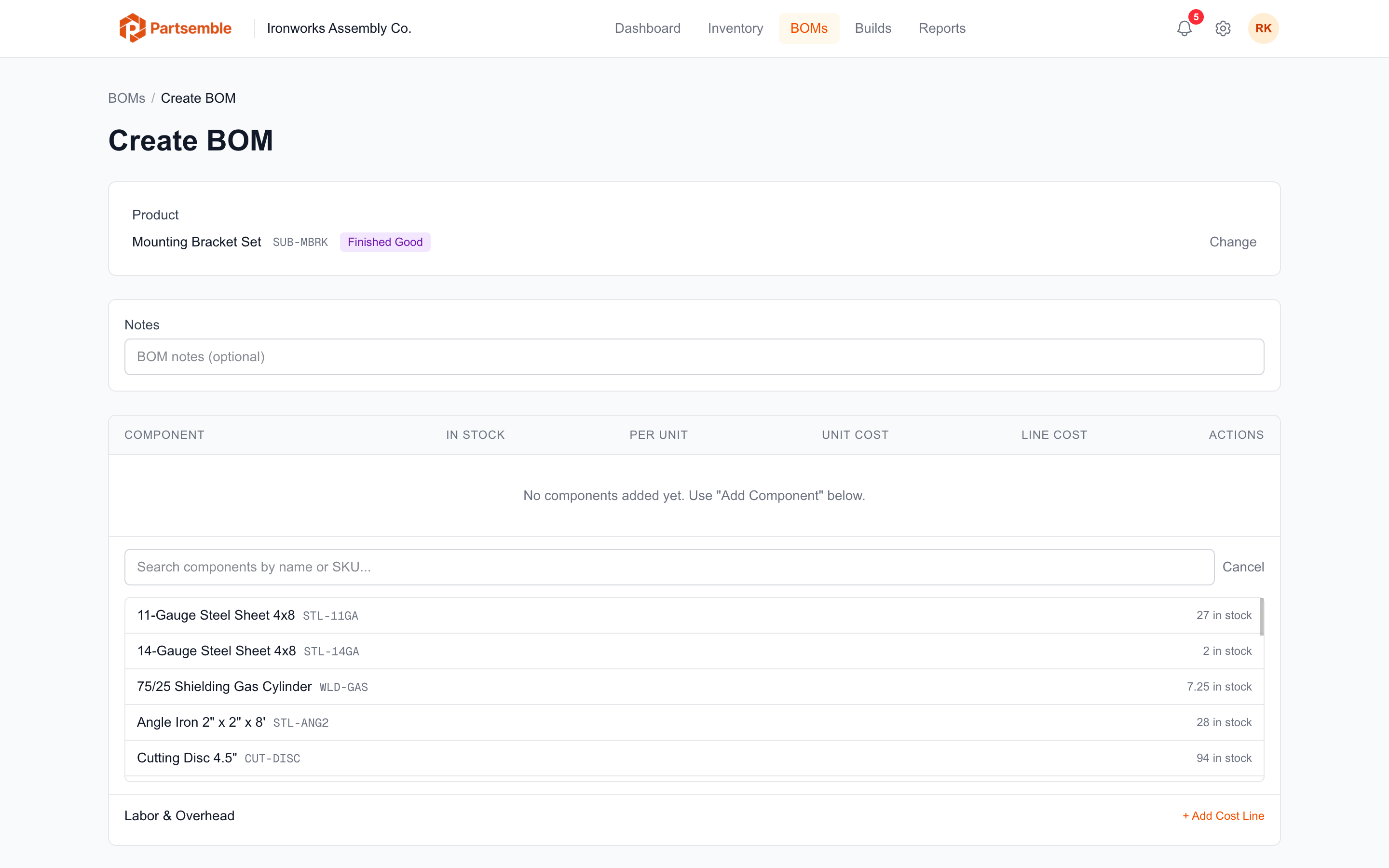
You can modify a BOM's components by editing it. Navigate to the BOM detail page and click Edit.
Adding a component: Click Add Component, search for the product, set the quantity, and save.
Removing a component: Click the remove button next to the entry you want to delete, then save.
Changing quantities: Edit the quantity field directly, then save.
Editing a BOM creates a new version. The original version is archived so that existing build history retains the exact component list that was used at the time of each build. See Versioning.
Rules and Restrictions
No duplicates. Each component can appear once per BOM. If you need the same product in different quantities for different reasons, combine them into a single entry with the total quantity.
No self-references. The product being built cannot appear as its own component.
No circular references. If product A's BOM includes product B, and product B's BOM includes product C, then product C's BOM cannot include product A. Partsemble checks for this automatically and prevents it.
Same business only. Components must belong to the same business as the BOM.