Recovery Modes
When you reject a build, you choose a recovery mode that tells Partsemble what happened to the consumed components. This determines whether materials are returned to stock, written off as waste, or a mix of both.
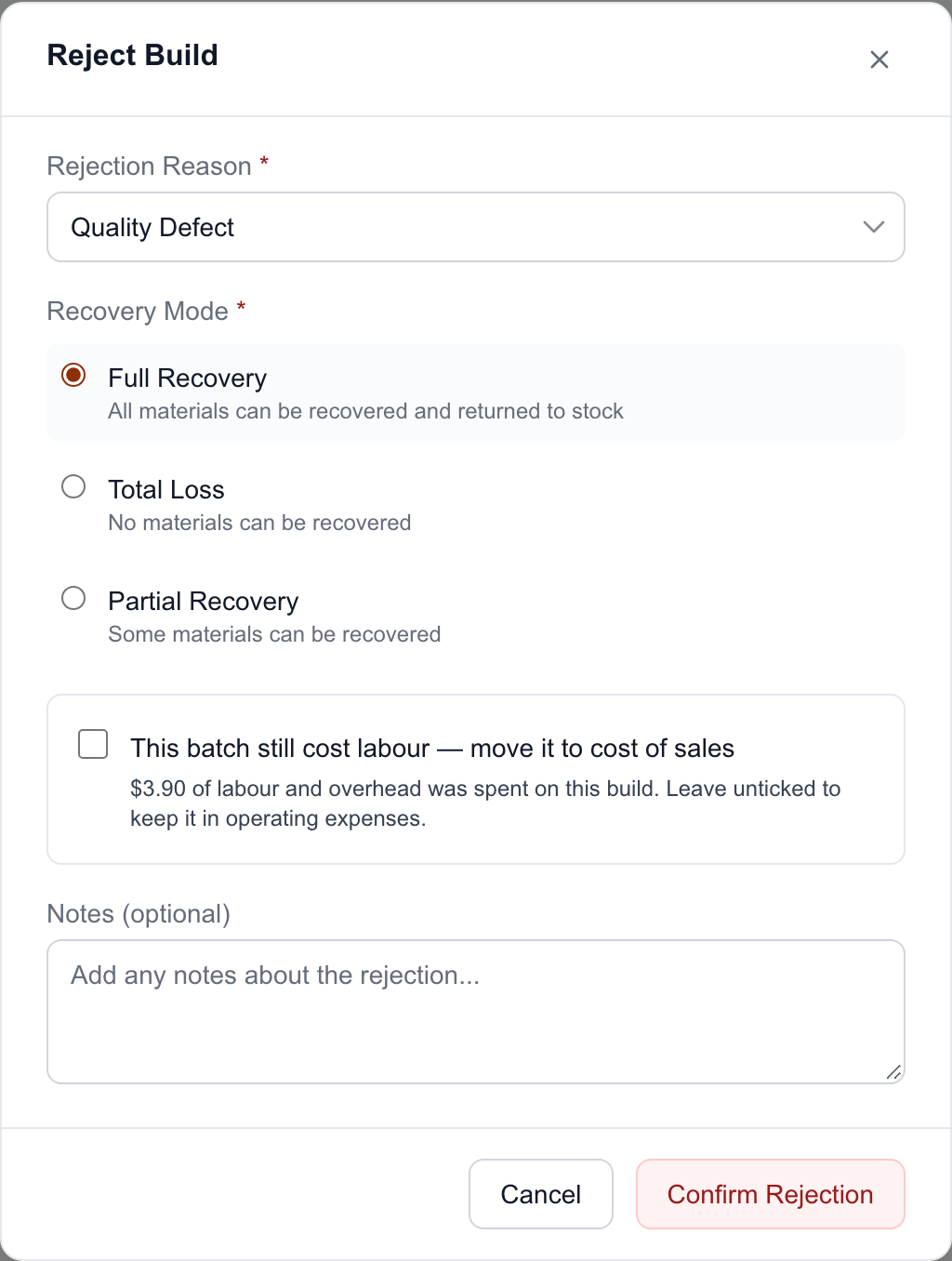
Full Recovery
All materials can be recovered and returned to stock.
Choose full recovery when the components are still usable — the build failed but the ingredients, parts, or materials themselves are fine. They can go back into inventory and be used in a future build.
What Partsemble does:
- Restores stock on hand for every consumed component back to its pre-build level
- If lot tracking is enabled, reverses the lot consumptions (lot quantities are restored and lot statuses updated)
- Creates recovery stock transactions for each component (visible in the product's transaction history)
- Sets the build status to Rejected — no waste export is needed since nothing was lost. If you tick This batch still cost labour — move it to cost of sales and the build has labour or overhead, the build goes to Pending Export instead, so that the labour can be exported.
Example: Larkspur filled 8 cans of Walnut Oil Stain, 1 qt under the wrong label. The cans were emptied back and nothing was spoiled. Full recovery returns the Quart Cans with Lid, the Walnut Tint Blend and the other components to stock.
Total Loss
No materials can be recovered. Everything is waste.
Choose total loss when the components were consumed, damaged, or contaminated and can't be reused. The materials are gone.
What Partsemble does:
- Does not restore any component stock — quantities remain consumed
- Moves the build to Pending Export status so the waste can be exported to your accounting system
- The waste export records the cost of lost materials against your configured waste/scrap account
Requires: An accounting connection with a waste account configured in Settings → Integrations. See Waste Account Setup.
Example: A batch of 2 × Acrylic Trim Enamel, Midnight Navy, 1 gal came out off-shade and can't be re-tinted. The Acrylic Enamel Base, the tint pastes and the additives are mixed in, and the filled cans can't be reused. Total loss writes off the whole batch.
Partial Recovery
Some materials can be recovered, others are lost.
Choose partial recovery when the outcome is mixed — some components survived and can go back to stock, while others were damaged, consumed, or contaminated.
What Partsemble does:
When you select partial recovery, a table appears showing each component that was consumed. For each component, enter the quantity you recovered. The difference between what was consumed and what was recovered is the loss.
- Restores the recovered quantities to stock
- If lot tracking is enabled, reverses lot consumptions in LIFO order (last consumed, first recovered) for the recovered amounts
- Creates recovery stock transactions for recovered quantities
- Records per-component loss in rejection lines (consumed vs. recovered vs. lost)
- If any component has loss: moves to Pending Export for waste export. If everything was fully recovered: sets status to Rejected
Requires: An accounting connection with a waste account, even if every quantity turns out to be recovered.
Example: The Midnight Navy batch was mixed off-shade, but caught before filling. The Acrylic Enamel Base, Tint Paste, Phthalo Blue, Tint Paste, Lamp Black and the additives are waste, while the 2 Gallon Cans with Lid and 2 Product Labels were never used. Enter 2 recovered for the cans and the labels, and zero for everything else.
How Recovery Affects Costs
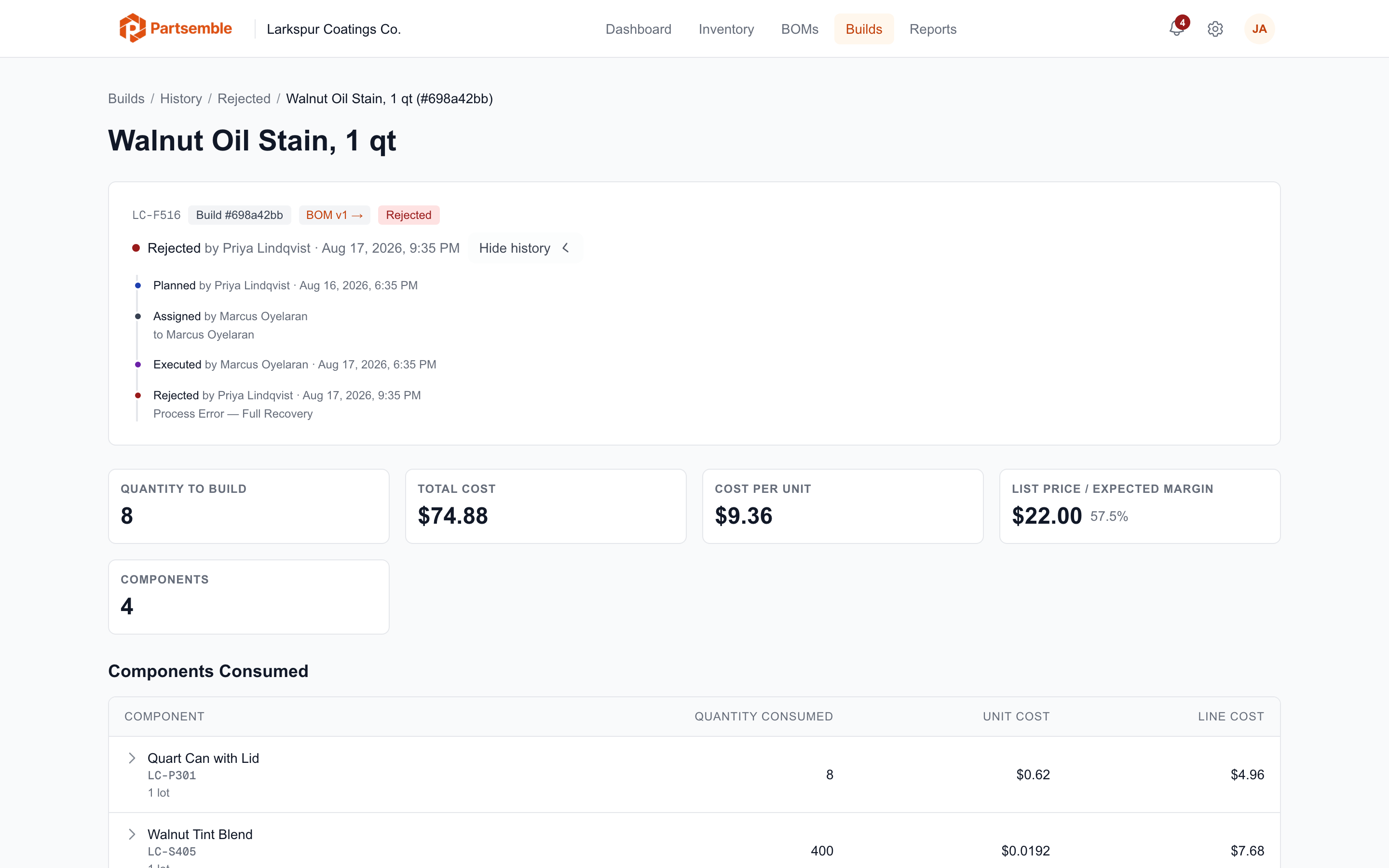
Full recovery has no material cost impact — materials return to stock at their original cost, and no waste is recorded.
Total loss records the full cost of all consumed components as waste. This shows up in your accounting system against the waste/scrap account.
Partial recovery records only the cost of lost materials as waste. Recovered materials return to stock at their original cost. The waste export reflects only the lost portion.
Labour and overhead stay in operating expenses unless you tick This batch still cost labour — move it to cost of sales when you reject. Ticked, the whole batch's labour and overhead moves to cost of sales in the rejection's export, whatever the recovery mode.
A rejection with Partial Recovery shows a Recovery Details: table on the build page, with each component's consumed, recovered and lost quantities.
Choosing the Right Mode
| Situation | Recovery Mode |
|---|---|
| All components are reusable | Full Recovery |
| Nothing is salvageable | Total Loss |
| Some components are fine, some aren't | Partial Recovery |
| Unsure about specific quantities | Start with Partial Recovery and enter your best estimates |
When in doubt, use partial recovery. It gives you the most control — you can specify exactly how much of each component was recovered. If everything turns out to be recovered, choose Full Recovery instead: Partial Recovery always needs a waste account, and Full Recovery doesn't.