Creating Receipts
A receipt records an incoming shipment of inventory. Each receipt contains one or more lines — one for each product and quantity received. When confirmed, receipt lines become lots that are tracked through your production process.
Steps
1. Start a new receipt
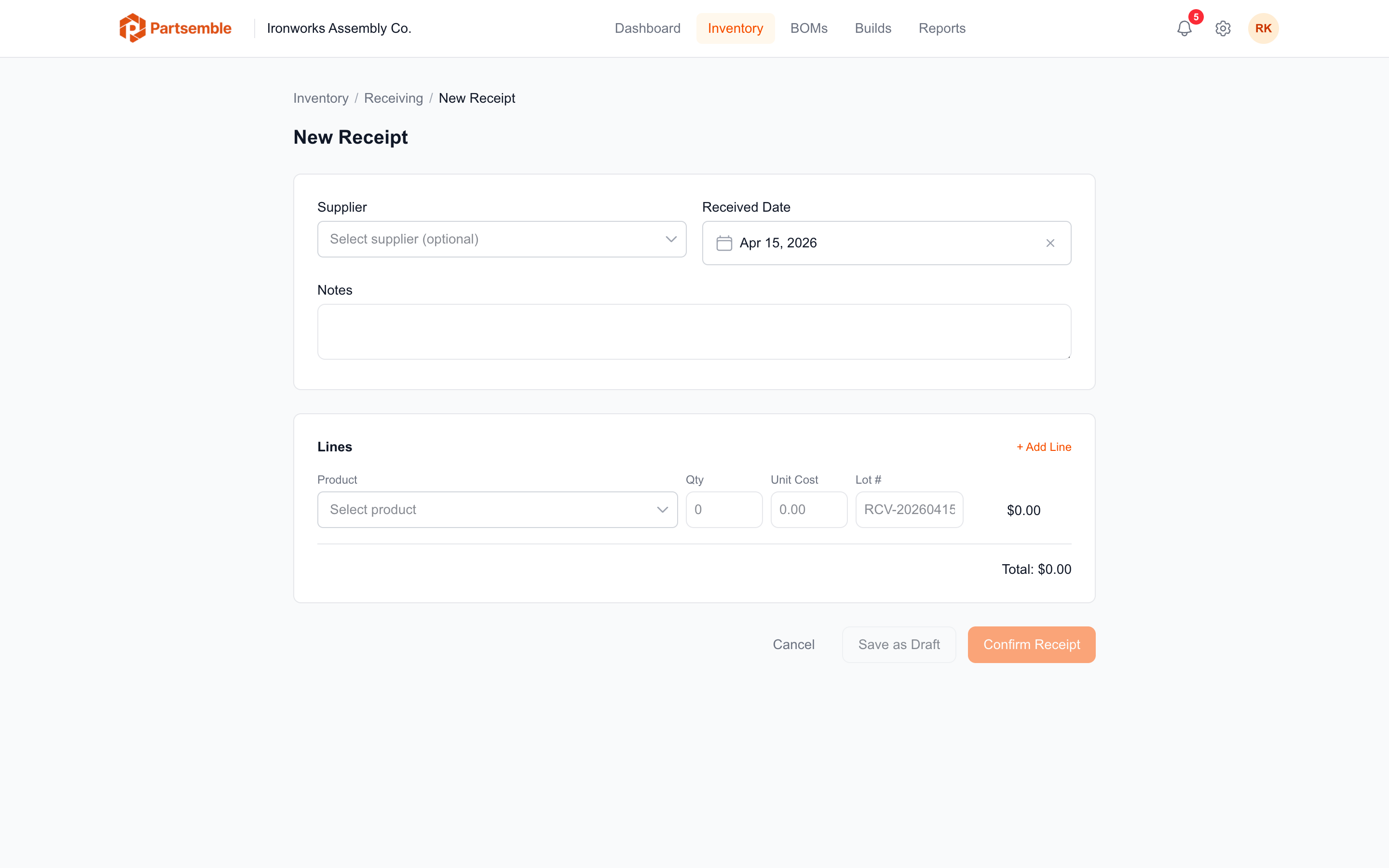
Navigate to Receiving in the left sidebar and click New Receipt.
2. Set the receipt details
Supplier — select the supplier this shipment came from. If the supplier doesn't exist yet, you can create one from the dropdown. See Suppliers.
Received date — the date the shipment arrived. Defaults to today.
3. Add receipt lines
Click Add Line for each product in the shipment. Each line requires:
Product — the product you received. Select from your existing products.
Quantity — how many units arrived.
Unit cost — the cost per unit for this delivery. This may differ from the product's current unit cost if prices have changed.
Lot number (optional) — a unique identifier for this batch. If you leave it blank, Partsemble auto-generates a lot number from the supplier code and date (e.g., "ACM-20260404"). You can also enter your own lot number — for example, your supplier's batch number.
Expiry date (optional) — for perishable products. This is informational and helps you track which lots need to be used first.
If you're receiving the same product in multiple lots (different batches, different costs), add separate lines for each. Each line becomes its own trackable lot.
4. Review and save
Review the receipt summary showing total quantity and total cost. Click Save. The receipt is created in Draft status.
Draft Receipts
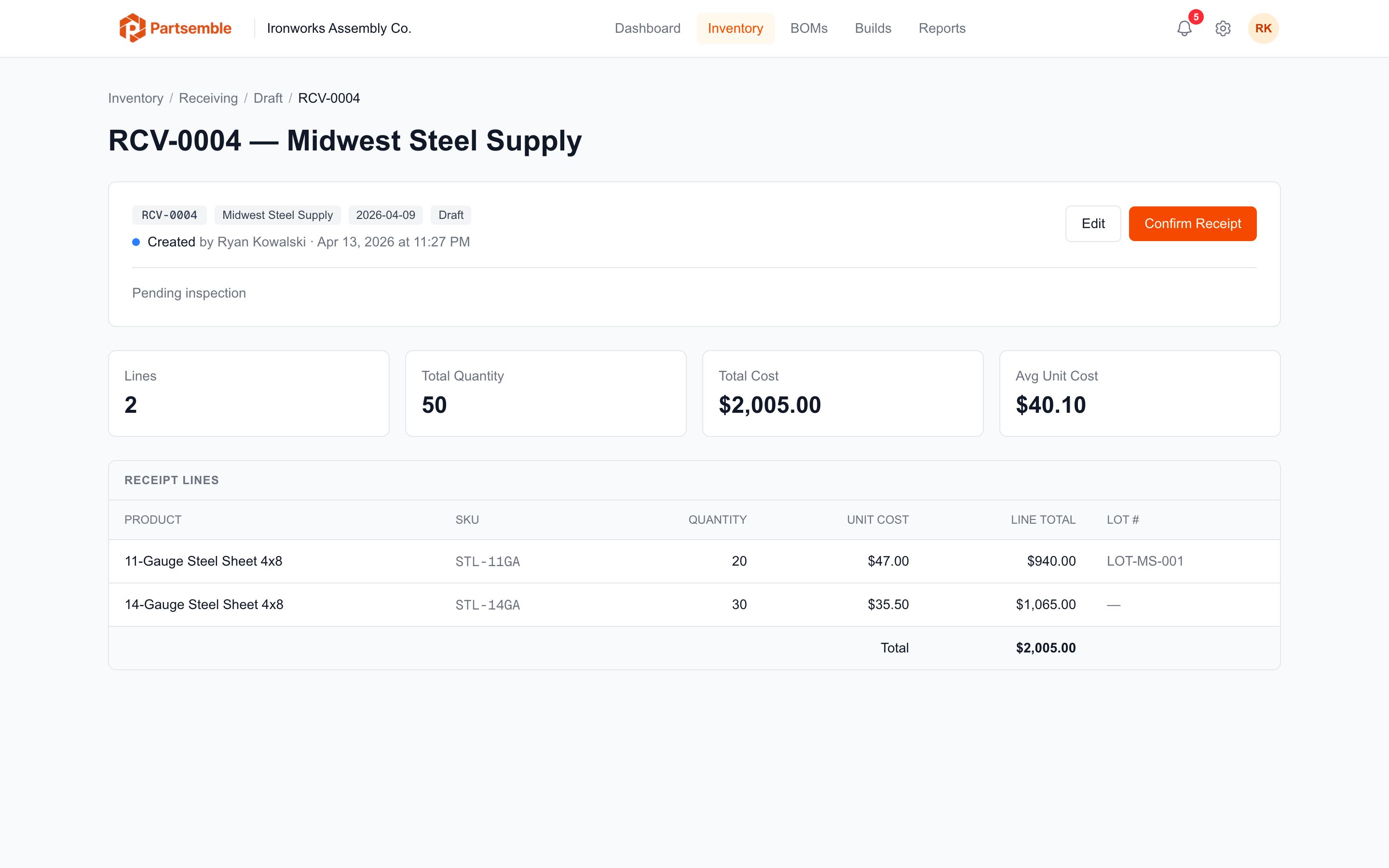
A draft receipt is freely editable. You can add, remove, or modify lines, change the supplier, update the received date, or delete the receipt entirely. Nothing affects inventory until you confirm.
Use the draft state when you're entering a receipt but want to double-check against packing slips or invoices before finalizing.
Lot Number Auto-Generation
When you save a receipt without specifying lot numbers, Partsemble generates them using this pattern:
{supplier-code}-{YYYYMMDD}
For example, if your supplier "Acme Chemicals" has the code "ACM" and you receive on April 4, 2026, the lot number is ACM-20260404.
If the same product appears on multiple lines in the same receipt, a counter is appended: ACM-20260404-2, ACM-20260404-3, etc.
What Happens Next
After saving a draft, confirm the receipt to finalize it and update inventory.