Choosing a Receiving Account
When you enable Receiving in Partsemble and export confirmed receipts to QuickBooks Online, each receipt creates an inventory adjustment that increases your item quantities and asset value. The Receiving Account is the offsetting account on that adjustment — the other side of the journal entry.
How receipt export works
When Partsemble exports a receipt, QuickBooks Online records an inventory adjustment:
| Account | Effect | |
|---|---|---|
| Debit | Inventory Asset (from the item record) | Inventory value increases |
| Credit | Receiving Account (configured in Partsemble) | Offset entry |
QuickBooks Online requires that the Receiving Account be different from the item's Inventory Asset account. If they're the same, the export will fail with: "The inventory adjustment account must be different than the inventory asset account used for [item]."
Which account should I use?
There are three common approaches. The right choice depends on how you handle purchasing in QuickBooks Online.
Option 1: COGS Account (Recommended)
Use your Cost of Goods Sold account — the same one you've already configured for build exports in Partsemble.
How it works: When a receipt is exported, the COGS account is credited (reduced). When you later enter the vendor bill in QuickBooks Online using the Items tab, QuickBooks automatically debits Inventory Asset and credits Accounts Payable. The receipt's COGS credit and the bill's inventory debit both increase your inventory value, but through different paths — the COGS credit offsets when you eventually sell the goods.
Best for: Most Partsemble users. Simple, consistent with your existing build export configuration, and requires no additional account setup.
Between the receipt export and eventually selling the product, your COGS balance will reflect the credit from the receipt. This is standard inventory accounting behavior — COGS is the natural offset for inventory value changes. If you enter vendor bills in QBO promptly, the timing impact on your Profit & Loss is minimal.
Option 2: Dedicated Expense Account
Create a separate expense account like "Material Purchases" or "Inventory Receiving Expense" specifically for receipt exports.
How it works: Same mechanics as Option 1, but uses a separate account instead of your main COGS account. This keeps receipt adjustments visually separated from production COGS on your Profit & Loss.
Best for: Businesses that want to track receiving-related adjustments separately from build/production COGS for reporting purposes.
Option 3: Clearing Account (Other Current Liability)
Create a dedicated liability account like "Inventory Received Not Invoiced" (type: Other Current Liability).
How it works: When a receipt is exported, the clearing account is credited (liability increases). This represents goods you've received but haven't been billed for yet. The idea is that when you enter the vendor bill, you manually zero out the clearing account.
Best for: Businesses that want strict separation between receiving and purchasing, or where there's a significant time gap between receiving goods and processing vendor bills.
QuickBooks Online does not automatically match bills against this clearing account. When entering a vendor bill in QBO, the Items tab posts directly to Inventory Asset and AP — there's no built-in way to route the bill through your clearing account. You would need to manually create a journal entry or use the Expenses tab on the bill to debit the clearing account, which adds complexity. This approach requires disciplined manual reconciliation and is only recommended if your accountant specifically requests it.
Our recommendation
For most Partsemble users, Option 1 (COGS account) is the simplest and most practical choice. Select the same COGS account you've already configured for build exports in Partsemble. This keeps your accounting consistent and avoids additional accounts or manual reconciliation.
If your accountant prefers to track receiving adjustments separately from production COGS, Option 2 gives you that visibility with minimal added complexity.
Option 3 (clearing account) is the most technically correct from an accrual accounting standpoint, but QuickBooks Online doesn't automate the matching — so it requires manual effort on every bill. Only use this if your accountant specifically requires it and understands the reconciliation process.
We recommend discussing this with your accountant before making a selection.
Setting up the Receiving Account
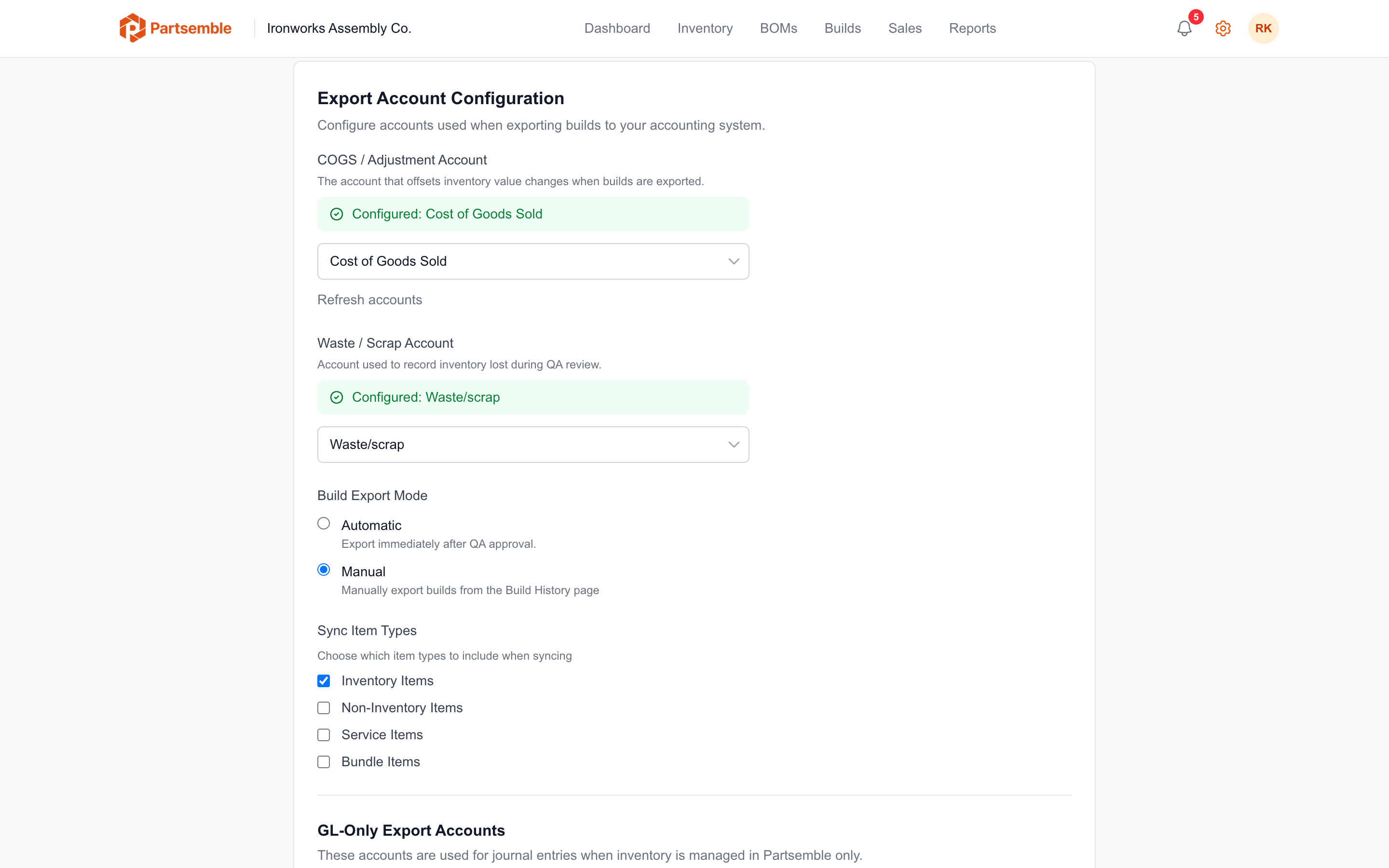
- Go to Settings > Integrations
- In the Receiving section, click Load accounts from your accounting system
- Select your chosen account from the dropdown
- Click Save
The Receiving Account is required before you can export any receipts to QuickBooks Online.
Frequently asked questions
Can I change the Receiving Account later? Yes. Changing it only affects future receipt exports. Previously exported receipts retain the account they were exported with.
What if I use different asset accounts for different items? The Receiving Account must be different from every item's Inventory Asset account. If all your inventory items use the same Inventory Asset account (which is the default in QBO), any COGS or expense account will work.
Why can't I use the Inventory Asset account? QuickBooks Online prevents inventory adjustments from using the same account on both sides of the journal entry. The inventory side is already handled automatically by the item record — you need a different account for the offset.
I already have an "Inventory Shrinkage" account — can I use that? QuickBooks Online automatically creates an "Inventory Shrinkage" account (type: COGS) the first time you make an inventory adjustment in QBO. You can use it, but it's designed for shrinkage and losses. Using your main COGS account or a dedicated receiving expense account is cleaner for reporting purposes.
Do I need to tell my accountant about this? Yes. Your accountant should know which account Partsemble uses for receipt exports so they can account for it when reconciling and entering vendor bills.