Export Settings
Export settings control how Partsemble sends build and receipt data to your accounting system. The accounts you configure here determine where transactions land in your chart of accounts, and the export mode controls whether exports happen automatically or manually.
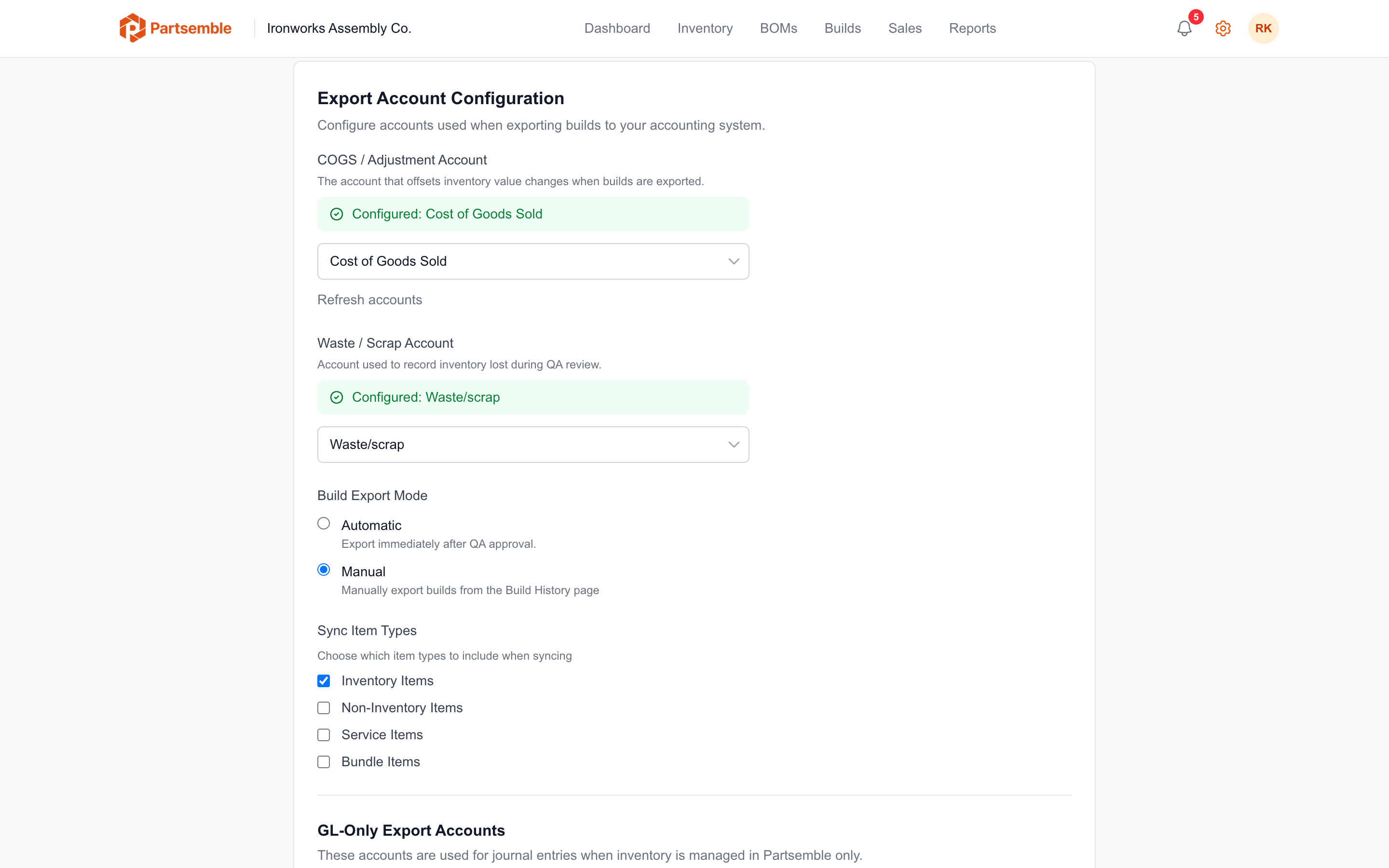
Configuring Export Accounts
Navigate to Settings → Integrations. The export configuration section lets you load accounts from your accounting system and assign them to specific roles.
Sync Mode Accounts
When your inventory connection is in Sync mode, builds and receipts export as inventory adjustments. You need to configure:
COGS Account — the Cost of Goods Sold account used as the offset when build exports adjust inventory quantities. When a build increases a finished good's quantity and decreases component quantities, the COGS account is the balancing side of the adjustment.
Receiving Account — the offset account for receipt exports. When a receipt increases inventory quantities, this account is credited. See Choosing a Receiving Account for guidance on which account to use.
Waste Account — the account used when QA rejections with total loss or partial recovery result in waste exports. Also used for negative receipt adjustments (shrinkage). If no waste account is set, Partsemble falls back to the COGS account for waste-related exports.
Partsemble-Only Mode Accounts
When your inventory connection is in Partsemble-only mode, exports are recorded as journal entries instead of inventory adjustments. You configure GL account pairs:
Build export accounts — a debit account and a credit account for build journal entries. Typically, you'd debit your finished goods asset account and credit your work-in-progress or raw materials account.
Receiving export accounts — a debit account and a credit account for receipt journal entries. Typically, you'd debit your inventory asset account and credit accounts payable or a receiving clearing account.
Export Mode
Partsemble supports two export modes for each transaction type:
Manual — you trigger exports yourself by clicking the export button on individual builds or receipts, or by using bulk export. This gives you full control over timing.
Auto — Partsemble automatically exports transactions when they reach the exportable state. For builds, this means after execution (or after QA approval, if QA is enabled). For receipts, this means after confirmation.
You can set the export mode separately for builds and receipts. Navigate to Settings → Integrations and adjust the build export mode and receipt export mode independently.
Prerequisites for Exporting
Before a build or receipt can be exported, these conditions must be met:
All line item products must be linked to accounting items. Each product involved needs an accounting_item with a valid external ID so Partsemble knows which QBO item to adjust.
Required accounts must be configured. The specific accounts depend on your inventory mode (see above) and whether the export involves waste.
The transaction must be in an exportable state. Builds must be in PENDING_EXPORT (or EXECUTED/APPROVED depending on QA). Receipts must be CONFIRMED or later.
If any prerequisite is missing, Partsemble shows a clear error indicating what needs to be configured or linked before the export can proceed.
Reference Numbers
Exported transactions include a reference number in your accounting system for easy cross-referencing. The format is PSB-{number} — for example, PSB-R-00042 for a receipt or a build-specific reference. These appear as the DocNumber on the QBO transaction.