Xero
Partsemble integrates with Xero to export builds and receipts, sync suppliers, and pull sales data for margin tracking. The connection uses OAuth 2.0 — your Xero credentials are never stored in Partsemble.
How Xero Integration Works
Xero works differently from QuickBooks Online in one important way: Partsemble manages your inventory directly rather than syncing quantities with Xero. This is because Xero doesn't have an API for inventory quantity adjustments. When you export builds and receipts, Partsemble creates journal entries in Xero that record the financial impact — your general ledger stays accurate, and Partsemble handles the inventory side.
This means Xero users always operate in Partsemble-only inventory mode. You create and manage products in Partsemble (manually or via CSV/XLSX import), and build/receipt exports post journal entries to your Xero account.
Connecting to Xero
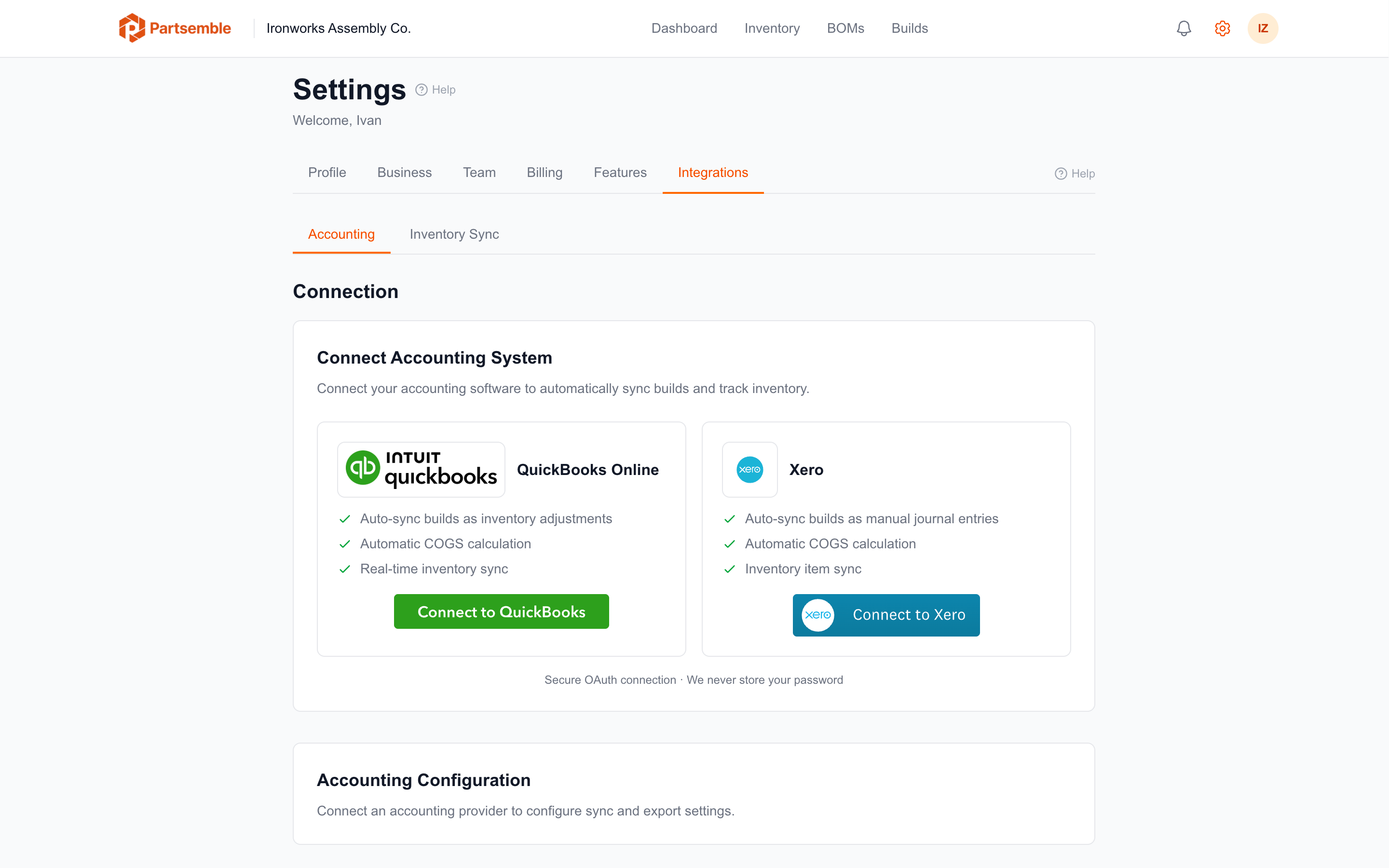
Navigate to Settings → Integrations and click Connect to Xero. A popup opens where you sign in to your Xero account and authorize Partsemble.
During authorization, you'll select which Xero organization to connect. Partsemble stores the connection and displays your organization name. The connection is ready immediately.
What Partsemble Accesses
With your authorization, Partsemble can:
Read items — your Xero tracked inventory and non-inventory items. This powers the item sync and product import features. Xero items use "Code" as their identifier (equivalent to SKU).
Read accounts — your chart of accounts, used to configure the GL export accounts for builds and receipts.
Create manual journals — when you export builds or receipts, Partsemble creates manual journal entries in Xero that debit and credit the appropriate accounts.
Read invoices and credit notes — when sales tracking is enabled, Partsemble pulls these transactions to calculate margins and track finished good consumption.
Read and create contacts — used to sync suppliers for receiving.
Inventory Management
Since Xero doesn't support inventory adjustments via API, Partsemble is your inventory management system. Here's how the pieces fit together:
Products — create products manually in Partsemble, import from a CSV/XLSX file, or sync item names and costs from Xero and import them as Partsemble products.
Stock levels — managed entirely in Partsemble through builds (increase finished goods, decrease components) and receipts (increase incoming materials via lot tracking).
Exports — builds and receipts are exported as manual journal entries. For example, a build export debits your finished goods asset account and credits your raw materials or COGS account. The financial impact is recorded; Xero item quantities are not modified.
Sales — invoices from Xero are synced into Partsemble for margin tracking. Partsemble consumes finished good lots via FIFO and calculates the true cost of goods sold.
Export Accounts
Since all exports go as journal entries, you configure GL account pairs in Settings → Integrations:
Build export accounts — a debit account and a credit account. Typically finished goods asset (debit) and COGS or raw materials (credit).
Receiving export accounts — a debit account and a credit account. Typically inventory asset (debit) and accounts payable or a receiving clearing account (credit).
Waste account — used when QA rejections result in material loss.
See Export Settings for detailed guidance.
Token Management
Partsemble handles token refresh automatically. Xero access tokens expire after 30 minutes, and refresh tokens are single-use — each refresh returns a new refresh token. Partsemble manages this transparently. If a refresh fails (for example, if you revoke access from Xero), Partsemble prompts you to reconnect.
All tokens are encrypted at rest. Partsemble never stores your Xero username or password.
Disconnecting
To disconnect, go to Settings → Integrations and click Disconnect. Your Partsemble data is preserved. You can also revoke access from within Xero under Settings → Connected Apps.