Build Queue
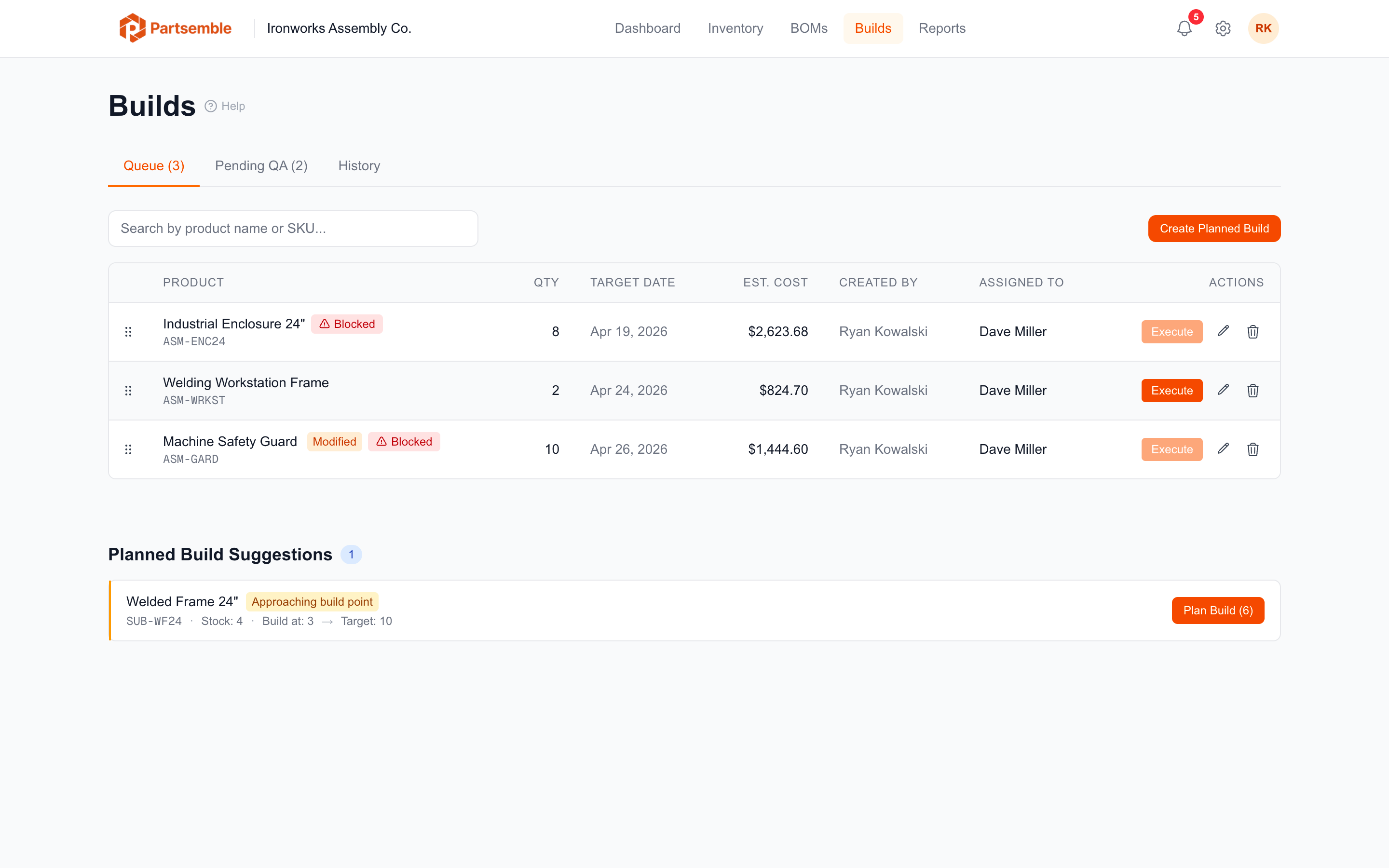
The build queue is your production schedule. It shows all planned builds in priority order, lets you reorder them by dragging, and gives you a clear view of what's coming up and whether you have the components to run each build.
Accessing the Queue
Navigate to Builds → Queue in the left sidebar. The queue shows all builds in Planned status.
What the Queue Shows
Each entry in the queue displays:
- Product name and SKU — what you're building
- Quantity — how many units
- BOM version — which recipe version will be used
- Target date — when the build is scheduled for (if set)
- Assigned to — which team member is responsible (if assigned)
- Estimated cost — based on current component prices
- Auto-generated badge — appears if the build was created by the build points system rather than manually
- Modified badge — appears if planned build lines have been edited from BOM defaults
Reordering the Queue
Drag builds up or down to set priority. The position at the top of the queue is the highest priority. Reordering is saved immediately.
Use this to sequence your production — for example, put sub-assembly builds above the finished good builds that depend on them, or prioritize builds with the nearest target date.
Filtering
You can filter the queue by:
- Product — show only builds for a specific product
- Target date range — show builds scheduled within a date window
Working With Queue Items
Execute — open the build and click Execute to run it now. See Executing Builds.
Edit — update the quantity, target date, assigned team member, notes, or individual component lines. See Planning Builds.
Delete — remove a planned build you no longer need. No inventory impact.
Auto-Generated Builds
When a product's stock falls below its BOM's build point, Partsemble creates a planned build automatically and adds it to the queue. These builds are labeled auto-generated so you can distinguish them from builds you created manually.
Auto-generated builds are not executed automatically — they wait in the queue for someone to review and run them. You can edit, reorder, or delete them like any other planned build.
If you see unexpected auto-generated builds in your queue, check the build point settings on the product's BOM. You may want to adjust the build point threshold or target stock level.
Overdue Builds
If a planned build's target date passes without being executed, it's considered overdue. Overdue builds are highlighted in the queue, and if overdue build alerts are enabled in Settings → Business Settings, they also appear on the dashboard.