Build History
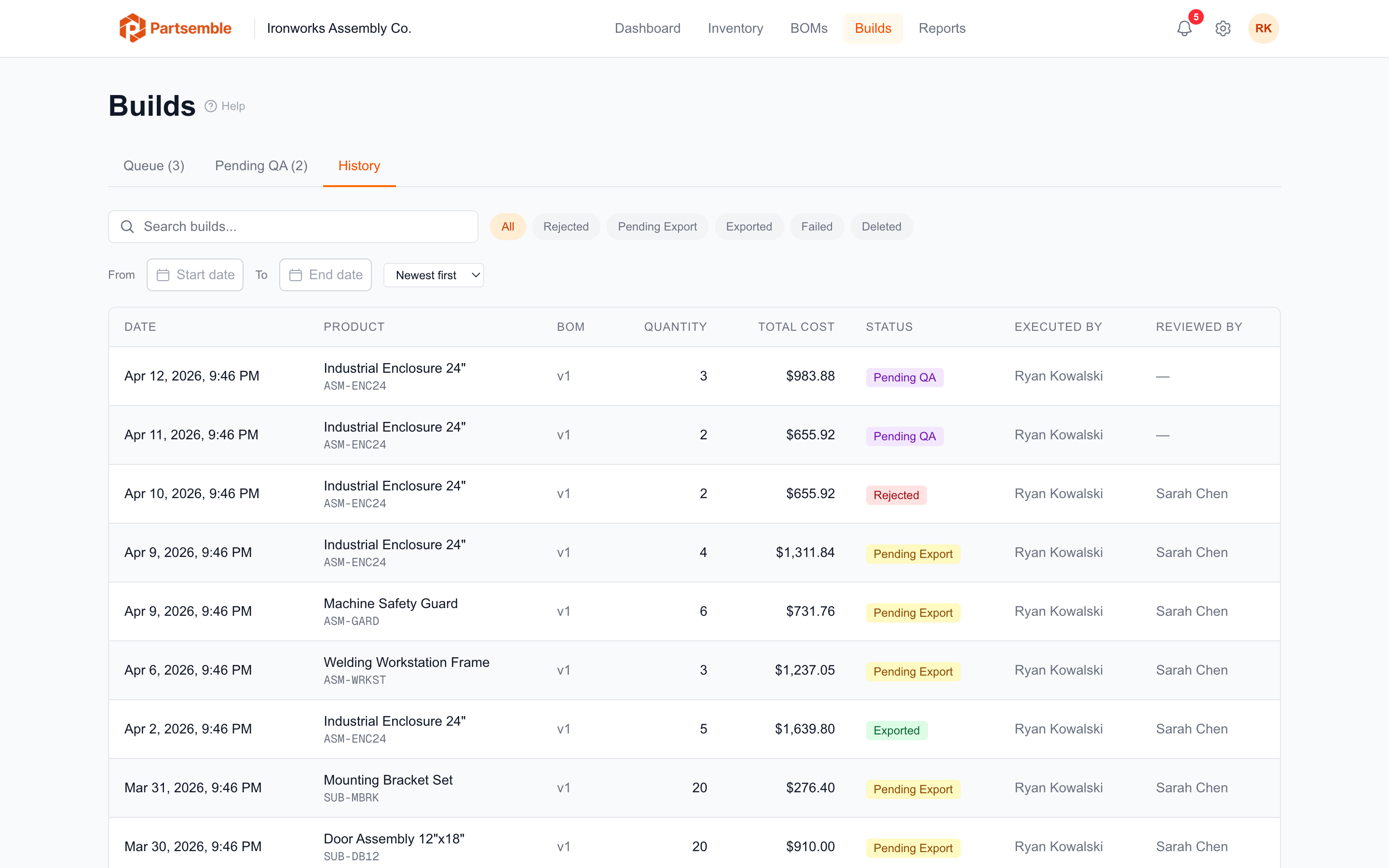
The build history page shows a complete record of every build that's been executed in your account. Use it to review past production, track export status, and look up details of specific builds.
Accessing Build History
Navigate to Builds → History in the left sidebar. The default view shows all builds ordered by date, newest first.
What the History Shows
Each row in the build history displays:
- Product name and SKU — what was built
- Quantity — how many units were produced
- BOM version — which recipe version was used
- Total cost — the full cost of the build (materials + cost lines)
- Status — the current sync status (Executed, Approved, Rejected, Pending Export, Synced, Failed)
- Executed by — the team member who ran the build
- Date — when the build was executed
Searching and Filtering
The history page has several tools for finding specific builds:
Search — type in the search box to find builds by product name, SKU, build ID, notes, or the name of the person who created or executed the build.
Status filter — show only builds with a specific status (Executed, Approved, Rejected, Pending Export, Synced, Failed).
Product filter — show only builds for a specific product.
Date range — set a start and/or end date to narrow results to a specific time period.
Sorting — sort by date, total cost, quantity, or product name (ascending or descending).
Build Detail Page
Click any build to open its detail page. The detail view shows everything about the build:
Component consumption — each component that was consumed, with quantity, unit cost at time of consumption, and line total.
Cost lines — non-material costs from the BOM (labor, overhead, etc.) as they were at execution time.
Execution details — who created the build, who executed it, and when.
QA details (if applicable) — who reviewed the build, the decision (approved/rejected), rejection reason, recovery mode, and review notes.
Export details — sync status, the external reference number in your accounting system, when it was exported, and any error messages if export failed.
Notes — any notes added during planning or execution.
Bulk Export
If you use manual export mode, you can select multiple builds from the history and export them all at once. Select the builds you want, click Export Selected, and Partsemble processes them sequentially.
Deleted Builds
Builds that have been soft-deleted are hidden from the default view. To see deleted builds, toggle the Show deleted filter. Deleted builds are kept for audit purposes but are clearly marked.