Quick Builds
A quick build lets you execute a build immediately without creating a planned build first. It's the fastest way to record production in Partsemble — select a product, set a quantity, and go.
When to Use Quick Builds
Quick builds are best for:
- Routine production — you make the same thing regularly and don't need to schedule it in advance
- Small batches — a quick run that doesn't warrant formal planning
- On-demand production — a customer order came in and you need to build it now
- Getting started — when you're new to Partsemble and want to try the build workflow
If you need to schedule builds for future dates, assign them to team members, or coordinate a sequence of builds, use Planned Builds instead.
Steps
1. Start the build
Navigate to Builds and click Quick Build. A modal opens.
2. Select the product
Choose the product you want to build. The dropdown shows products that have an active BOM. If your product doesn't appear, you need to create a BOM for it first.
3. Set the quantity
Enter the number of units to build. Partsemble shows the max buildable quantity based on current component stock — you can't build more than your components support.
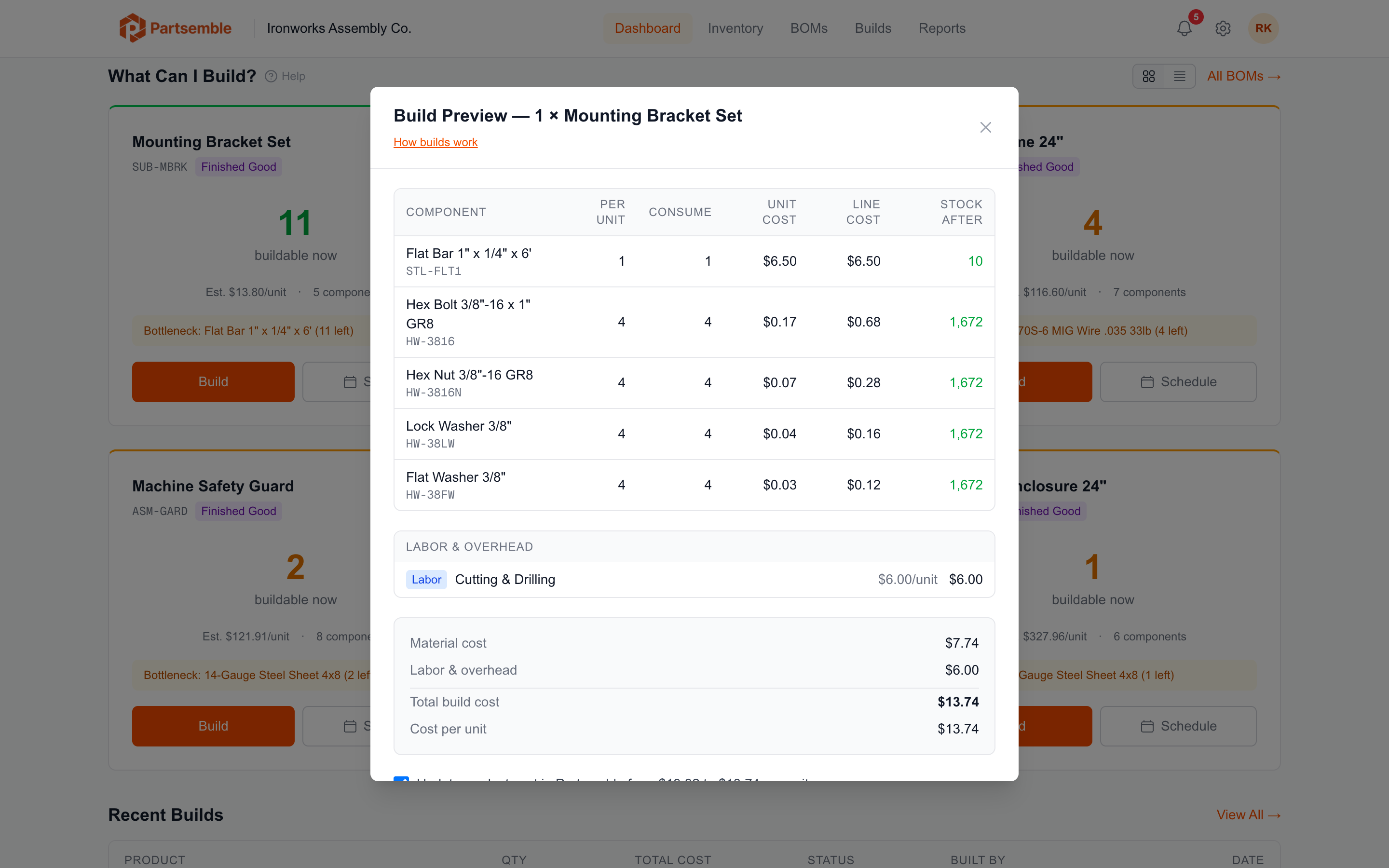
4. Review the preview
Partsemble shows a build preview:
- Each component that will be consumed, with quantity and cost
- Any cost lines from the BOM
- Total build cost
- Resulting unit cost of the finished good
Take a moment to verify the numbers look right.
5. Execute
Click Execute Build. Partsemble runs the build immediately — components are consumed, the finished good is produced, costs are recorded, and the build enters the post-execution flow.
After Execution
What happens next depends on your settings:
QA review disabled (default): The build moves to Pending Export status. If auto-export is configured, it's exported to your accounting system automatically. Otherwise, you can export it manually from the build detail page or the history view.
QA review enabled: The build moves to Executed — Pending QA status. A team member with QA permissions needs to approve or reject it before finished goods are added to inventory. See Approving and Rejecting Builds.
Adding Notes
The quick build modal includes an optional notes field. Use it for batch-specific details like lot references, special instructions, or production notes. Notes are saved with the build record and visible in the build history.