Enabling Sales Tracking
Sales tracking is an optional feature that you enable when you're ready to connect your sales data to your production costs. Here's what you need and how to turn it on.
Prerequisites
Before enabling sales tracking:
- Advanced plan — sales tracking is an Advanced-tier feature
- Receiving enabled — lot tracking must be active so Partsemble can calculate FIFO costs for sales. See Enabling Receiving.
- Accounting connection — you need a connected accounting system to sync sales from (unless you plan to only use manual sales)
How to Enable
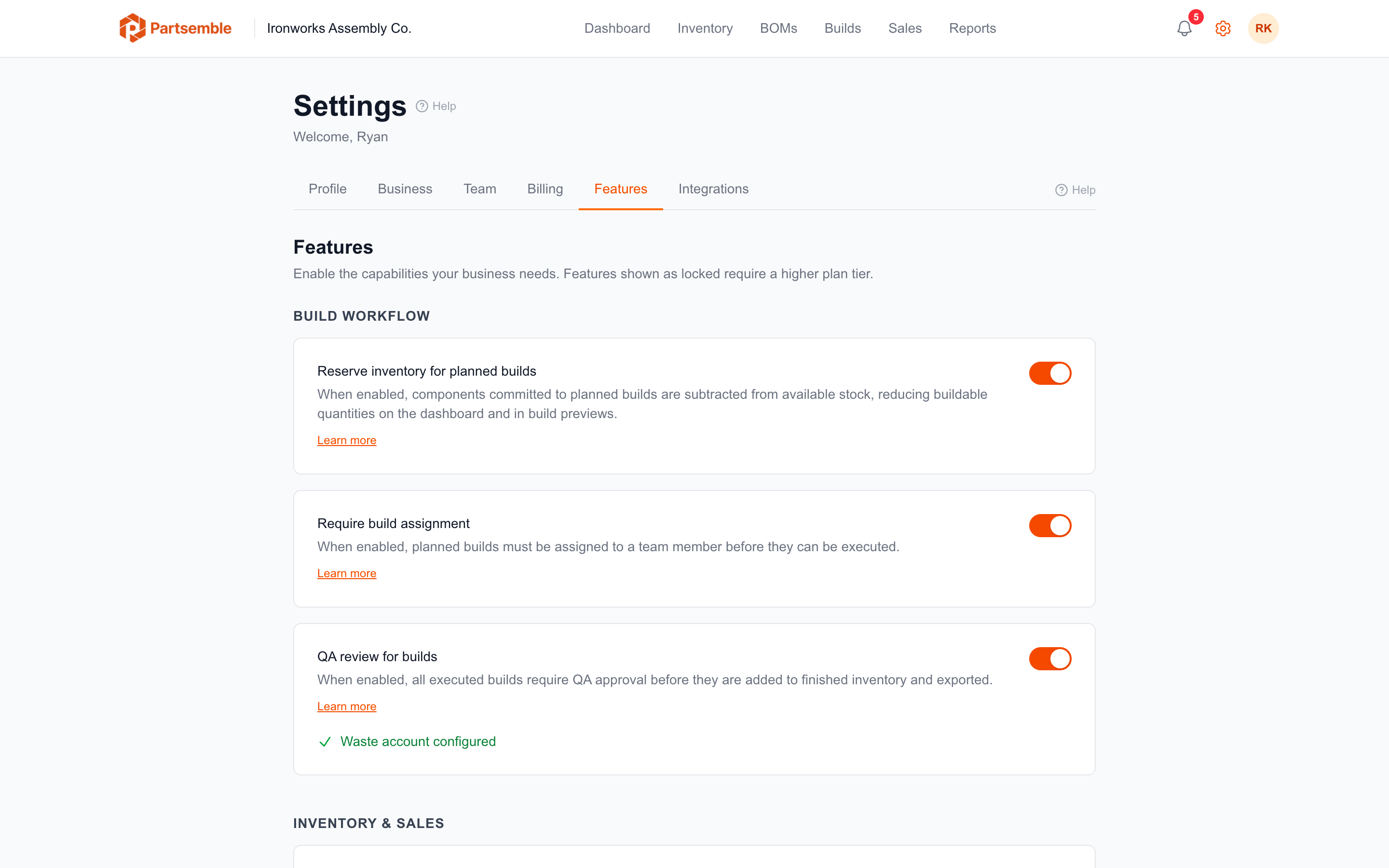
Navigate to Settings → Business Settings and turn on Sales Tracking. The change takes effect immediately.
Once enabled, the Sales tab appears in the Inventory section, and you can connect a sales channel and start syncing.
What Happens When You Enable
- The Sales tab becomes visible in the Inventory section
- Sales sync and manual sale creation become available
- Synced sales consume finished good lots via FIFO
- Margin tracking activates for all sales
Sales tracking doesn't retroactively process historical sales. Only sales synced or created after enabling are tracked. However, when you connect a sales channel, you can set a lookback date to pull recent historical sales.
Disabling Sales Tracking
You can disable sales tracking at any time in Settings → Business Settings. When disabled:
- The Sales tab is hidden
- Sync stops running
- Existing sales data is preserved (not deleted)
- If you re-enable later, your previous sales are still there