Alert Configuration
Partsemble can alert you when inventory levels need attention. Alerts appear on the dashboard and help you stay ahead of stock-outs and production delays. Each alert type can be toggled independently in settings.
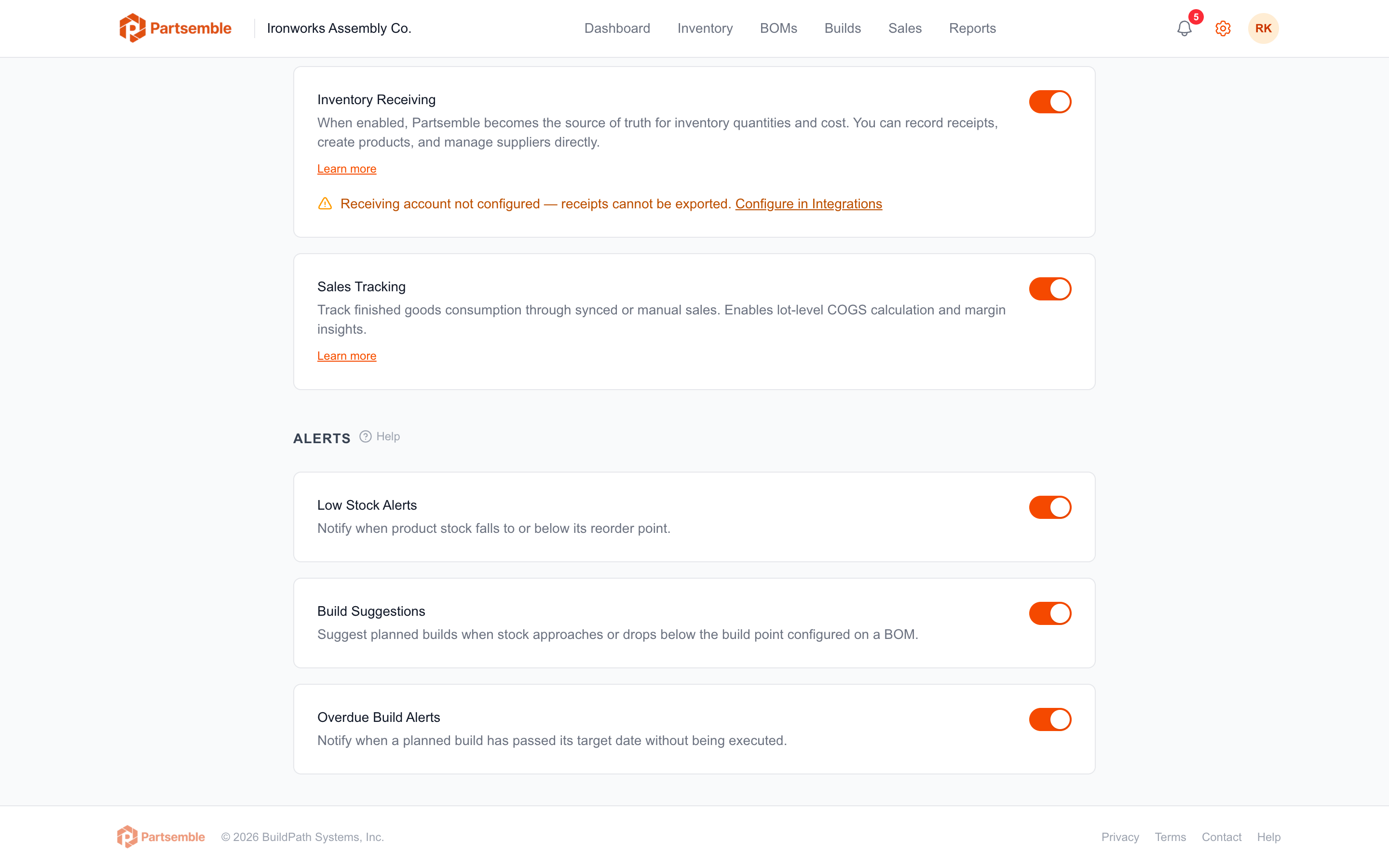
Alert Types
Low Stock Alerts
When enabled, Partsemble flags products whose stock on hand has fallen to or below their reorder point. This gives you early warning to reorder materials before you run out.
To use low stock alerts, set a reorder point on each product you want to monitor. Products without a reorder point are not included in low stock checks. See Reorder & Build Points.
Build Suggestions
When enabled, Partsemble automatically suggests planned builds when a finished good's stock drops to or below the build point configured on its BOM. The suggested build quantity is calculated to bring stock up to the BOM's target stock level.
For example, if your Industrial Enclosure BOM has a build point of 3 and a target stock level of 10, and current stock drops to 2, Partsemble suggests a build of 8 units. If auto-build is active, it creates the planned build automatically in the queue.
Build suggestions require a BOM with both build_point and target_stock_level configured. See Reorder & Build Points.
Overdue Build Alerts
When enabled, Partsemble flags planned builds that have passed their target date without being executed. This helps you identify production delays and reprioritize the build queue.
Overdue alerts only apply to planned builds that have a target date set. Builds without a target date are not flagged as overdue.
Configuring Alerts
Navigate to Settings → Alerts. Toggle each alert type on or off. Changes take effect immediately and apply to the dashboard for all users in your business.
Only the business owner can modify alert settings.
Where Alerts Appear
Active alerts appear on the Dashboard as counts and lists. You'll see how many products have low stock, how many build suggestions are pending, and how many builds are overdue. Click any alert to see the details and take action — reorder materials, execute a suggested build, or update the queue.