Planning Builds
A planned build is a work order — a build that's been scheduled but not yet executed. It sits in the Build Queue until someone on your team is ready to run it.
When to Plan Instead of Quick Build
Use planned builds when you need to:
- Schedule production for a future date
- Assign builds to specific team members
- Review component availability before committing
- Coordinate a sequence of builds (sub-assemblies first, then finished goods)
- Let Partsemble auto-generate builds from build points
If you're doing a one-off build right now and don't need any of the above, a Quick Build is faster.
Creating a Planned Build
From the Builds page
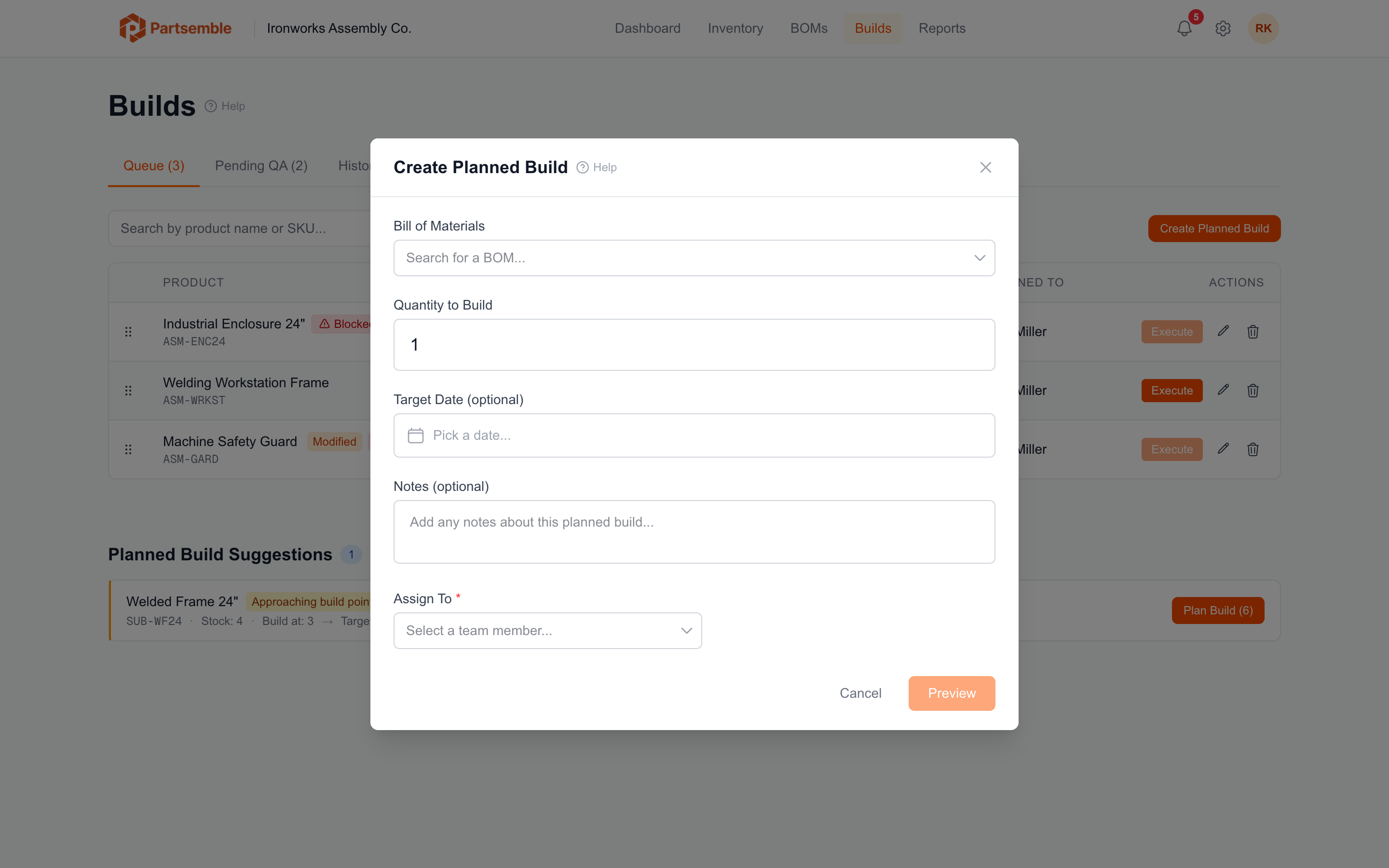
Navigate to Builds and click New Planned Build. Select the product and BOM, set the quantity, and optionally fill in:
Target date — when you plan to execute this build. This is informational — Partsemble won't execute it automatically. If a planned build passes its target date without being executed, it shows as overdue on the dashboard (if overdue alerts are enabled).
Assigned to — the team member responsible for executing this build. Available on the Pro plan and above. See Build Assignments.
Notes — internal notes about the build (batch instructions, special handling, etc.).
Click Save. The planned build appears in the Build Queue.
Auto-generated from build points
When a product's stock drops below its BOM's build point, Partsemble automatically creates a planned build. The quantity is calculated as the target stock level minus current stock. These builds are marked as auto-generated in the queue so you can tell them apart from manually created ones.
See Reorder and Build Points for details.
Planned Build Lines
When you create a planned build, Partsemble snapshots the BOM's component list into planned build lines. Each line records the component, the BOM's default quantity per unit, and the quantity that will actually be consumed.
You can edit planned build lines before execution:
- Adjust quantities — change how much of a component to use (e.g., use 2.1 instead of the BOM's default 2.0)
- Add extra quantity — add buffer for expected waste or shrinkage
- Exclude a component — toggle off an optional component you don't want to include in this build
Modifications are tracked — the build detail page shows whether lines have been changed from the BOM defaults and what the original values were.
Editing planned build lines only affects this specific build. It doesn't change the BOM. If you need to permanently change the recipe, create a new BOM version instead.
Editing a Planned Build
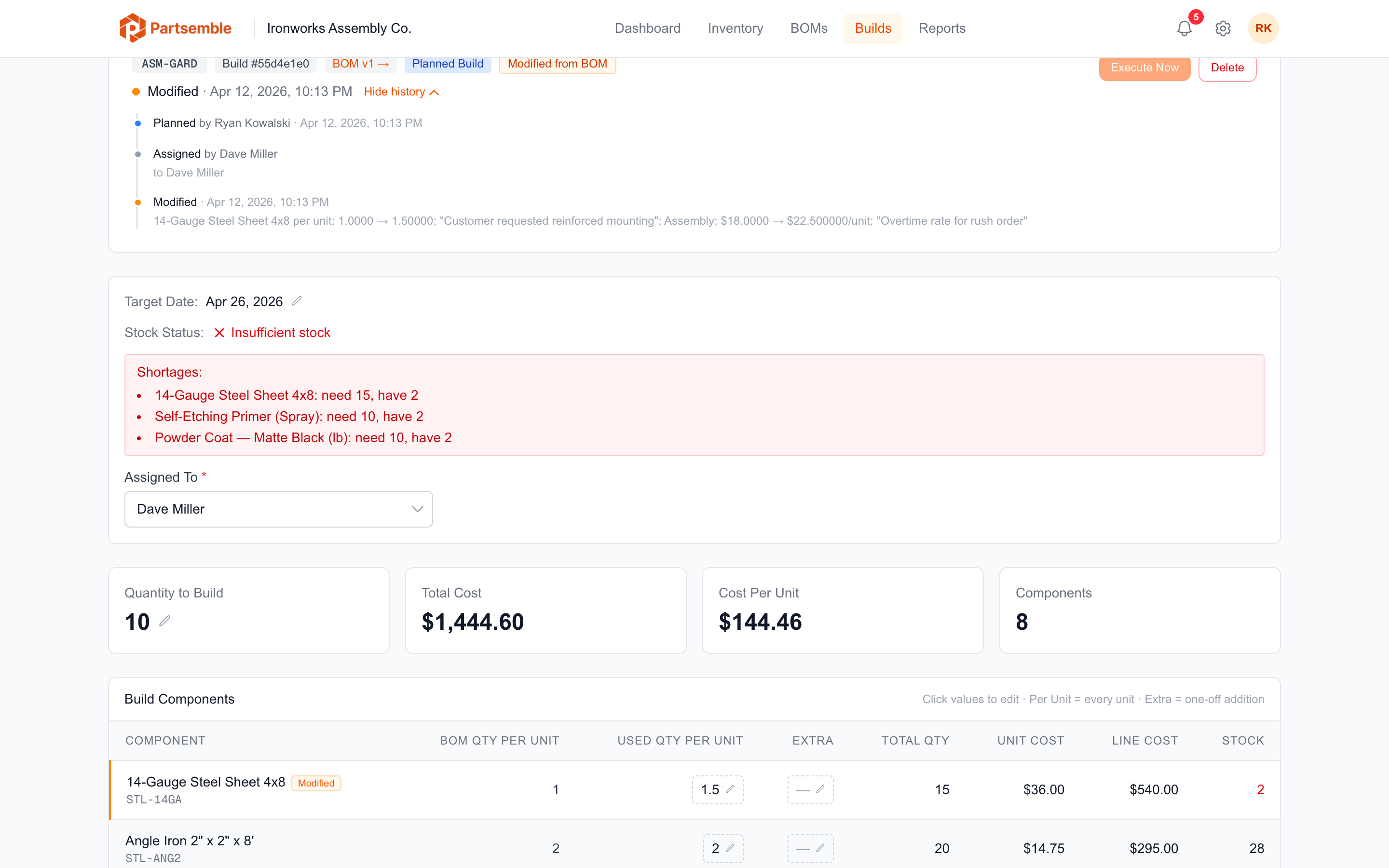
After creation, you can update a planned build from the queue:
- Change the quantity
- Update the target date
- Reassign to a different team member
- Edit notes
- Modify individual component lines
All edits are logged so you have a history of changes.
Executing a Planned Build
When you're ready to run the build, open it from the queue and click Execute. Partsemble shows a preview of what will be consumed and produced. Review the preview and confirm.
At execution time, Partsemble re-validates component stock against the planned lines. If stock has changed since the build was planned, the preview reflects current availability. See Executing Builds for the full execution flow.
Deleting a Planned Build
If you no longer need a planned build, you can delete it from the queue. Deleting a planned build has no effect on inventory — nothing was consumed yet.