Low Stock Alerts
Low stock alerts help you catch inventory shortages before they stop production. The dashboard highlights components that are running low and products that have fallen below their reorder points.
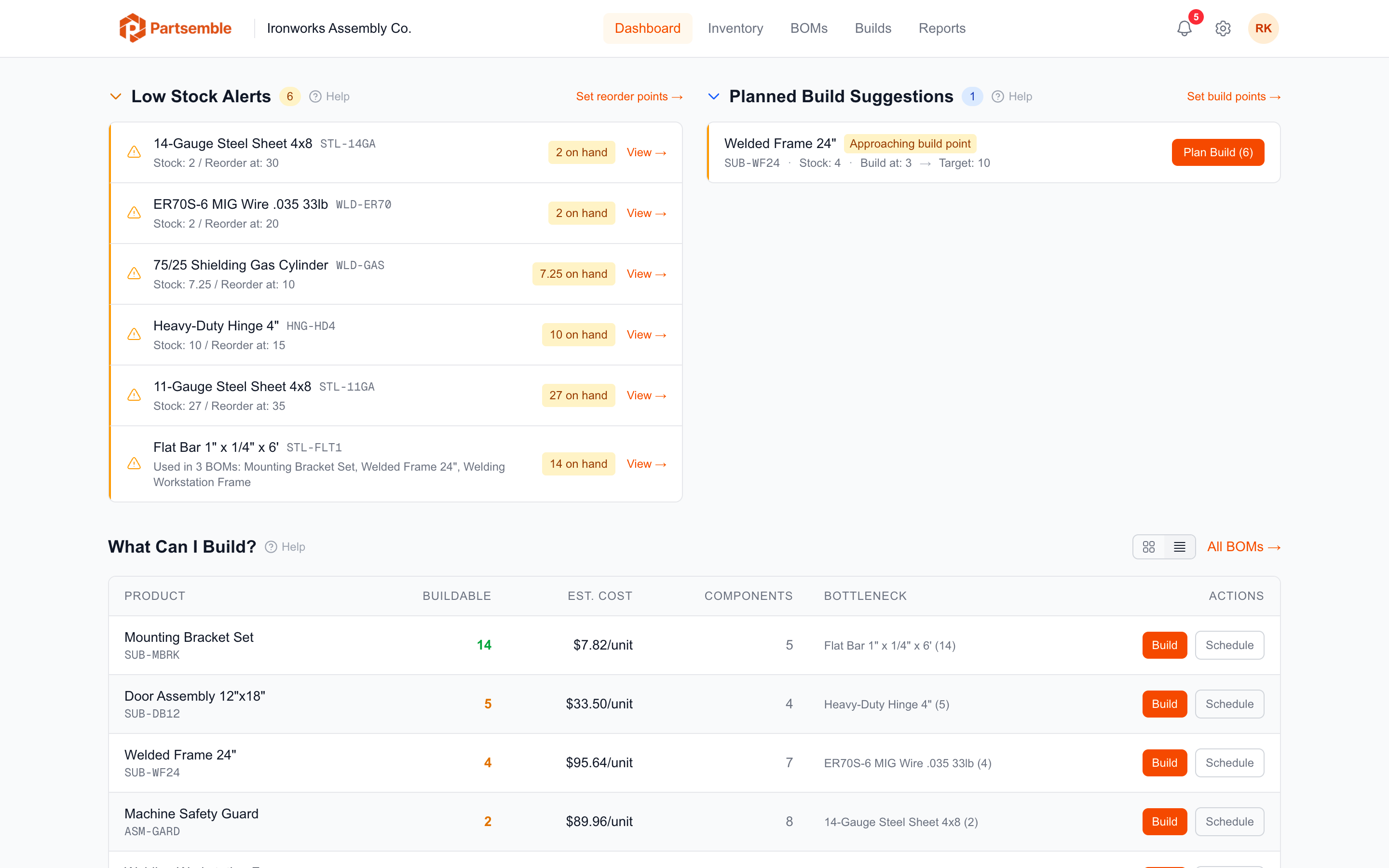
Two Types of Low Stock Alerts
Bottleneck Components
These are components that are limiting your ability to build finished goods. If a component has zero stock or is the bottleneck for one or more active BOMs, it appears here. Each alert shows the component name, current stock, whether it's completely out of stock, and which BOMs it's used in (up to 5 listed).
Bottleneck alerts don't require any configuration — they're derived automatically from your BOM structures and current stock levels.
Reorder Point Alerts
Products with a configured reorder point trigger an alert when their stock on hand drops to or below that threshold. Unlike bottleneck alerts, reorder point alerts require you to set the reorder point on each product you want to monitor.
Only products that are used in at least one active BOM appear in reorder point alerts. This keeps the list focused on materials that matter for production.
Setting Reorder Points
To configure reorder points, go to a product's detail page and set the reorder point field. This is the stock level at which you want to be alerted. A common approach is to set it at the quantity you need to cover your lead time — if it takes 2 weeks to reorder MIG welding wire and you use 4 spools per week, set the reorder point to 8 spools. See Reorder & Build Points.
Alert Sorting
Low stock alerts are sorted with out-of-stock items first, then by quantity ascending. The most critical shortages appear at the top.
Toggling Low Stock Alerts
Low stock alerts can be turned off in Settings → Alerts if you don't need them. When disabled, the low stock section is hidden from the dashboard. See Alert Configuration.