Build Suggestions
Build suggestions proactively tell you when it's time to produce more of a finished good. Instead of manually checking stock levels, Partsemble compares each product's current stock against the build point configured on its BOM and suggests a build when stock gets low.
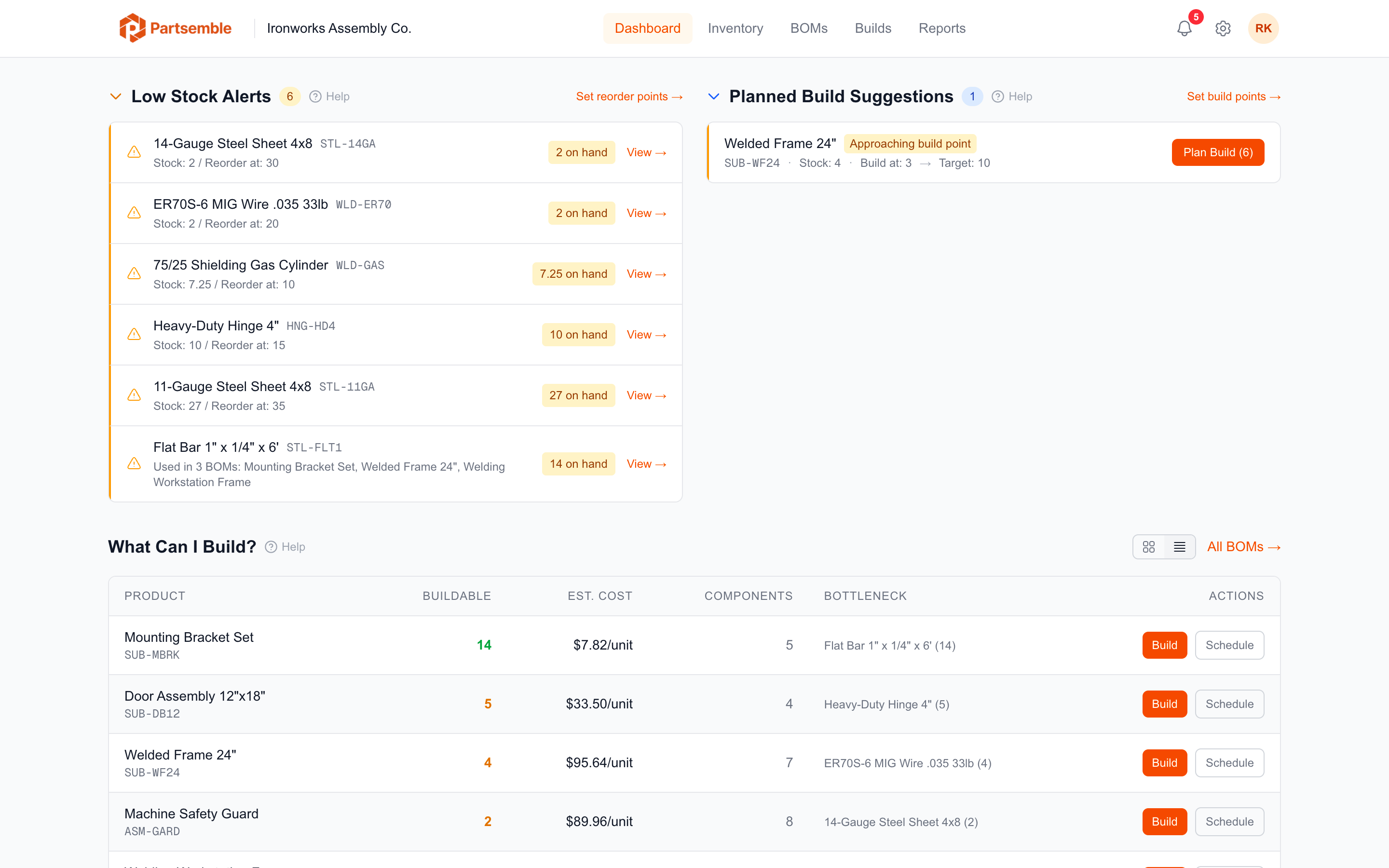
How Suggestions Are Triggered
Partsemble checks three conditions for products with active BOMs:
Below build point — the product's stock on hand has dropped to or below the BOM's build point. This is the primary trigger and is marked as urgent. The suggested quantity brings stock up to the BOM's target stock level.
Approaching build point — stock is within 50% above the build point (for example, if the build point is 20, the approaching threshold is 30). This is a proactive heads-up so you can plan ahead before stock gets critical.
Out of stock — a finished good with zero stock and an active BOM, even if no build point is configured. No specific quantity is suggested since there's no target stock level to calculate from, but the alert flags that you have a product with no inventory.
Configuring Build Points
Build points are set on the BOM, not the product. Go to a BOM's detail page and configure:
Build point — the stock threshold that triggers the suggestion. When stock drops to or below this number, Partsemble recommends a build.
Target stock level — the quantity you want to have after the build. The suggested build quantity is the difference between target stock level and current stock on hand.
See Reorder & Build Points for guidance on setting these values.
Auto-Generated Planned Builds
When build suggestions are enabled and a product's stock drops below its build point, Partsemble can automatically create a planned build in the queue. These auto-generated builds are marked so you can distinguish them from manually planned builds. If a planned build already exists for the product, no duplicate is created.
Taking Action
Click a build suggestion on the dashboard to open the planned build modal with the BOM and suggested quantity pre-filled. You can adjust the quantity before saving, or execute immediately if stock is available.
Excluding Products with Existing Plans
Products that already have a planned build in the queue are excluded from build suggestions. This prevents duplicate alerts when you've already planned production for a product.
Toggling Build Suggestions
Build suggestions can be turned off in Settings → Alerts. When disabled, the build suggestions section is hidden from the dashboard and auto-generated planned builds are not created. See Alert Configuration.