Changing Plans
You can upgrade or downgrade your Partsemble plan at any time from Settings → Billing. Upgrades take effect immediately. Downgrades lock features immediately but adjust billing at the end of your current period.
Upgrading
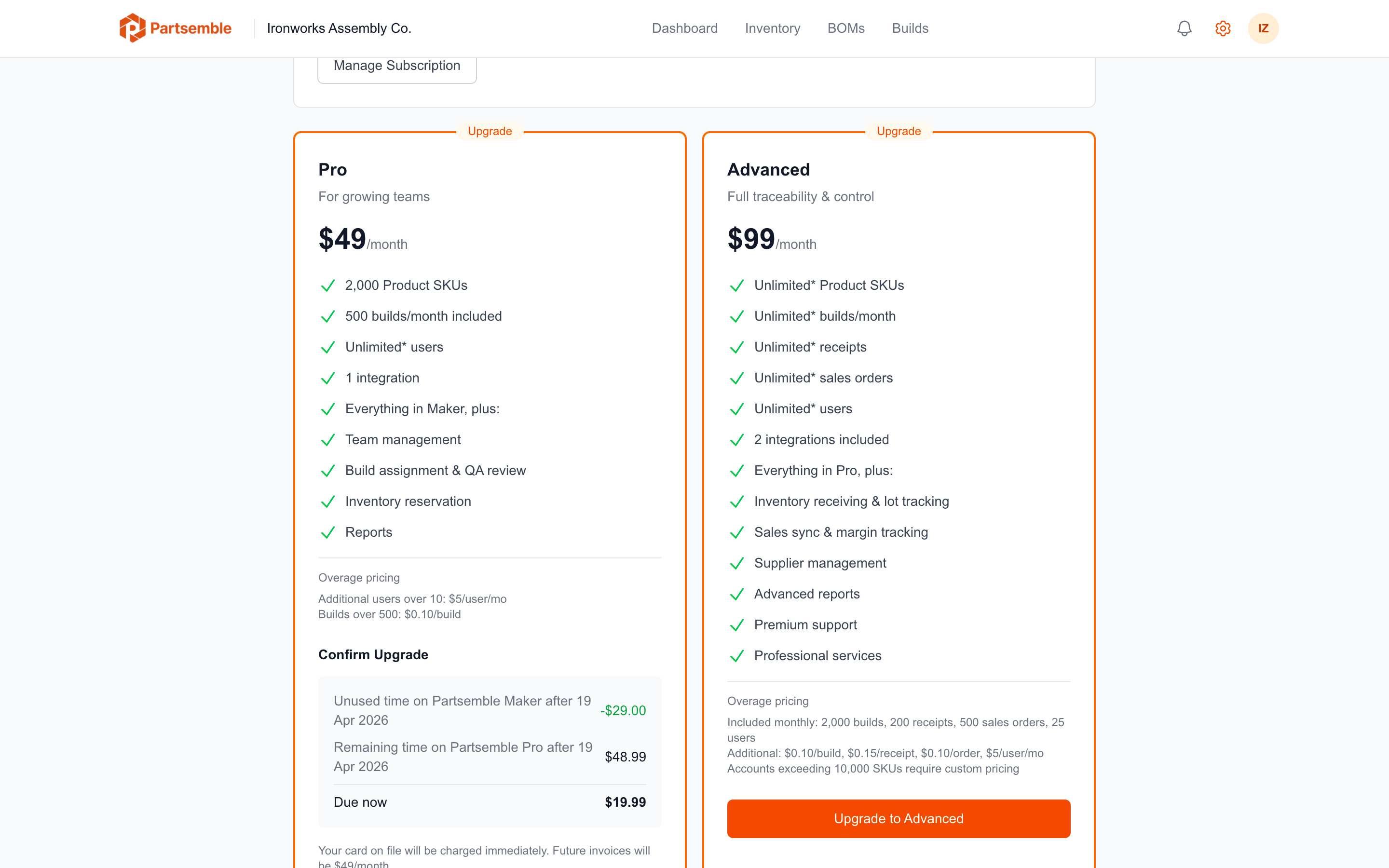
When you upgrade (e.g., Maker to Pro, or Pro to Advanced), the new features are available immediately. You're charged a prorated amount for the remainder of your current billing period — the difference between your new plan's cost and what you've already paid.
Before confirming, Partsemble shows a preview of the prorated charge with a line-by-line breakdown so you can see exactly what you'll be charged. Confirm to apply the upgrade.
After upgrading, your overage counter resets. If you were exceeding limits on your old plan, the higher limits on the new plan may bring you back under.
Downgrading
When you downgrade (e.g., Advanced to Pro, or Pro to Maker), the feature lockout happens immediately — features not included in the lower plan become inaccessible. However, you're not charged the lower rate until your next billing cycle. There's no refund for the current period.
Your existing data is fully preserved. If you had receiving enabled on Advanced and downgrade to Pro, your lots, receipts, and lot-tracked data remain in the system. You just can't access those features until you upgrade again.
Before downgrading, check whether you're within the lower plan's limits. If you have 1,500 products and downgrade to Maker (500 SKU limit), you won't lose data, but you won't be able to create new products until you're under the limit. Similarly, if you have 5 team members and downgrade to Maker (1 user), additional members will need to be removed.
From Trial to Paid
When your 14-day trial ends, select a plan to continue. Your data is preserved no matter which plan you choose. If your trial expires without selecting a plan, the account becomes read-only — you can still view everything, but you can't create or modify records. Select a plan at any time to restore full access.
Canceling
To cancel your subscription, go to Settings → Billing and click Cancel. Only the business owner can cancel. After cancellation, your account becomes read-only at the end of the current billing period. Your data remains accessible — you can resubscribe later to restore full access.