Transfer to Assembly
A transfer moves material out of distribution stock in QuickBooks Online and into Partsemble's assembly inventory, breaking each container down into the quantity a BOM consumes, in one step.
What a Transfer Does
Distribution stock is material as your accounting system lists it, in the units you buy it in: a 5 gal pail, a 1 qt can, a case. Each line of it is an external item. Assembly inventory is material as Partsemble holds it, in the units your BOMs consume: grams, ounces, pieces.
A conversion is the standing rule that joins the two: one container of an external item yields a known quantity of a product. A transfer applies one or more conversions a number of times each. For example, Larkspur Coatings Co. buys Alkyd Floor Base, 5 gal pail in QuickBooks Online, and its conversion says one pail yields 21,800 grams of Alkyd Floor Base. A transfer of 2 pails takes 2 pails out of QuickBooks and puts 43,600 grams into assembly inventory, on a new lot priced from the pail's purchase cost.
Without transfers, the same move takes two stock adjustments, one in each system, and the cost per gram is worked out by hand.
Prerequisites
- The Advanced plan. The Transfers tab is part of it.
- Receiving turned on in Settings → Features. With Receiving off there is no Transfers tab, because builds would not cost from the lots a transfer creates. See Enabling Receiving.
- A QuickBooks Online connection. A transfer relieves distribution stock with an inventory adjustment, and Xero has none.
- Export mode set to Journal entries. See Export Mode.
- The Receiving Export — Debit Account and Receiving Export — Credit Account chosen in Settings → Integrations → Accounting. The credit account is the clearing account both halves of a transfer use. See Receiving Account.
- Each external item you transfer has a purchase cost in QuickBooks Online, brought in by an item sync. See Syncing Items.
- At least one conversion. See Setting Up Conversions.
- The Manage Receiving permission. Everything under Transfers needs it.
When a setting is missing, the Transfers sub-tab shows Before you can transfer in place of the builder, with one line for each thing to fix:
- "Connect your accounting system.", with a Connect Accounting System button, when there is no working connection
- "Transfers relieve distribution stock with an inventory adjustment, which Xero cannot post.", when the connection is Xero
- "Set Export mode to Journal entries.", with a Change Export Mode button, when Export mode is Inventory adjustments
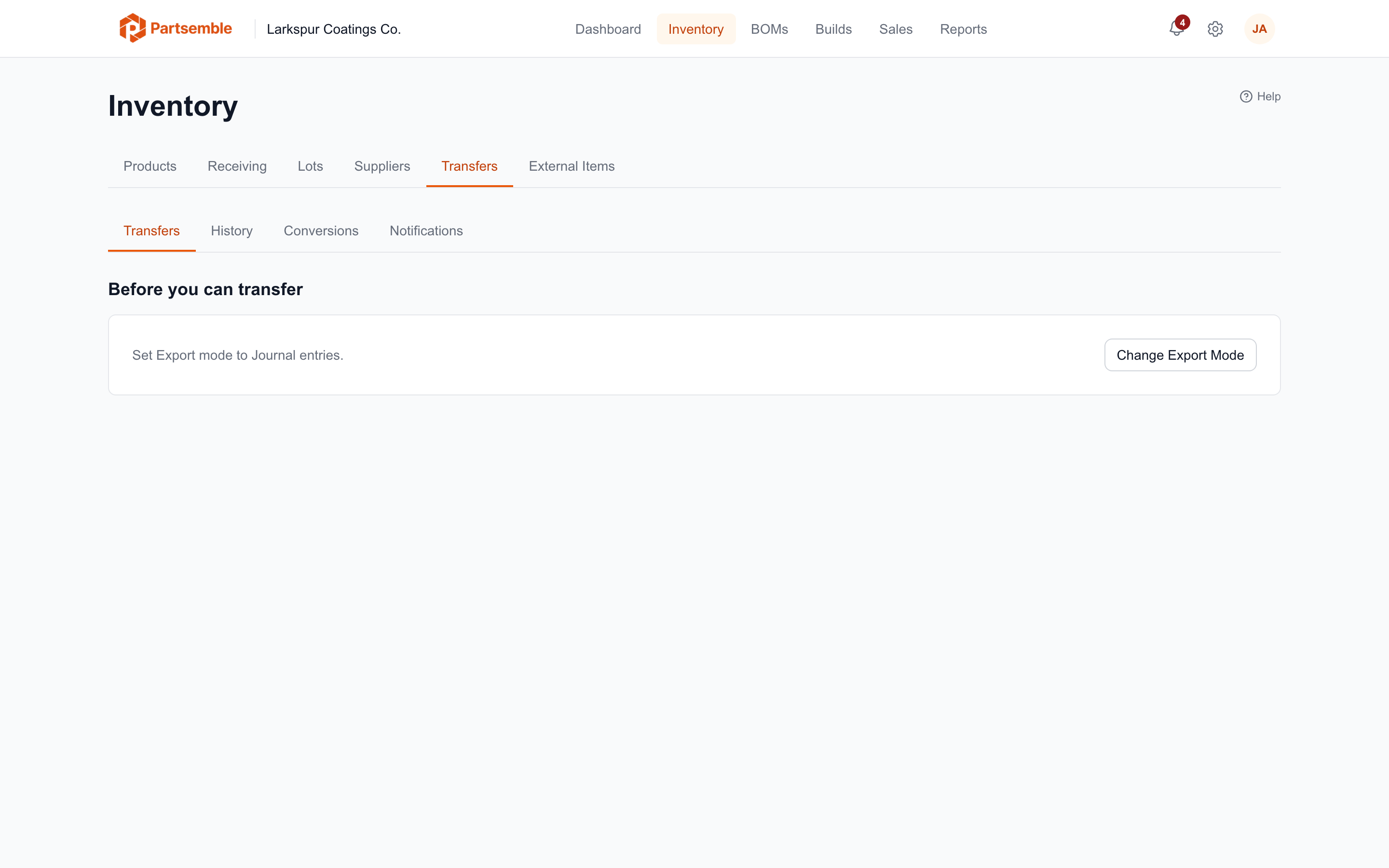
The History, Conversions and Notifications sub-tabs stay open either way, so you can set up conversions first. Someone without permission to manage the accounting connection does not see the connection lines; a submission is refused instead, with a message such as "No accounting connection. Connect one in Settings → Integrations before transferring." or "Xero cannot post inventory adjustments, so a transfer cannot relieve distribution stock."
Running a Transfer
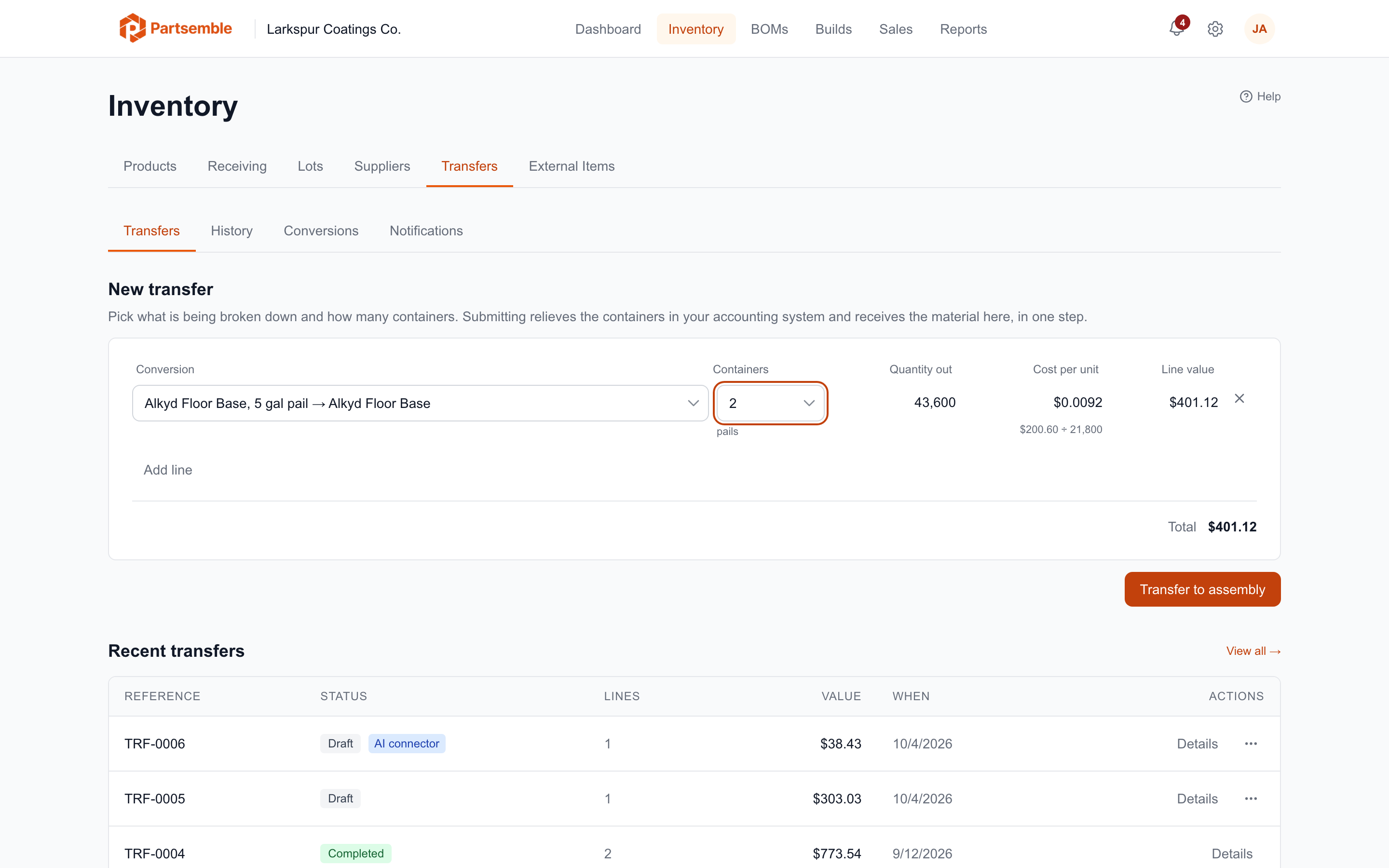
1. Open the Transfers tab
Go to Inventory → Transfers. The Transfers sub-tab opens on New transfer, with Recent transfers below it.
2. Pick a conversion
Click Search conversions... and type part of the item or product name, then pick the conversion. Each one reads as the container and the product it yields, such as Alkyd Floor Base, 5 gal pail → Alkyd Floor Base. Only active conversions are offered.
3. Enter how many containers to break down
Type the number in Containers. The container's name shows under the field, such as "pails". Partsemble prices the line as you type:
- Quantity out is containers × yield: 2 pails × 21,800 = 43,600.
- Cost per unit is the container's purchase cost divided by its yield, and the line under it shows where it came from: $200.60 ÷ 21,800 gives $0.0092 a gram.
- Line value is quantity out × cost per unit, and Total adds up every line.
Click Add line to break down another container in the same transfer, and the × at the end of a line to remove it. One conversion can appear on only one line; if it appears on two, Partsemble asks you to combine them.
If an external item has no purchase cost, the line is not priced and a message names the item: set a cost on the item in QuickBooks Online, run an item sync and try again. Without a cost the lot would come in at zero and every build using it would be undercosted.
4. Click Transfer to assembly
Partsemble runs three steps, in this order:
- Relieves distribution stock — an inventory adjustment in QuickBooks Online takes the containers out, against the clearing account.
- Receives the material into assembly inventory — a confirmed receipt here, with a lot for each line at the computed cost.
- Makes the journal entry — moves the value out of the clearing account and into your Receiving Export — Debit Account, where your assembly inventory is carried.
There is nothing to confirm afterwards and no receipt to finish.
What Happens Next
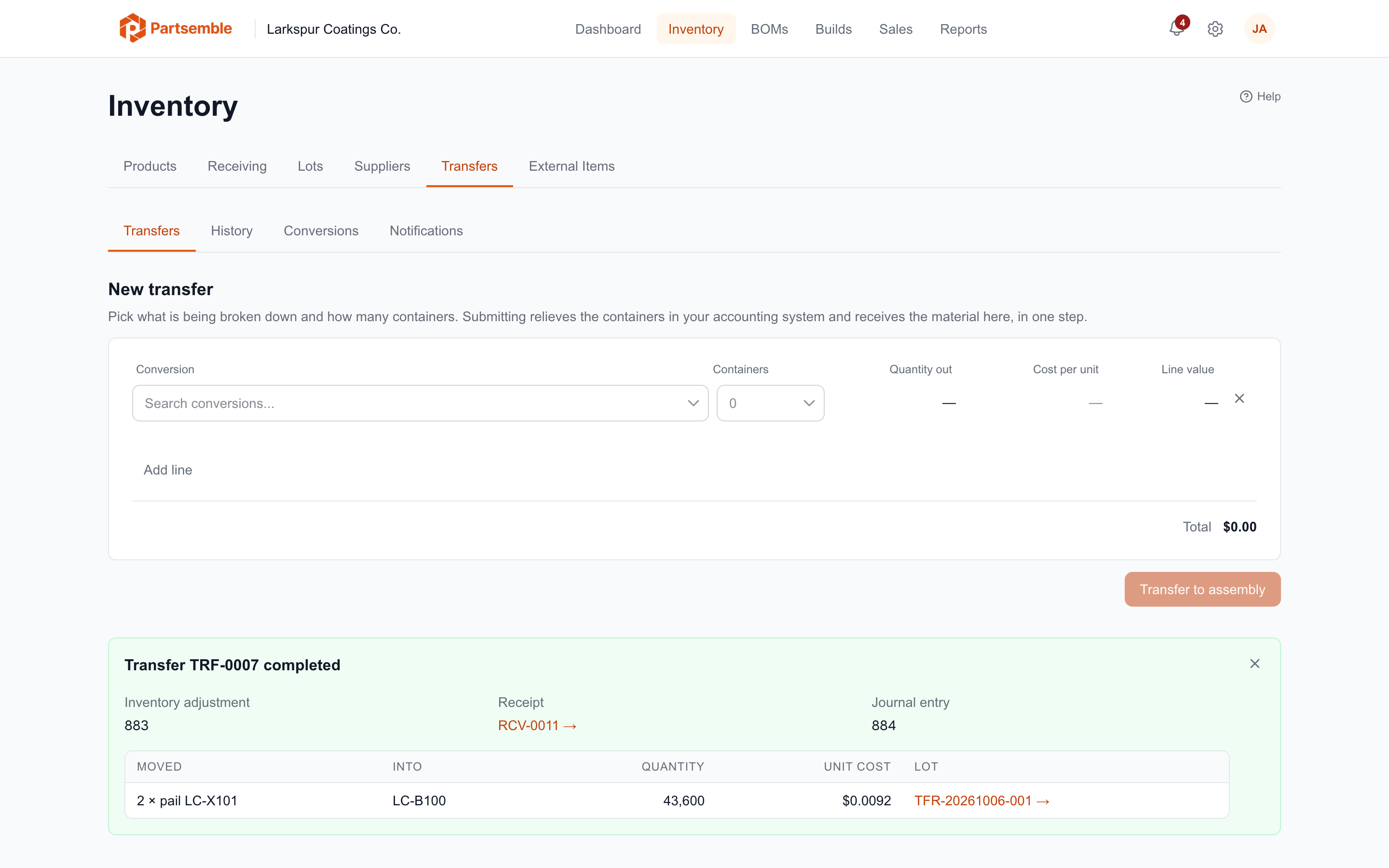
The builder empties, and a green panel under it reads Transfer TRF-0007 completed (each transfer is numbered TRF-0001, TRF-0002 and so on). It shows the Inventory adjustment and Journal entry IDs in QuickBooks Online, a link to the Receipt, and a table of what moved: the containers taken, the product they went into, the quantity, the unit cost and the new lot. Larkspur's 2 pails of Alkyd Floor Base read "2 × pail LC-X101" into LC-B100, 43,600 at $0.0092, on lot TFR-20261006-001, with inventory adjustment 883, receipt RCV-0011 and journal entry 884.
- The lots. Each line's lot is numbered
TFR-YYYYMMDD-NNN, such asTFR-20261006-001, and is listed on the Lots tab. Builds consume it oldest first, at the cost it came in at. See FIFO Consumption. - The receipt. It is a Transfer to Assembly receipt, numbered like a purchase receipt (RCV-0011, for example). It is not on the Receiving list, which lists purchase receipts only. Its export is the transfer's third step, so it offers neither Mark as Exported nor Mark as Not Exported.
- QuickBooks Online. The inventory adjustment's reference is
PSB-followed by the transfer number, such asPSB-TRF-0007, and its memo links back to the transfer in Partsemble. - The email. Every active address on the notification list gets an email listing what to move. See Transfer Notifications.
Transfer History
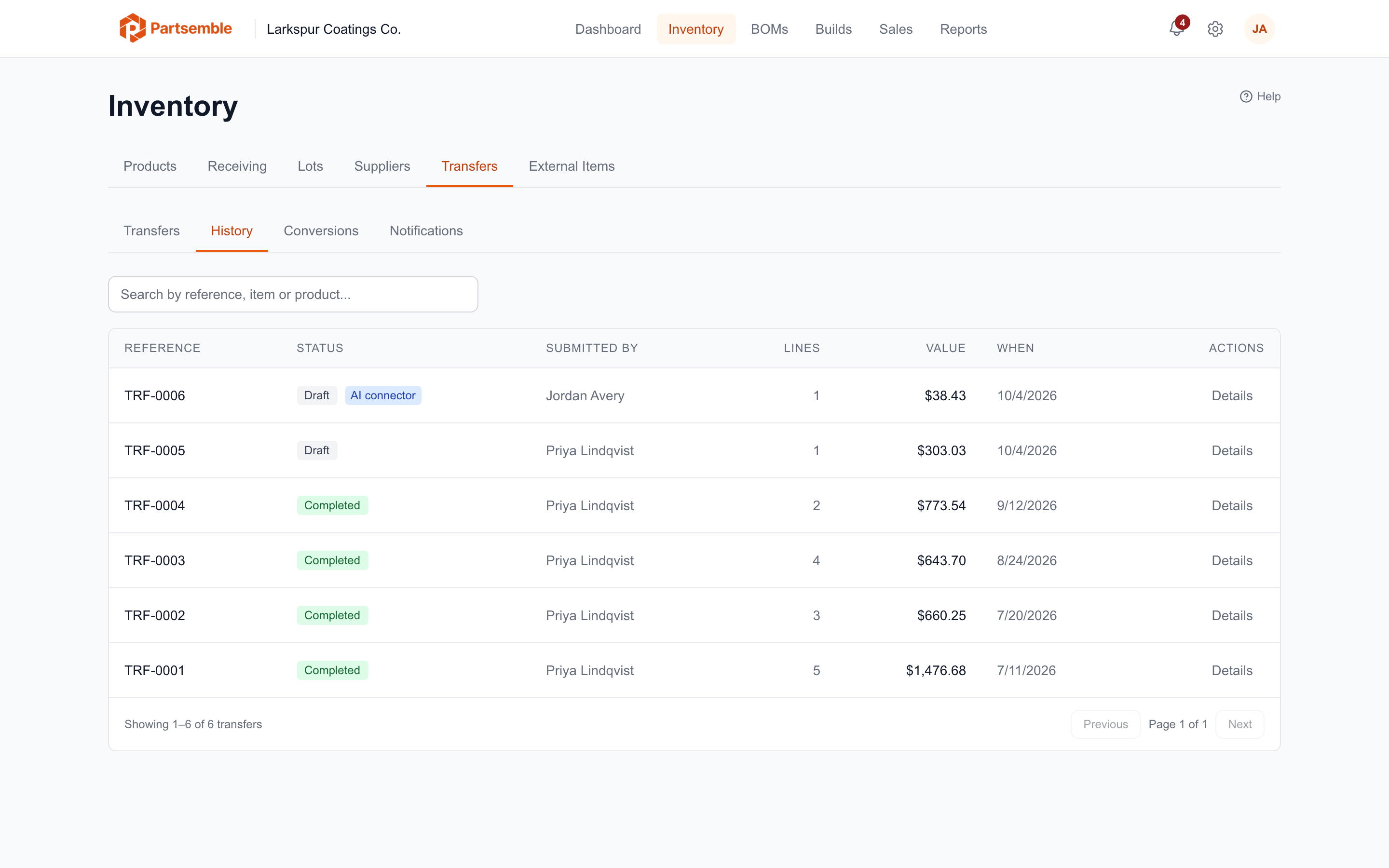
Recent transfers, on the Transfers sub-tab, shows the last ten. Its View all link opens the History sub-tab: every transfer, 25 to a page, with Reference, Status, Submitted by, Lines, Value and When. Search with Search by reference, item or product... to find, for example, every transfer that broke down Oil Stain Base.
A transfer's status is one of:
| Status | Meaning |
|---|---|
| Draft | Written down but not run. Nothing has left distribution stock and nothing is in your books. See Draft Transfers. |
| Processing | Running now. One that stays Processing stopped before it finished; its detail offers a retry (see the caution under When a Transfer Fails). |
| Completed | All three steps done. |
| Failed | A step failed. See When a Transfer Fails. |
Click a row, or its Details button, to open the transfer. On the Transfers sub-tab, a recent row opens the same detail without leaving the tab.
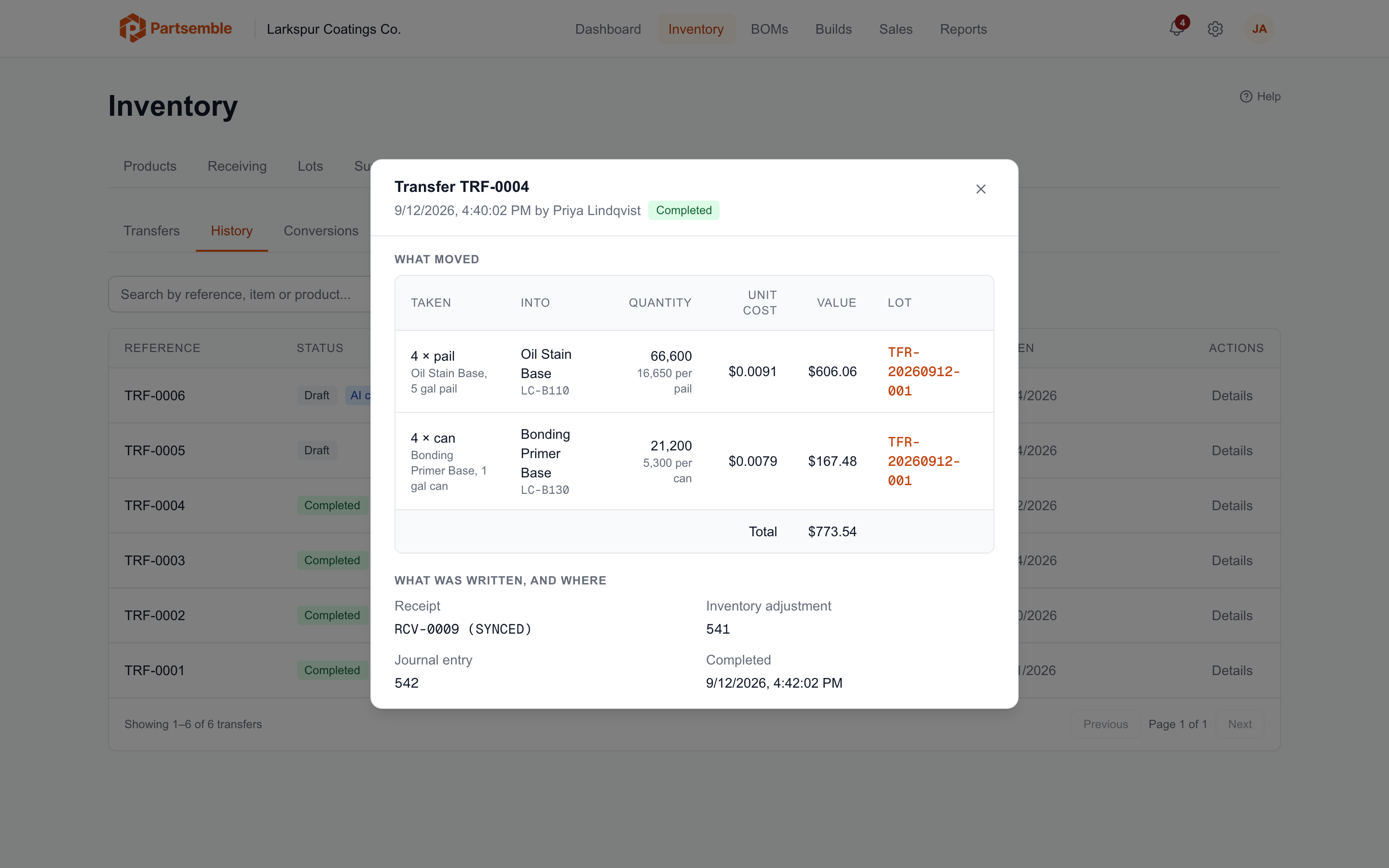
The detail has two parts:
- What moved — for each line, the containers taken, the product they went into, the quantity with the yield it used (16,650 per pail), the unit cost, the value and a link to the lot.
- What was written, and where — the receipt, the Inventory adjustment and Journal entry IDs in QuickBooks Online, and when it completed. A step not yet done reads "Not posted".
The QuickBooks Online memo on the inventory adjustment links to this detail, so an accountant reading the books can open the transfer behind an entry.
When a Transfer Fails
A transfer that fails partway keeps every step that already finished, and its status is Failed. The panel under the builder reads Transfer TRF-0007 did not finish and names the step it stopped at, such as "It stopped while receiving the material into assembly inventory", with the reason. The transfer's detail says the same in a Stopped at: heading.
If the inventory adjustment is already in QuickBooks Online, the material has left distribution stock, and the transfer's value is sitting in the clearing account. Partsemble says so, with the amount. That balance is deliberate: it shows in your books until the transfer finishes, so a half-done transfer cannot go unnoticed.
To finish it, fix the cause (reconnect QuickBooks Online, choose the missing account), then click Retry from where it stopped in the panel, Retry from the failed step in the detail, or Retry in the recent row's More actions menu. A retry skips every step already recorded, so an inventory adjustment Partsemble holds the ID of is not made again.
Retry from one place at a time: not from the detail and the Transfers sub-tab at once, and not from two browser tabs or two people. Before you retry a transfer that stopped while relieving distribution stock, or one that stays Processing, look in QuickBooks Online for an inventory adjustment with the reference PSB- and the transfer's number (PSB-TRF-0007). If QuickBooks Online accepted the adjustment but Partsemble never heard back, Partsemble has no ID for it, and a retry would relieve the containers a second time.
Do not void a transfer's receipt. A transfer whose receipt was voided cannot be resumed, because the distribution stock has already been relieved. Create a new transfer only if the material was not received.
Draft Transfers
A draft transfer is a transfer written down but not run: nothing has left distribution stock and nothing is in your books. Drafts come from the AI connector when you ask Claude to draft a transfer. You cannot start a new draft in Partsemble; a transfer you build on the Transfers sub-tab runs when you submit it.
A draft shows in History and in Recent transfers with a Draft badge, and with an AI connector badge when an assistant made it. Hovering over that badge reads "Drafted through the AI connector (Claude)".
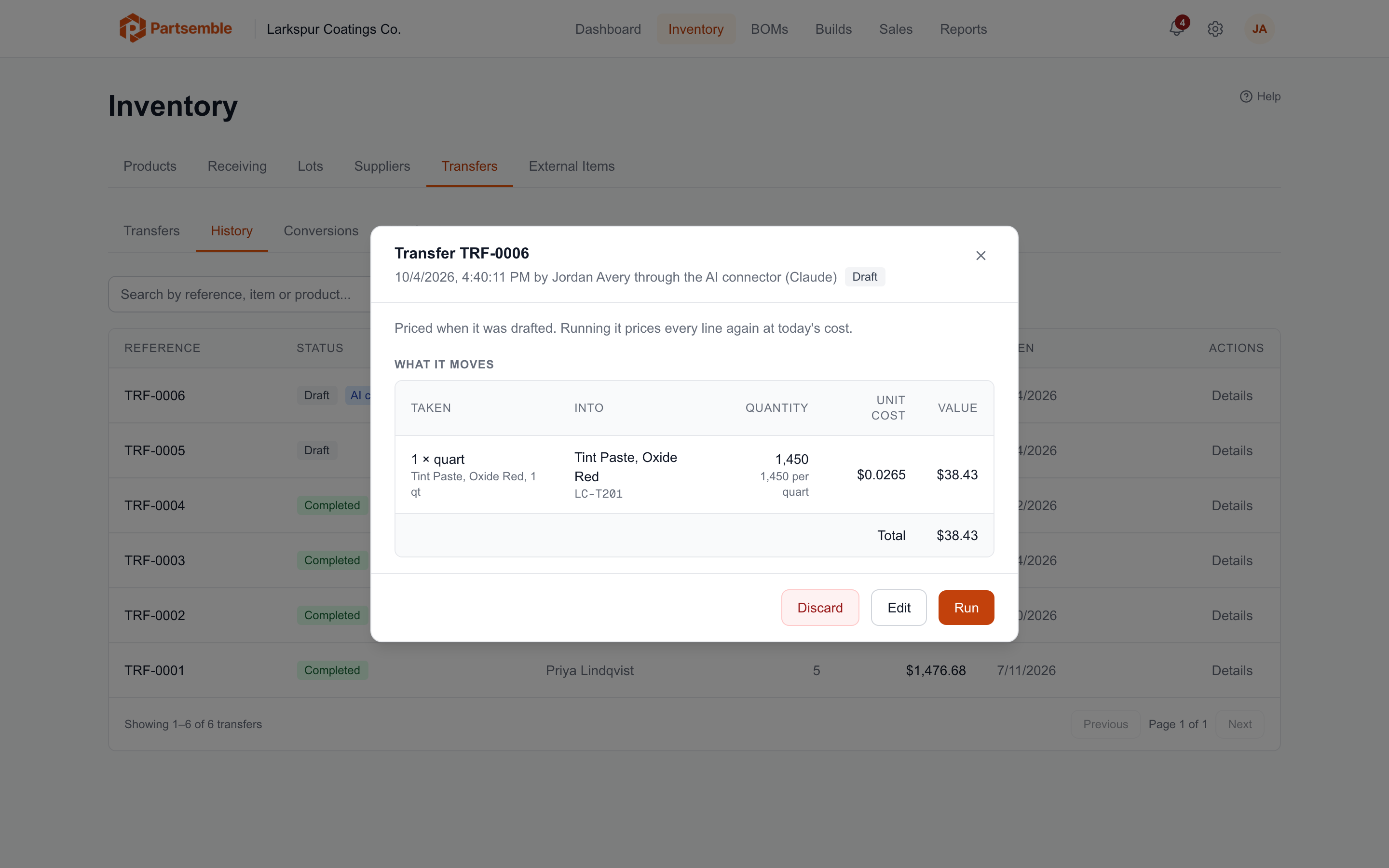
Open a draft to see who made it and how, such as "by Jordan Avery through the AI connector (Claude)", and What it moves, priced when it was drafted. It offers three buttons:
- Run — prices every line again at today's purchase cost and conversion, then runs the transfer as usual. A draft written last week runs at this week's cost: if the pail's cost in QuickBooks Online went up since, the transfer uses the new cost.
- Edit — opens the draft on the Transfers sub-tab, headed Draft transfer TRF-0006, with "Drafted by Jordan Avery through the AI connector (Claude) on 10/4/2026." and its lines filled in. Change the lines, then click Run transfer to save and run it, Save draft to keep the changes, Discard to delete it, or Cancel to return to an empty builder without changing it. In a recent row's More actions menu, Open draft does the same.
- Discard — deletes the draft after you confirm "Discard draft TRF-0006?". Nothing reached your books, so nothing needs reversing.
A draft is run with Run, never retried. If the transfer cannot run (Export mode set to Inventory adjustments, no accounting connection, a Xero connection, or a conversion deactivated since), Run says why and the draft stays a draft. While one of the settings is missing, Edit lands on Before you can transfer; the draft can still be run from its detail once that clears, or discarded at any time. If someone else ran or discarded the draft first, Partsemble says "This transfer is no longer a draft."
Setting Up Conversions
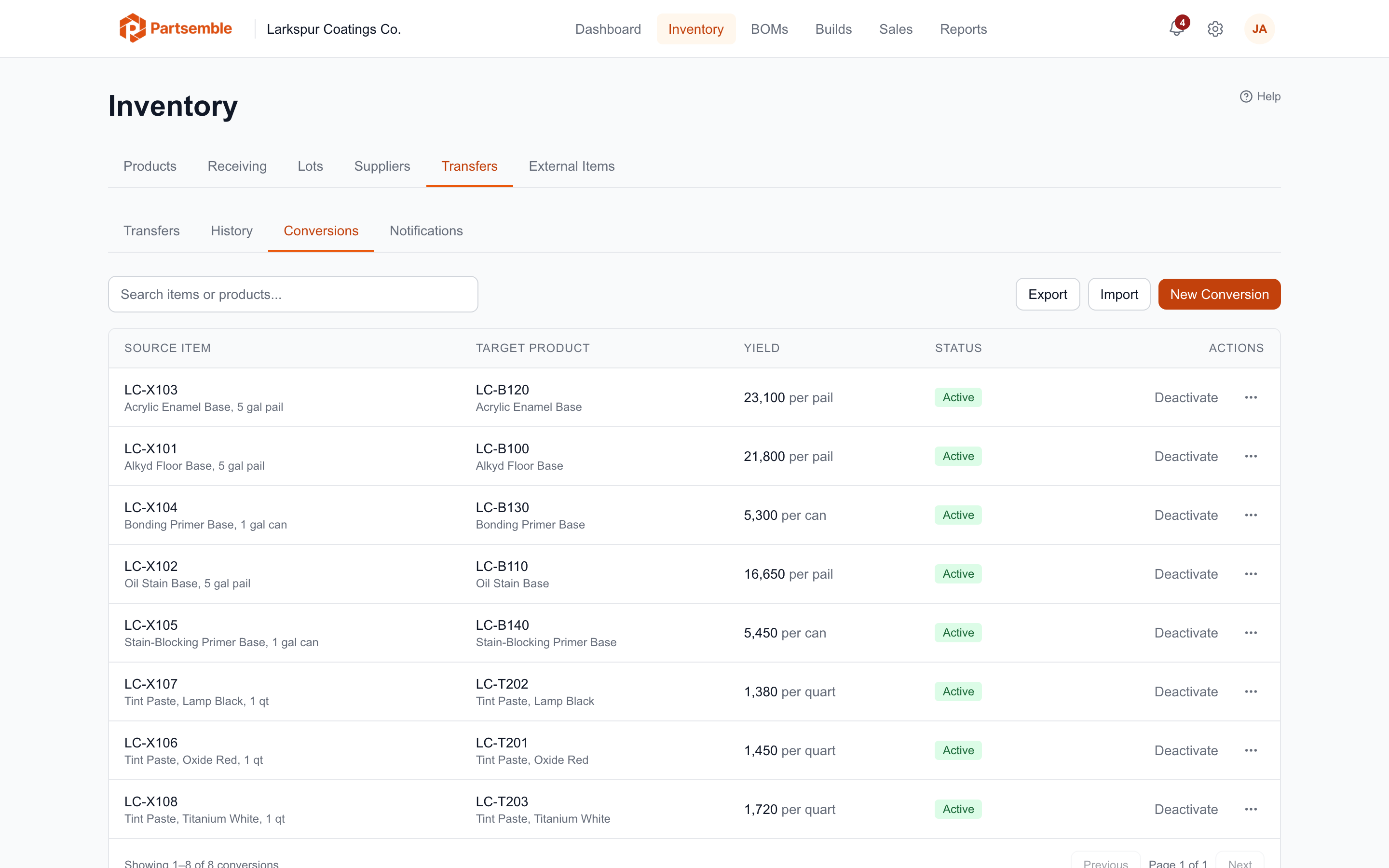
The Conversions sub-tab lists each conversion's Source Item, Target Product, Yield (such as 21,800 per pail) and Status. Set one up once per container and product, then leave it.
To add one:
- Click New Conversion.
- Pick the Source item, the external item you buy. Search with Search external items....
- Pick the Target product, the product your BOMs consume.
- Enter the Yield, how much of the target product one container gives, in the unit your BOMs use.
- Enter the Container unit, what one container is called: pail, can, quart, case. The line under the fields reads the conversion back, such as "Reads as: one pail yields 21,800 units of the target product."
- Click Create Conversion.
A one gallon can and a five gallon pail of the same material are two external items, so each gets its own conversion.
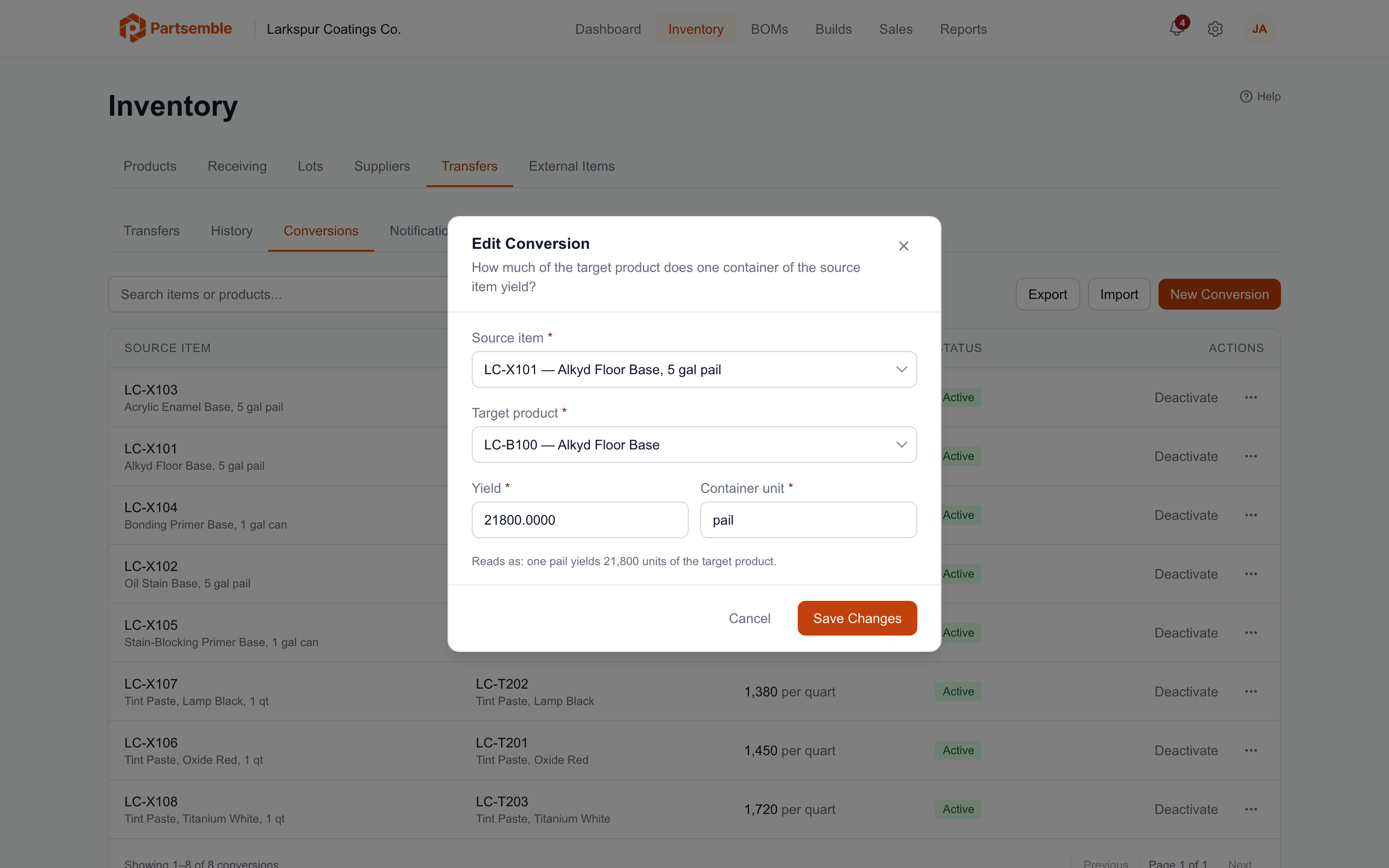
Correcting a conversion. Click a row to open Edit Conversion, change the yield or the container unit and click Save Changes. Each transfer records the yield and unit cost it used, so a correction changes future transfers and leaves past ones as they were.
Standing one down. Deactivate takes a conversion out of the builder; Activate brings it back. Delete, in the row's More actions menu, works only for a conversion no transfer has used; for one that has, deactivate it so the transfer's history stays readable. If an external item is no longer active in QuickBooks Online, its row carries an Item inactive badge and the tab warns that transfers using it will fail until the item is reactivated or the conversion is pointed at another item.
Many at once. Export downloads every conversion as a spreadsheet, and Import uploads a CSV or Excel file with the columns source_item_sku, target_product_sku, output_quantity and optionally source_unit_label. A row for a pair that already has a conversion updates its yield, so you can export, edit and upload back. Both SKUs must already exist; the import never creates products or external items.
Transfer Notifications
The Notifications sub-tab holds the addresses emailed when a transfer completes. Recipients do not need to be Partsemble users; any email address works. Enter an address and click Add.
The email is titled "Material to move: transfer TRF-0007" and asks whoever reads it to move the listed containers to the assembly area, line by line: what to take and which product it goes into. It carries no costs, because it can go to anyone. Nothing is sent for a transfer that failed or is waiting to be retried.